


Ans. To recover deleted JPG files, you can check the recently deleted/trash folder on your device and check for a backup, if any. You can use various built-in tools for file recovery, such as version history and Time Machine on Windows and macOS, respectively. Finally, use any reliable photo recovery software.
How to Recover Deleted JPG/JPEG Files?
You are here because you’ve likely deleted the important images. Whether you accidentally hit “delete” or your SD card got corrupted, which led to image data deletion, this guide will tell you everything you need to restore your files.
We provide here immediate and expert-verified photo rescue steps for Windows, Mac, iOS, Android, and SD cards. Because this article is regularly updated with the latest 2026 software solutions and expert techniques, you are looking at the most up-to-date roadmap available to get your images back safely.
What is the Difference Between JPG and JPEG?
JPEG is the file extension that stands for Joint Photographic Experts Group. This is a bitmap compression format used for lossy compression. It is the most common extension used by digital cameras, mobiles, and other photo-sharing devices.
There is no difference between JPG and JPEG formats. The only difference is the number of characters used. Earlier versions of Windows (MS-DOS 8.3 and FAT-16 file systems) required a three-letter extension for the file names. So .jpeg was shortened to .jpg. Since UNIX and MAC did not have this limitation, their users continued using the .jpeg extension.
You can always change the extension both ways; the file will continue to work.
Is it Possible to Recover Deleted JPG/JPEG Files?
Yes. If you are wondering if you can recover deleted JPG/JPEG files, the answer is yes, you can. Technological advancements have made it possible to recover lost/ deleted photos in most cases.
If you had asked 15+ years ago, the answer would not be the same because at that time, the technology was not as advanced.
In this guide, you will see all the possible ways to restore your deleted files, including a detailed, step-by-step process.
What is JPEG Corruption VS Deletion?
JPEG corruption and deletion are distinct data loss scenarios. Deletion means the file is removed from the file system directory, but the data often remains on the drive until overwritten. Corruption means the file exists, but the internal data is damaged, due to which you are unable to open the image, or the image being opened is distorted or partially grey.
Fact: The lossless JPEG format is said to be one of the most damaging image formats tested.
Here, we will focus on how to recover deleted JPG/JPEG images.
Immediate Steps After Losing JPEG
You have accidentally deleted your JPEG file, or you are unable to find your lost JPG/JPEG file. You are thinking about what to do? How to recover deleted JPG/JPEG? What are the immediate steps one must take to prevent further damage?
Let’s guide you!
When a photo is deleted, or you find a photo missing, here are the immediate steps to take:
- Stop Using the Drive: To prevent overwriting deleted data, stop using the storage device (camera card, USB, phone, etc.) or the drive in use. Turn off the device, remove the memory card (if used), and do not take, save, or download new photos.
- Check the Recycle Bin/Trash: Next, the immediate place to check for the deleted files must be the Recycle Bin/Trash. When deleted, the files are moved to this temporary storage, where they are stored for 30-60 days.
- Check Cloud Backups: If not recycle bin/trash, check your cloud/offsite backups for the deleted data.
So, now you know what the immediate steps are after a file is deleted. Let’s move forward to understand how to recover deleted JPG/JPEG images.
How to Recover Deleted JPG/JPEG Files?
You accidentally hit “delete” on those photos, or maybe on your SD card. In most cases, your JPG/JPEG photos aren’t actually erased immediately. Your computer or phone just marks the space they occupy as “available”. As long as you don’t save a bunch of new data over them, there’s a really high chance you can get them back. That is why the #1 rule is to stop using the device immediately the moment you realise something is missing.
Whether you are on a PC, a Mac, or mobile, here is the lowdown on how to recover deleted JPG/JPEG files.
JPG/JPEG Recovery on Mobile Devices
Before you start downloading complicated software for photo recovery, remember that modern smartphones are designed with such accidental data recovery in mind. Both Android and iOS have built-in safety methods, a digital waiting room, where your deleted JPG/JPEGs reside.
In most cases, you can find it in the Trash or backups. This is the very first place you should look because recovering using built-in tools is free and fast.
Let’s look at these methods in iOS and Android one by one.
iOS (iPhone/iPad)
Recovering recently deleted photos from iPhone, iPad, and macOS is highly possible because iOS uses a “soft delete” system, where the system hides photos before permanently deleting them.
Here’s a step-by-step explainer on how to recover deleted JPG/JPEG files on iPhone/iPad.
Recently Deleted
Best for: Photos deleted within the last 30 days.
- Open the Photos app on iPhone/iPad.

- Tap the Browse tab.

- Select the Recently Deleted folder under the Utilities section.

- Use Face ID, Touch IS, or Passcode to unlock the album.

- Tap Select and choose the photos you want to recover.

- Click Options (⋮) located at the bottom right corner.

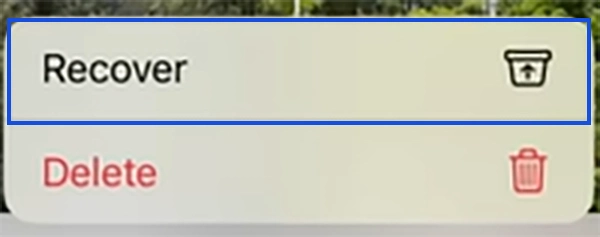
- Tap Recover to restore the selected photos to their original folder.
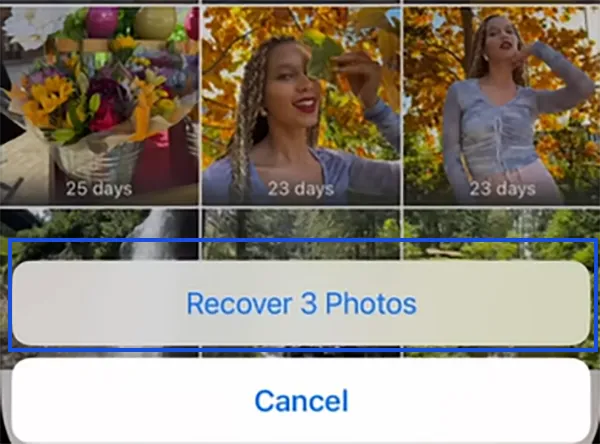
- Tap Recover x Photos to confirm.
iCloud
Best for: Photos that were synced with iCloud but deleted across devices.
- Go to iCloud.com and sign in with your Apple ID and Password.
- Tap on the Photos folder.
- Select the Recently Deleted folder from the Menu.
- Select the photos you want to restore and tap Recover.
Restoring from Full Backup (Using Finder/iTunes backup on Mac)
Best for: Finding photos deleted over 30 days ago, if you have a recent backup.
Note: This will replace all your current phone data with the older backup.
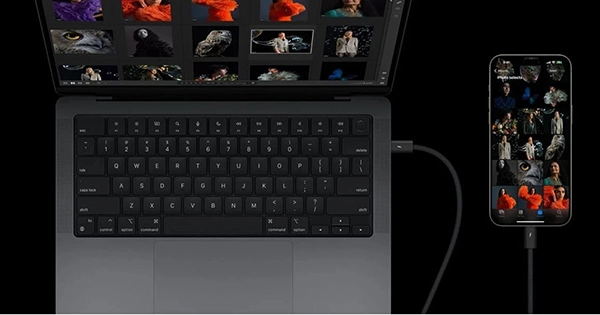
- Connect your iPhone to your Mac via USB.
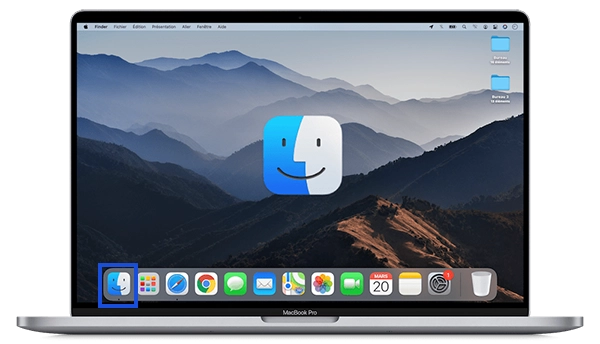
- Open Finder (or iTunes on older Macs).
- Locate and select your iPhone from the sidebar.
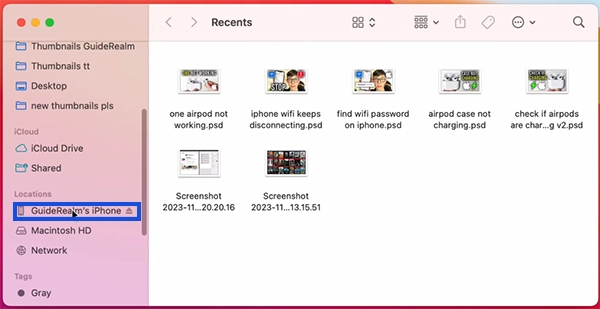
- Go to the General tab, scroll down, and choose Restore Backup….
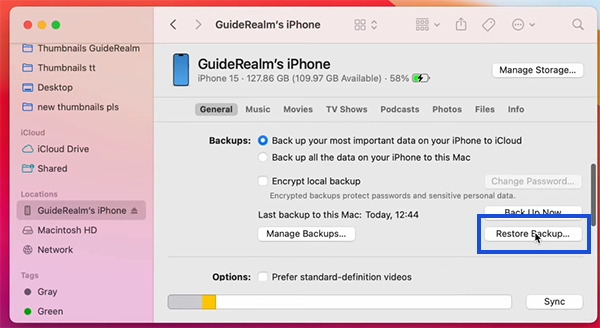
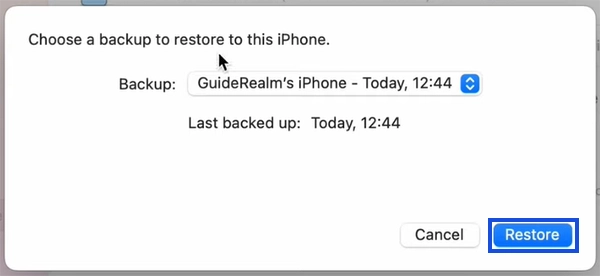
- Choose the backup to restore and click Restore.
Android
Just like iPhone/iPad, there are multiple ways to restore deleted JPG/JPEGs on Android. Each method has its place depending on the situation.
Here’s a step-by-step explainer to recover deleted JPG/JPEGs on an Android phone.
Trash
Best for: Photos deleted within the last 30 days.
- Open Files by Google on your Android device.

- Tap the Menu (☰) icon on the top left corner of the screen.

- Select the Trash (🗑) folder to see all the recently deleted files.
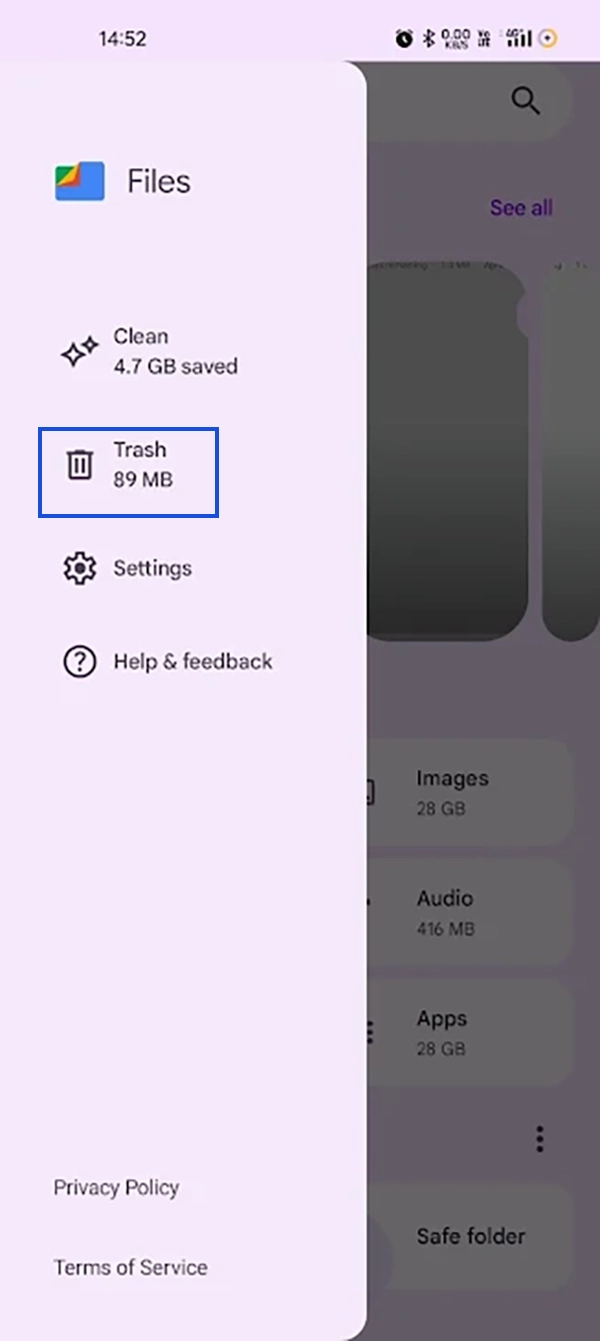
- Choose the deleted JPG/JPEGs to recover and tab Restore at the bottom.

- Tap Restore x File(s) to confirm.

Google Photos
Best for: Photos that were synced with Google Photos but deleted from device storage.
- Open the Google Photos app on your phone.
- Tab the Collections tab.
- Open the folder that had your deleted JPG/JPEGs.
- Select the photos you want to restore.
- From the Options below, scroll right and tap the Download button.
Note: Google Photos has a Trash folder under the Collections tab that keeps your deleted photos for up to 30-60 days. To recover the files, you can select the files in the Trash and tap Restore.
(Also works on iPhone)
JPG/JPEG Recovery on Desktop Computers
Deletion from a computer is another issue that people face. Though having the option to restore from the recycle bin/trash, today’s Windows and macOS provide a few built-in methods to recover deleted JPG/JPEF files. In this section, we are going to discuss each with a step-by-step process, so you don’t have to go to a tutorial or separate guides.
macOS
macOS comes with several built-in mechanisms for restoring deleted JPG/JPEGs, ranging from temporary storage to automatic backups.
Restore Recently Deleted Items
Best for: Photos deleted within the last 30 days.
- Open the Photos app on your Mac.
- From the left panel, under utilities, select Recently Deleted (🗑).
- If the Recently Deleted album is locked, click View Album, then follow the instructions on screen to unlock the folder.
- Select the deleted photos you want to restore.
- Click Recover.
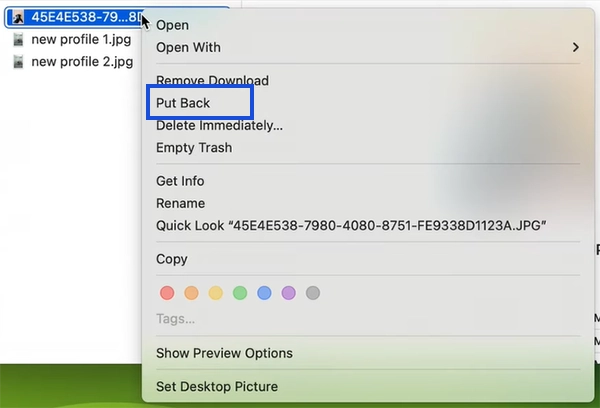
Trash
Best for: Photos deleted within the last 30 days.
- Open the Trash folder from the Dock.
- Select the files you want to restore.
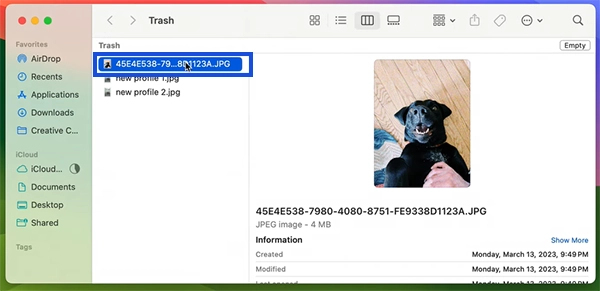
- Right-click on the file and select Put Back.
Time Machine
Best for: Permanently deleted photos on Mac.
- Connect your Time Machine backup drive to your Mac.
- Open the Photos app.
- Click on the Time Machine icon in the Menu bar.
- Select Browse Time Machine backups from the listed options.
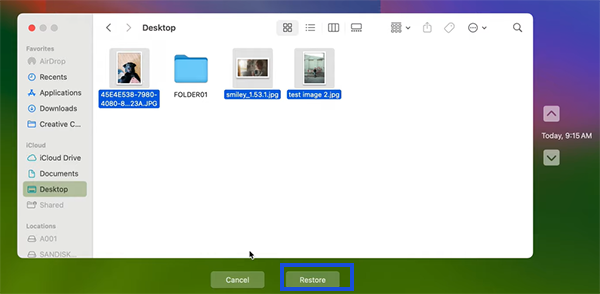
- Use the Timeline on the right edge of the screen or the arrows to navigate to the date and time when the photos were still there.
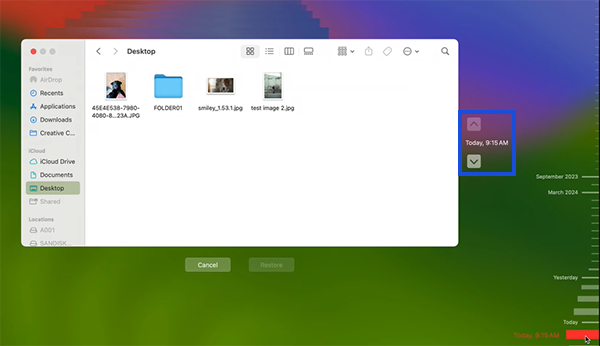
- Select the photos library or the photos you want to restore and click the Restore button at the bottom.
Windows
Windows offers several built-in features to recover deleted items, even after emptying the recycle bin. Check out this section to see how to recover deleted JPG/JPEGs on Windows using the Recycle Bin, File History, and OneDrive backup.
Recycle Bin
Best for: Photos deleted within the last 30 days.
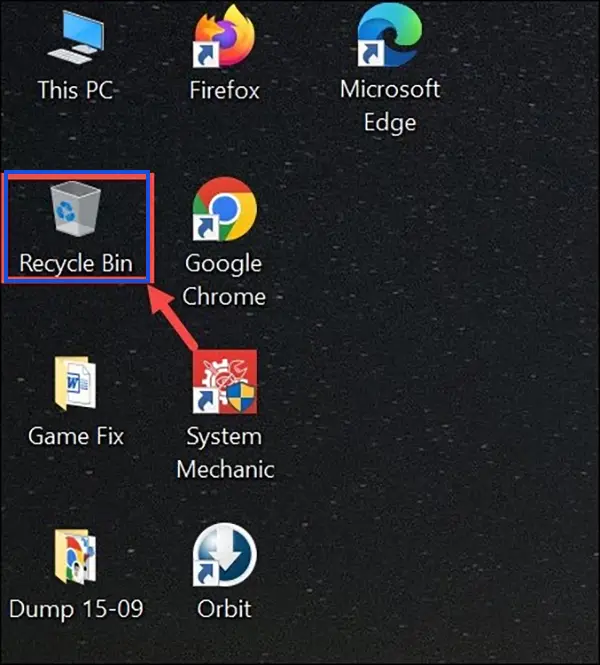
- Open the Recycle Bin by double-clicking the icon on the desktop.
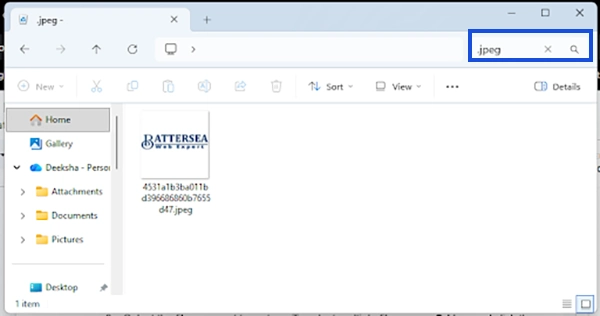
- Search for “.JPG” or “.JPEG” files in the search bar located at the top right.
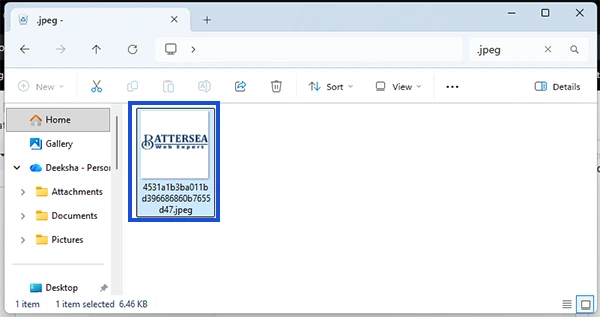
- Select the file you want to restore. To select multiple files, press the Ctrl key and click the files.
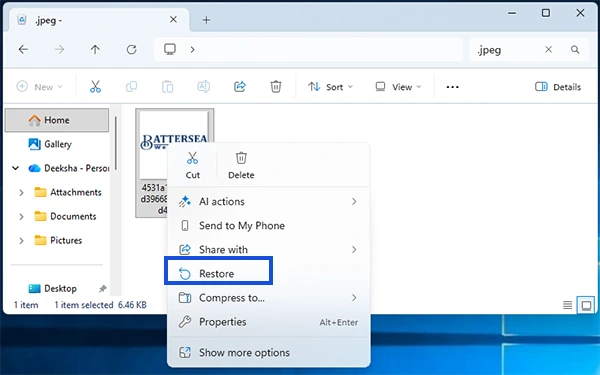
- Right-click on the file and select the Restore option.
File History
Best for: Photos permanently deleted or overwritten, provided the feature was turned on.
- Click Start and search for “Restore your files with File History” and press Enter.
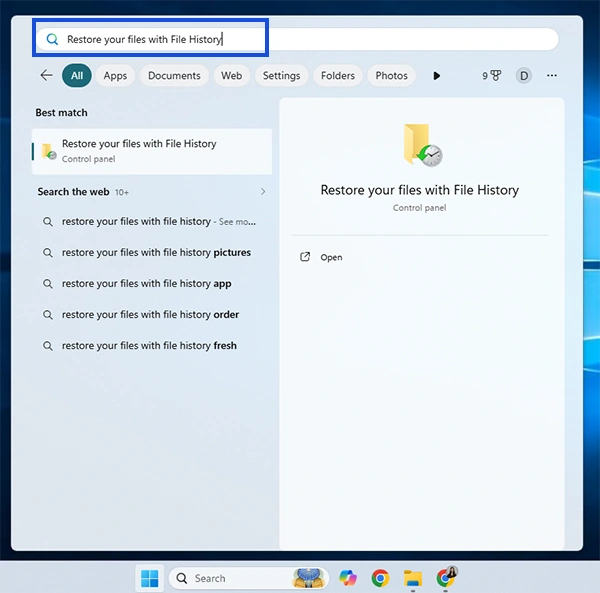
- Navigate to the folder containing your deleted JPG/JPEG(s).
- Go to the desired date using the arrow keys to find your deleted photos.
- Select the files you want to recover.
- Click the green Restore button.
OneDrive Backup
Best for: Photos that were synced with OneDrive but deleted from device storage.
- Go to the OneDrive website and sign in using your Microsoft account.

- Click the Recycle Bin from the left side panel.
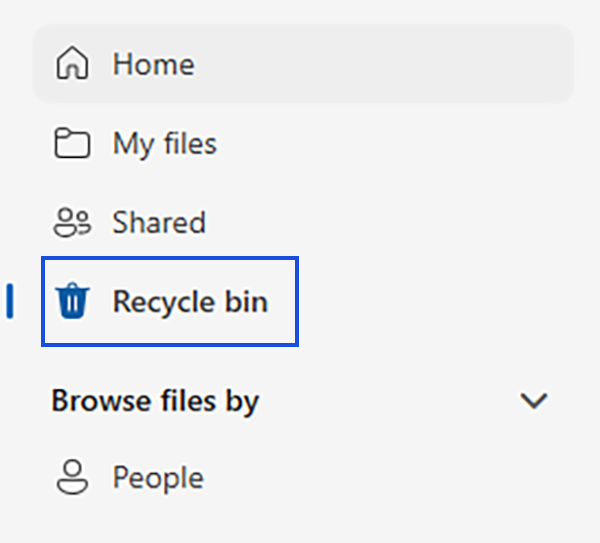
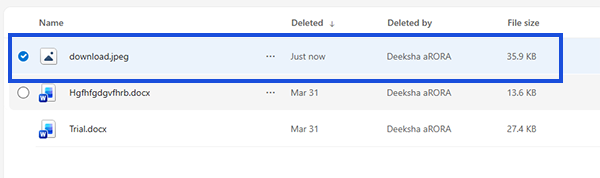
- Check the files you want to recover.
- Click the Restore button at the top to recover the JPG/JPEGs to your device.
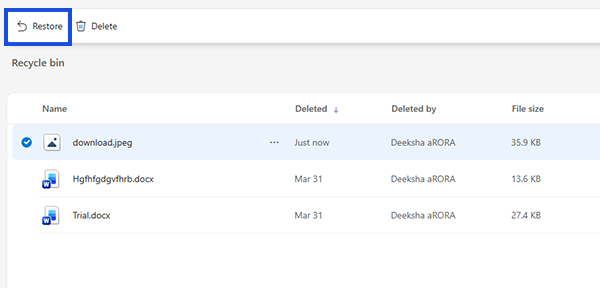
Note: This was only possible if the OneDrive sync was enabled.
JPG/JPEG Recovery from External Media (SD Cards & USBs)
Deleted pictures from SD Cards and USBs can’t be recovered from the PC/Mac since the OS doesn’t remember the external media after removal. So if your SD card is not backed up, this section explains how to restore deleted JPG/JPEG files from external media, be it SD Cards or USBs.
SanDisk RescuePRO
RescuePRO is recovery software for digital media that you can use to restore deleted images from the SanDisk USB drives, SD, microSD, and CFexpress cards.
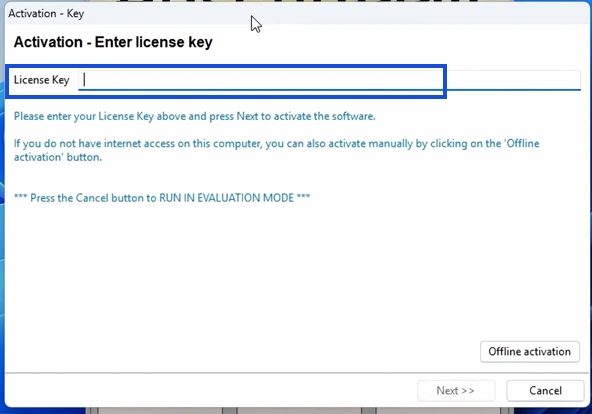
Note: The free demo/trial allows you to scan the SD card, see a preview of recoverable files, but only saves the first 25 recoverable files. However, a one-year license is included for free with the purchase of premium SanDisk memory cards. (The RescuePro License Key will be on the back of the package, or inside on an insert.)
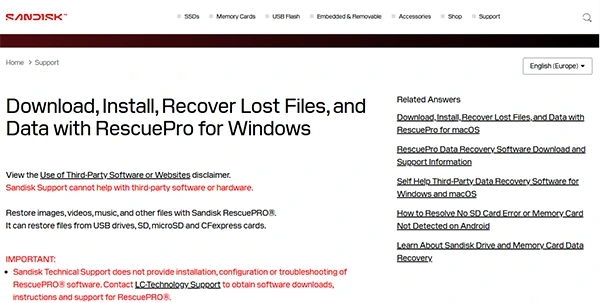
- Go to the SanDisk support page and download the program.
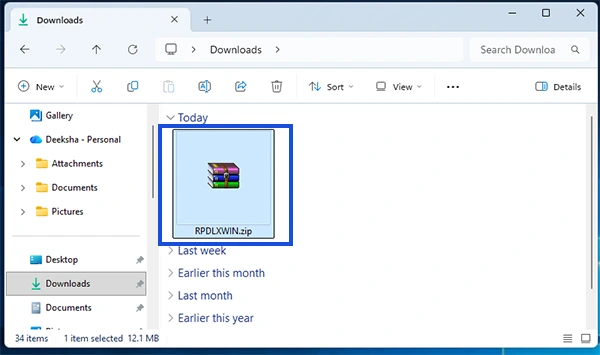
- Open your Downloads folder in the File Manager and double-click the RPSTDWIN.zip to extract.
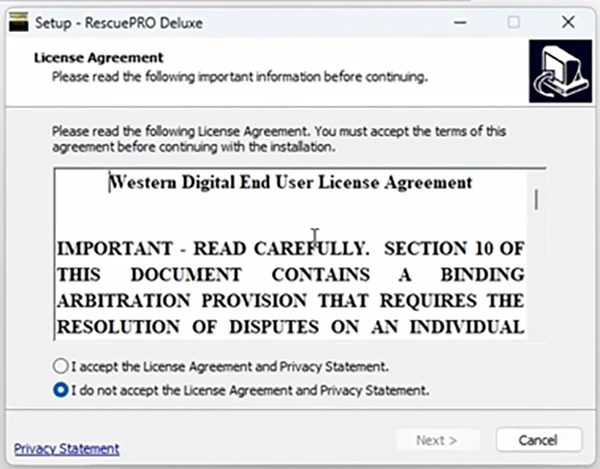
- Go through the installation, and then launch it.
- Enter the licence key and click Next to activate it.
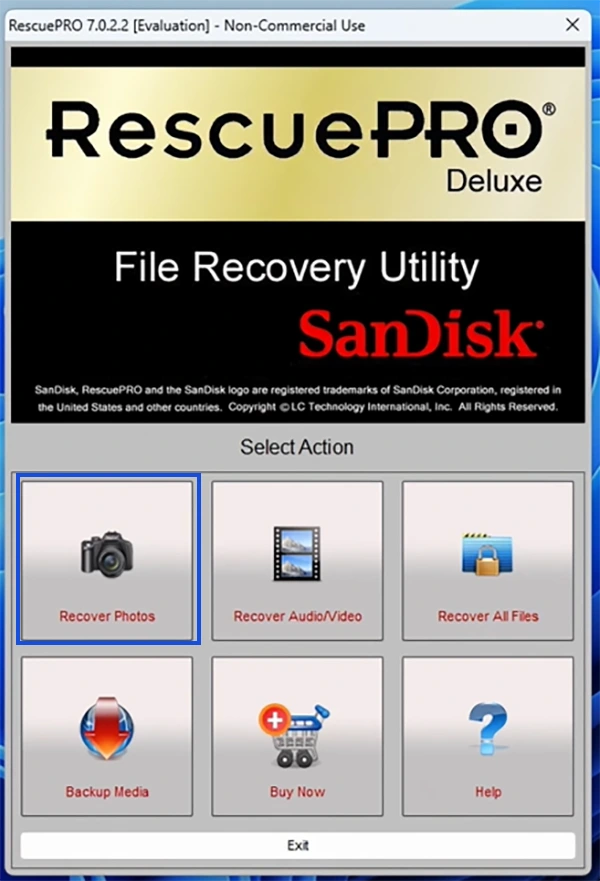
- Select Action (Recover photos, all files, Photo/videos, etc.)
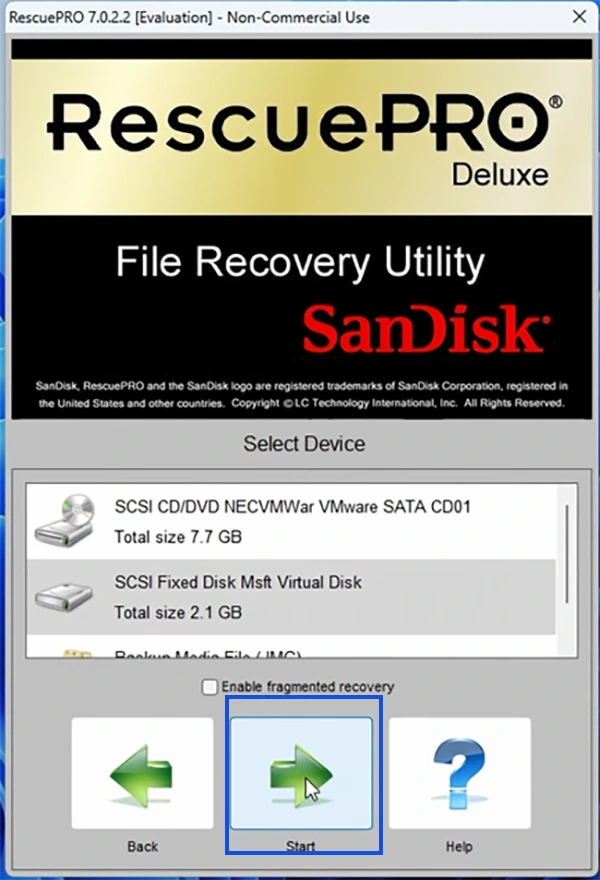
- Select your SD card and click on Start.
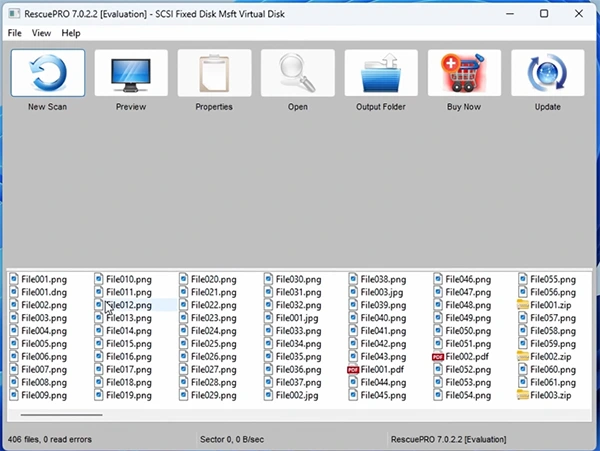
- Once scanning is complete, you can preview the file.
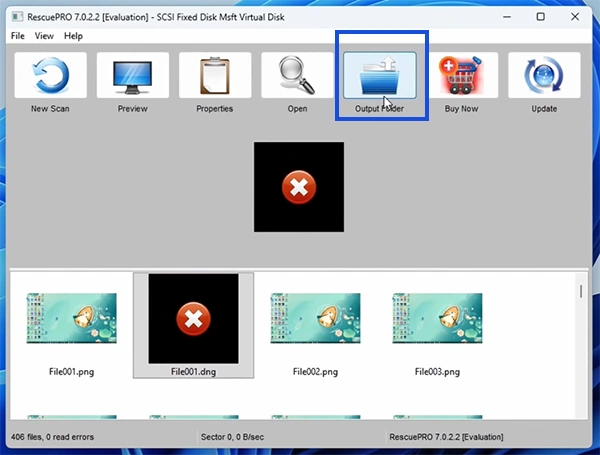
- Click on the Output Folder to see all the recovered files.
Third-Party Data Recovery Software
When none of the above-mentioned processes work, third-party recovery software is the go-to option.
When you delete an image on a device, the OS marks it as free; the image is not yet physically erased. When you delete a file or empty the recycle bin, the computer only removes the index to that file, leaving the actual data bits still stored on the file.
You can use data recovery software as per your device and recovery requirements.
Common Causes of JPEG File Deletion
Being discussed methods of deleted JPG/JPEG recovery, let’s look at the reasons that caused the files’ deletion, so that you know what not to do to prevent images from getting deleted.
- Human Error: Deleting files without checking or accidentally pressing the delete key are the most common causes of file deletion.
- Interrupting Transfers: Abruptly stopping a file transfer or disconnecting the device where files are being saved, often can be a reason you may not find your JPG/JPEG files.
- Storage Media Damage: Always choose reliable and high-quality storage media. If your storage media is damaged/corrupted, the files in it are not safe.
- Power Outages: Use a UPS (Uninterruptible Power Supply) that provides some power even after a power loss so that you can save your unsaved files. Thus, preventing file loss.
- Auto Clean on Mobile Devices: Many mobile devices have a quick cleanup that automatically detects blurred, duplicate, and unused files, and may ask you to clean up. Though without checking if you allow quick cleaning, you might lose your important files.
- Virus: Being the obvious reason for file deletion and encryption, a virus can make your files inaccessible.
Best Practices to Prevent JPG/JPEG Deletion
Now that you know how to recover deleted JPG/JPEG files, it’s important to follow certain practices to avoid file deletion in the future. Let’s explore best practices to prevent JPG/JPEG deletion.
- Back Up Regularly: Keeping your backup on automatically backs up your file, preventing permanent loss of files if deleted.
- Use Reliable Storage: Replacing old drives and using only trusted brands’ storage decreases the chances of storage corruption and unwanted file deletion.
- Regular Software Updates: Keep your OS and applications updated to patch security vulnerabilities and minimize bugs that could corrupt or delete files.
- Use the 3-2-1 Backup Strategy: Keep at least 3 copies of your data, on 2 different storage media, and 1 off-site copy, so that you always have a file backup in any case of deletion.
Conclusion
Recovering deleted JPG/JPEGs is easy when you know the right methods and steps to recover them. This Datafixus guide explains all the possible methods to recover deleted photos from iPhone/iPad, Android, Windows, and Mac. Now that you know how to recover deleted JPG/JPGs, use the discussed methods to get back your important photos. Happy digital recovery!
Frequently Asked Questions (FAQs)
How to recover deleted JPG files?
Can I recover permanently deleted photos from Android?
Ans. Yes, you can recover permanently deleted photos from Android using the backup. In case there is no backup, you can make use of any photo recovery tool.
How long does Google Photos keep deleted photos?
Ans. Google Photos keeps deleting items in the Trash for 60 days if they were backed up before deletion, and 30 days for items that were not backed up.
Will deleted photos be gone forever?
Ans. No, deleted photos are not necessarily gone forever immediately. They are moved to the Recycle Bin for 30-60 days. Even after emptying this folder, the files remain in the storage until overwritten.
Where is the gallery Recycle Bin?
Ans. The Recycle Bin/Trash on Android can be found by opening the gallery, tapping the Menu icon, and then selecting the Recycle Bin. On iPhone/iPad, you can find the Recently Deleted by opening the Photos app, going to the Albums tab, and selecting Recently Deleted.
What is the recovery software for JPEG photos?
Ans. For JPEG photo recovery, you can use the top photo recovery software, PhotoRec, Recuva, and R-Photo.
How to recover deleted photos after deleting from the recently deleted?
Ans. Recovering photos deleted from the “Recently Deleted” folder requires using Backup, as they are removed from the device. Immediate steps include checking iCloud/Google Photos for deleted photos.
Support:
Recover deleted photos or videos – Apple Support
Recover deleted files on iCloud.com – Apple Support
Restore your Mac from a backup – Apple Support
Restore recently deleted photos & videos – Google Support
Restore deleted files or folders in OneDrive – Microsoft Support
Related Blogs
You Might Also Like
8 min read
Hard Drive Repair: How to Diagnose, Fix, and Recover Data From a Failing Drive Hard drive repair is the process of fixing a broken (logically or physically) storage drive to get your files back.…
Data Recovery
August 13, 2026
8 min read
How to Recover Files After Shift+Delete? Data Recovery Hacks We were browsing Reddit recently and noticed that the forums are packed with people asking queries like: “Need advice on…
Data Recovery
August 11, 2026
8 min read
How to Recover Data from Hitachi Drive? Data recovery from Hitachi drive (now often HGST/Western Digital) requires a cautious approach, especially if the drive makes unusual noises.…
Data Recovery
August 11, 2026

8 min read
What is Data Recovery Agent (DRA)? Windows EFS & BitLocker Recovery Guide Data Recovery Agent (DRA) is a designated Windows user account authorized to decrypt data encrypted by other users or the…
Data Recovery
August 7, 2026

8 min read
What Is DIY Data Recovery and How Does It Work? Your file is accidentally deleted, or let’s assume there was some software issue and you cannot get your files back.…
Data Recovery
August 5, 2026
8 min read
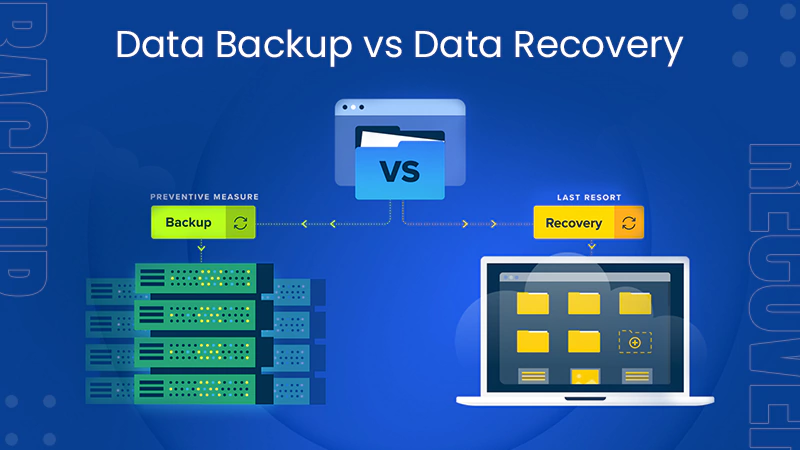
Data Backup vs Data Recovery: What’s the Difference and Why Does It Matter? Assuming that your data is secure just because you clicked “backup” is not right. Many organizations learn too late that…
Guides
August 5, 2026