


A Data Recovery Agent, also known as DRA, is an administrative user account in Windows authorised to decrypt files or storage drives encrypted by other users. It serves as a centralised cryptographic security wall using which the company can retrieve corporate information back if individuals lose their access credentials.
What is Data Recovery Agent (DRA)? Windows EFS & BitLocker Recovery Guide
Data Recovery Agent (DRA) is a designated Windows user account authorized to decrypt data encrypted by other users or the network. In simple words, it is the master key that can unlock all your locked data on Windows.
This guide explains the role of a DRA in unlocking both file-level security via Windows EFS and BitLocker. By the end, you will learn all about data recovery agents and how they work in Windows.
Why trust this guide? This guide is written by an experienced IT systems admin expert and is actively updated for 2026. The content reflects the latest Windows 11 Enterprise deployment standards. We make sure you get accurate and field- tested recovery strategies.
What is Data Recovery Agent (DRA) in Windows?
A data recovery agent is a specialised user account to decrypt files or drives that were locked by another user. When a user encrypts a file or drive using Windows encryption, the system automatically encrypts the data’s secret key using DRA’s public key. This way, two different keys can unlock the data: the original user’s key and the DRA’s master key. If an employee leaves the company or forgets their password, a network administrator logs into the DRA account to restore access to the locked information.
Without a DRA policy in place, if you lose your encryption key, the data is gone forever.
Note: In Windows XP Professional, Windows 7, Windows Server 2003, and Windows Server 2008 R2, there is no default DRA.
Let’s move on to see how Windows splits this recovery role between file-level and drive-level security.
How Data Recovery Agent Works to Unlock Encrypted Data?
Windows uses a dual-key architecture to prevent permanent data loss when the primary user credentials fail. When encryption is enabled, Windows generates a key to scramble the data. It then encrypts the key twice.
A Data Recovery Agent in Windows depends on a system of mathematical key pairs to ensure that data remains accessible even when primary credentials are lost.
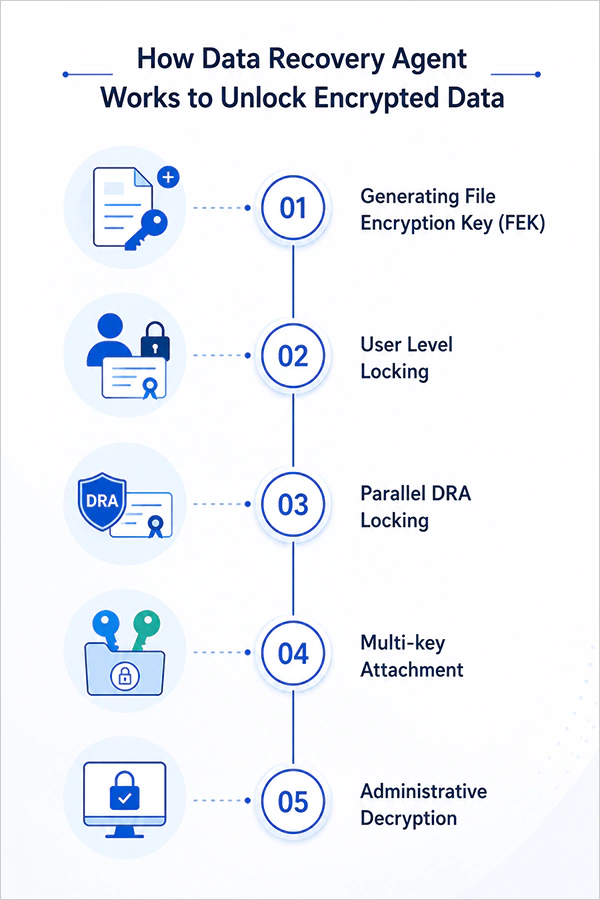
- Generating File Encryption Key (FEK): When data encryption is triggered, Windows generates a unique key that is used to scramble the actual files.
- User Level Locking: The system takes this symmetric key and encrypts it using the primary user’s public certificate. So now it is accessible via their standard login or password.
- Parallel DRA Locking: Simultaneously, Windows identifies the configured DRA policy and encrypts a duplicate copy of the same symmetric key using DRA’s Public Key.
- Multi-key Attachment: Both encrypted versions of the symmetric key are saved directly into the metadata of the encrypted file or drive volume.
- Administrative Decryption: If the primary user account becomes inaccessible, an authorized administrator applies the DRA Private Key to file metadata. It unlocks the symmetric key and restores the data to its unencrypted state.
Why Do Organizations Need DRA?
What happens to the data if an employee in an organization leaves? Without a fallback plan, that corporate data is as good as gone. That is exactly why organizations cannot afford to skip deploying a Data Recovery Agent in Windows.
It serves as an automated insurance policy for organizations. By using DRA, three massive headaches are gone in one go:
- First, it protects business intelligence during sudden turnover. IT admins can reclaim locked files without needing the original user’s password.
- Second, it protects the data from internal mishaps, like corrupted smart cards or broken domains.
- Finally, it keeps the legal team happy as they get an auditable path to retrieve data for regulatory investigations.
Understanding Windows Encryption: EFS and BitLocker
Windows protects your data using two built-in encryption technologies: Encryption File System (EFS) and BitLocker. Both protect your information from unauthorized access. They work at completely different levels of the operating system.
Now we will explain the differences between the two methods because it is important to see how Data Recovery Agents (DRA) work with your files.
Encryption File System (EFS)
Now that we have covered the basics, let’s take a closer look at the Encrypting File System, or EFS as you’ll usually hear it called. EFS is a built-in Windows feature that works at the file level. It is tied directly to your Windows user profile and works completely transparently, i.e., Windows decrypts the files without you ever noticing. You might just be normally working, opening, editing, or saving your files while logged in. But if some other user logs onto your computer, or if someone removes the hard drive and tries to access your data, they are blocked by an “Access Denied” error.
BitLocker
Next up is BitLocker. What makes it different from EFS is that it works at the volume level. It locks your entire hard drive and protects everything from Windows operating system files to temporary caches. It is the best option to try to stop data theft or the risk of stolen or inappropriately decommissioned computers.
BitLocker communicates with the Trusted Platform Module (TPM) security chip on your motherboard. If everything looks good, it unlocks your drive automatically. But if anything suspicious is detected, it locks the drive.
The Role of DRA in Both Encryption Methods
So, where does our Data Recovery Agent come into play here? Every single time a user encrypts a file using EFS, Windows checks your network’s Group Policy to see if a DRA is set up.
If it finds one, Windows takes the secret key that scrambles your file and locks up a duplicate copy of it using DRA’s public key certificate. Then the recovery data is put into the file’s hidden properties. So in case the user’s profile gets completely corrupted tomorrow, the Data Recovery Agent’s private key can secure them out.
Let’s move to see how full-drive encryption handles its own recovery process using a DRA.
BitLocker follows a different recovery model. Instead of using an EFS-style DRA, BitLocker protects an entire drive through key protectors such as the Trusted Platform Module (TPM), PINs, startup keys, and recovery passwords.
In enterprise environments, recovery information is commonly backed up to Active Directory, Microsoft Entra IS, or other management systems. This way, authorised administrators regain access if a user forgets their PIN or the TPM cannot validate the device.
Although both technologies provide recovery mechanisms, EFS relies on DRA, whereas BitLocker depends on recovery passwords and recovery keys.
DRA Summarised
And that was all about Data Recovery Agent (DRA). By setting up DRA, you build a secure and reliable master key that guarantees you never get permanently locked out of your own files. With either EFS or BitLocker, having that cryptographic fallback plan saves you time and thousands of dollars in professional data rescue fees.
Just remember, when it comes to data security, a proactive backup policy and a solid DRA setup will always beat an emergency rescue mission.
Frequently Asked Questions on DRA
What is a Data Recovery Agent?
How Data Recovery Agent works?
A DRA works via asymmetric cryptography. Windows creates a duplicate copy of the data’s core encryption key and protects it using the DRA’s public key when a user locks a file or a drive. The matching private key decrypts the data.
Where is my personal BitLocker recovery key stored?
For a personal Windows device, your 48-digit BitLocker recovery key is automatically backed up online to your personal Microsoft Account cloud portal. If you are using a managed school or work laptop, it is saved within your organization’s Active Directory group or network portal.
Can I set DRA after my files have already been locked out?
No, DRA policy must be configured and active before the data is encrypted. Windows needs to embed the DRA’s master public key metadata directly into the files at the exact moment they are locked. If you are already locked out, a new policy won’t help.
Can I do data recovery on my own?
Yes, if the drive is physically healthy. You can safely retrieve data using built-in Windows tools or standard recovery keys from your cloud account. But if your hard drive is making clicking sounds or your encryption certificates are permanently deleted, DIY attempts will fail and risk permanent data destruction.
Sources:
Create and verify an Encrypting File System (EFS) Data Recovery Agent (DRA) certificate – Microsoft Learn
BitLocker recovery overview – Microsoft Learn
Configure BitLocker – Microsoft Learn
Related Blogs
You Might Also Like
8 min read
BitLocker Recovery Key: Why You Need It and Where to Find It A BitLocker recovery key is a unique, 48-digit numerical password automatically generated to protect your Windows computer from data theft.…
Data Recovery
September 22, 2026
8 min read
How to Check Hard Drive Health (No Software Downloads Required) You can check your hard drive health for free using your computer’s built-in tools like Windows CHKDSK terminal command, macOS…
Guides
September 14, 2026
8 min read
SSD Data Recovery: DIY Steps, Professional Services, Costs, and Prevention You can recover data from an SSD, but the success depends on how fast you disconnect the power to beat…
Data Recovery
September 7, 2026

8 min read
5 Best Free Data Recovery Software: Features, Limits, and Alternatives Finding reliable 100% free data recovery software requires searching through thousands of sites and data-capped trials. In this guide, we…
Data Recovery
August 24, 2026
8 min read
Data Error Cyclic Redundancy Check (CRC): What It Means, Causes, and How to Fix… A Data Error Cyclic Redundancy Check means that your system has detected corrupted data on your storage drive. This happens…
Data Recovery
August 24, 2026
8 min read
Hard Drive Repair: How to Diagnose, Fix, and Recover Data From a Failing Drive Hard drive repair is the process of fixing a broken (logically or physically) storage drive to get your files back.…
Data Recovery
August 13, 2026