


Ans. Shift+Deleted files don’t go anywhere; they are still there on the storage drive. The file system removes the pointer and marks space available for new data, making it appear deleted.
How to Recover Files After Shift+Delete? Data Recovery Hacks
We were browsing Reddit recently and noticed that the forums are packed with people asking queries like:
“Need advice on how to recover Shift+Delete files in Windows.”
“Help: How do I recover deleted hidden (shift+deleted) file from external HDD ?”
“Please help me recover the folder I just shift-deleted!”
Recently, users seem to be struggling with how to recover files after Shift+Delete. So our experts decided to write this explanatory guide to resolve the issues.
When you Shift+Delete, Windows bypasses the Recycle Bin entirely, but it just marks the place as “free” with data still in there. So, you have a really high chance of getting your files back if you act quickly. This guide covers the best data recovery hacks, from free Windows tools to data recovery software.
What Happens When You Shift+Delete on Windows?
Imagine you were cleaning your laptop and mistakenly tried Shift+Delete to delete your file. Now your files aren’t in the recycle bin (aka “I might need them later” folder). Because when you delete using just the “Delete” key, the data goes to the Recycle Bin and stays there until it’s deleted, but when you delete using “Shift+Delete”, the data is deleted, bypassing the Recycle Bin.
When Shift+Deleted, the confirmation dialog box asks, “Are you sure you want to delete this item permanently?” If you click Yes, the file doesn’t end up in the Recycle Bin; it is marked as “Permanently Deleted.”
Note: Deleted data from external devices doesn’t get stored in the Recycle Bin, either.
Deleted Using Shift+Delete: Is It Recoverable?
When a file is deleted, i.e., when you can’t find it in the Recycle Bin, the operating system doesn’t just delete it; it marks the space as available, ready to be overwritten. Until the data is overwritten at the same physical location by new data, there is a chance to perform Shift+Delete data recovery. Using this process, you can undelete the files deleted using Shift+Delete. But is it possible to recover after Shift+Delete, if yes what does it depend on? Let’s see.
- Time and Usage Intensity: The longer the time passes, the higher the risk of overwriting and losing your data permanently. It is advised to immediately stop using the drive in case of accidental deletion, as if you continue to use it, the data may get overwritten and will become unrecoverable.
- Storage Device Type:
- HDDs: High probability of recovery, as data often remains until overwritten.
- SSDs: Low probability due to the TRIM command, which immediately clears data to maintain speed.
- File Size and Type: Data recovery chances depend on the file type and size, as let’s say if a large file is fragmented, one segment is overwritten by new data, the whole file may become corrupted or unrecoverable. The smaller the file, the easier it is to recover. Also, file type affects recovery through signature-based carving, as files with both beginning and end signatures are easier to identify and recover.
- File System Type: NTFS-formatted drives offer better recovery chances than FAT32 or exFAT, as Windows keeps metadata longer.
- Existence of Backup: Files can be recovered from cloud backups (e.g., OneDrive, Dropbox, Google Drive) if the device data was synced with the cloud before deletion.
How Can You Recover Files After Shift+Delete? 3 Methods Our Expert Relies on
Before we start to recover the files, there’s one important rule you need to know: stop using your computer immediately. The moment you realise you Shift+Deleted a file, avoid downloading anything, saving, or even running any program.
Once done, let’s look at the methods for how you can recover files after Shift+Delete.
Method 1: Using Windows Built-In Tools
If you are looking for free ways to recover Shift+Deleted files and have no additional tech tools, you are at the right place because here we will discuss Windows built-in tools to recover your files.
File History Restore
Windows offers File History that lets you go back to previous versions of your files and restore them. You can preview the previous version before restoration. By default, it copies your files every hour, which can be adjusted in the settings. This does not restore the external device’s files/folders.
Here are the steps to recover files after Shift+Delete using Windows File History:
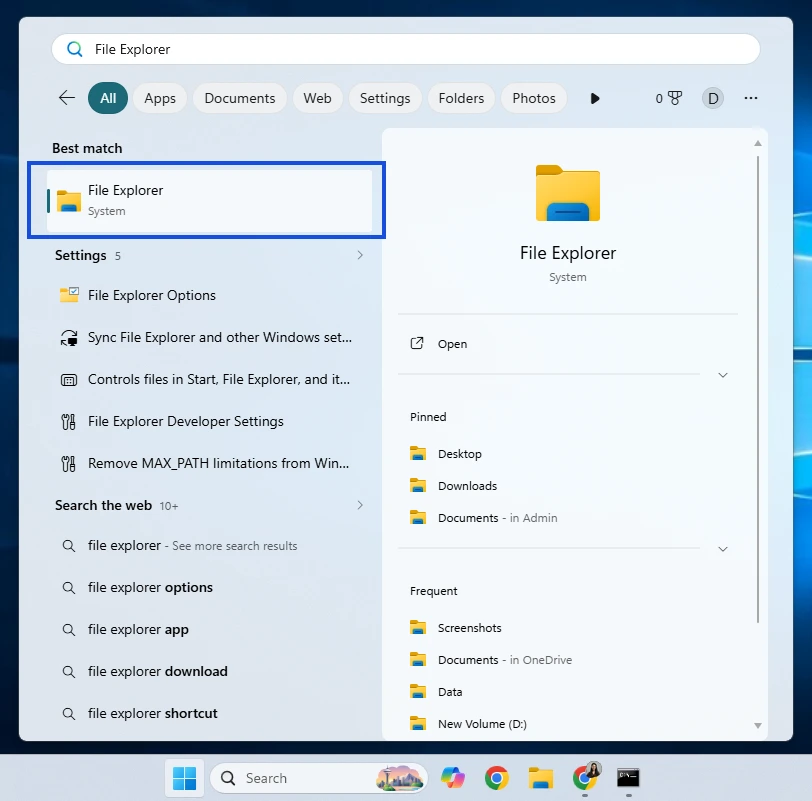
Step 1: Open File Explorer and go to the folder that contained the file/folder you wanted to recover.
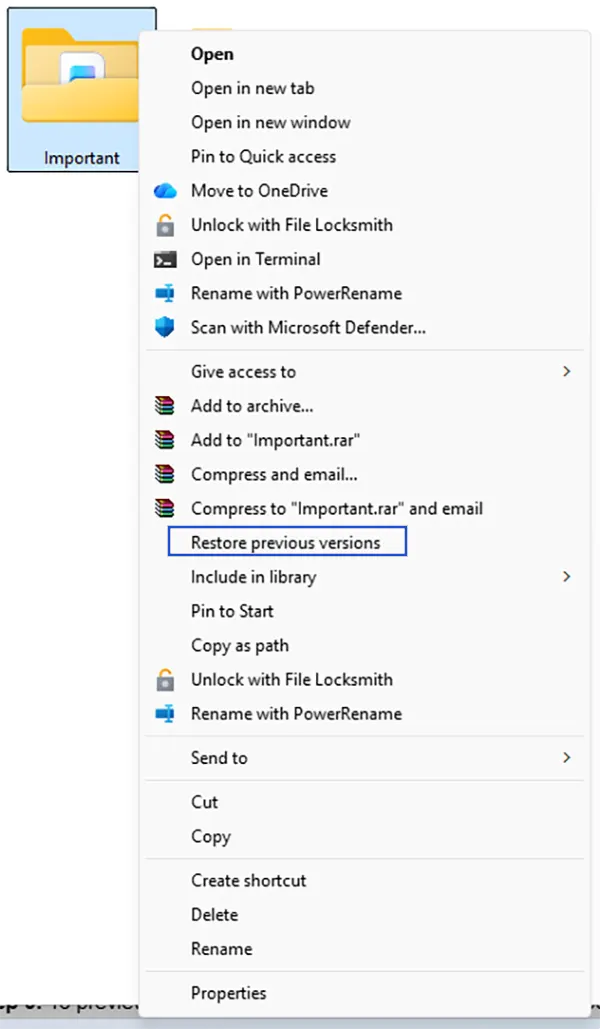
Step 2: Right-click on the folder and click Restore previous versions. If the deleted file/folder was the top folder of the drive, right-click on the drive (e.g., Drive C, Drive D) and then select Restore previous versions.
Step 3: Click the Previous Versions tab to list all the previously existing versions of your file/folder.
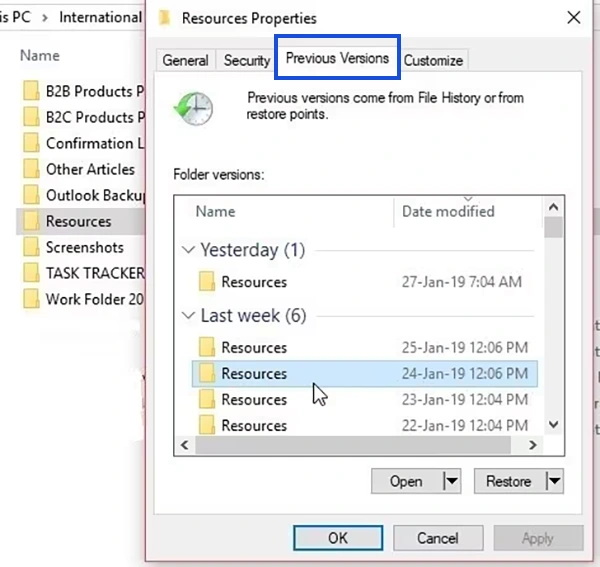
Step 4: The versions are sorted by date created. Select the version of the folder that contains the version of the file/folder you want to restore.

Step 5: To preview the content of the selected file, click the Open button and select Open in file history.

Step 6: To finally restore the file, select the file and click the Restore button.

Note: File History typically backs up user libraries (Documents, Music, Pictures, Videos, Desktop) and Contacts/Favorites. It does not create a full system image backup. You can add folders by right-clicking on them and selecting the Show more option > Include in library to add them to the backup.
Backup and Restore
Backup and Restore (Windows 7) is a legacy backup utility designed for Windows 7, but is still available for Windows 10/11. You are fortunate if your Windows native Backup and Restore was enabled.
How to use Backup and Restore (Windows 7) to Recover Files After Shift+Delete?
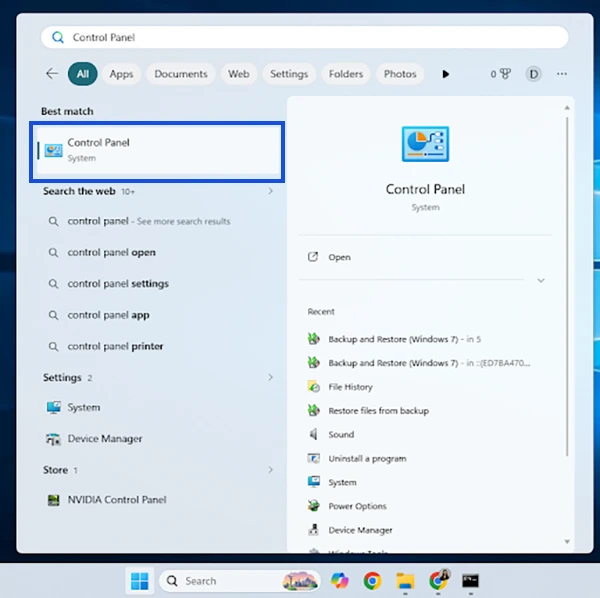
Step 1: Click on the Search Bar and search for the Control Panel.
Step 2: From the Control Panel, click on System and Security.

Step 3: Click Backup and Restore (Windows 7).
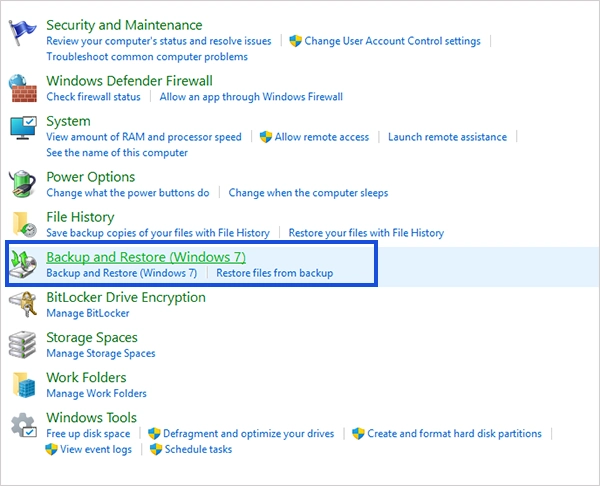
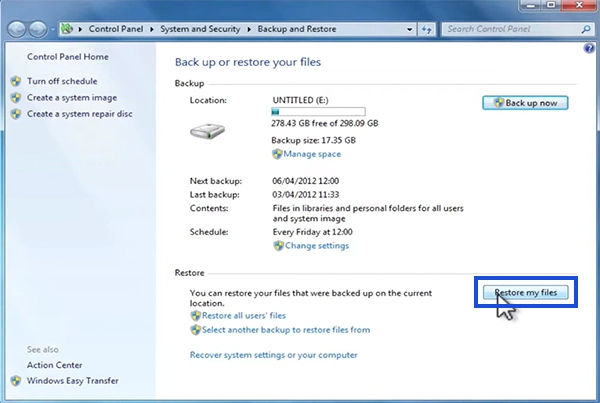
Step 4: Under the Restore section. Click the Restore my files button.
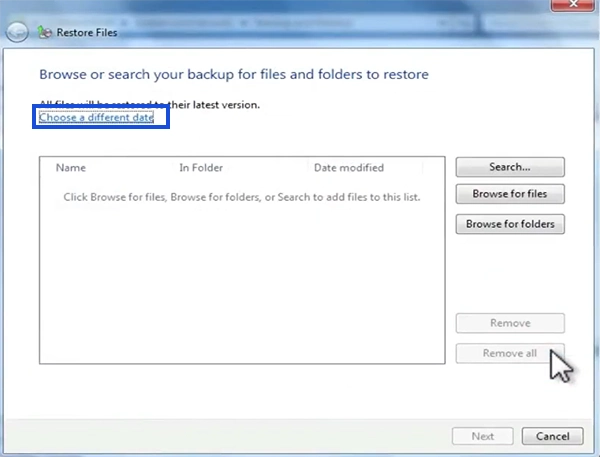
Step 5: Click Choose a different date.
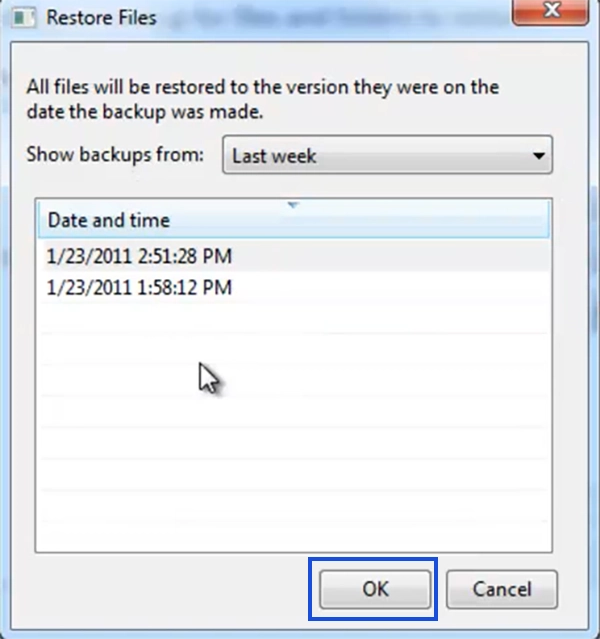
Step 6: From the drop-down, select when to show backups from (Last week, Last 1 month, Last 6 months, Last 12 months, All).
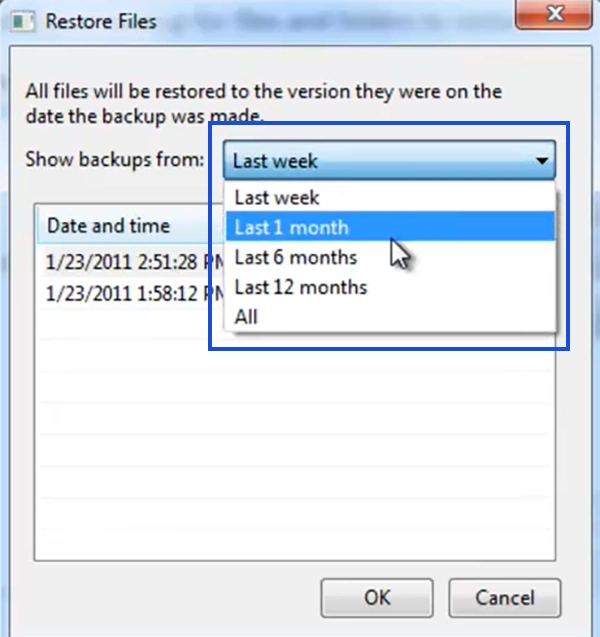
Step 6: Select the particular Date and time and click Ok button.
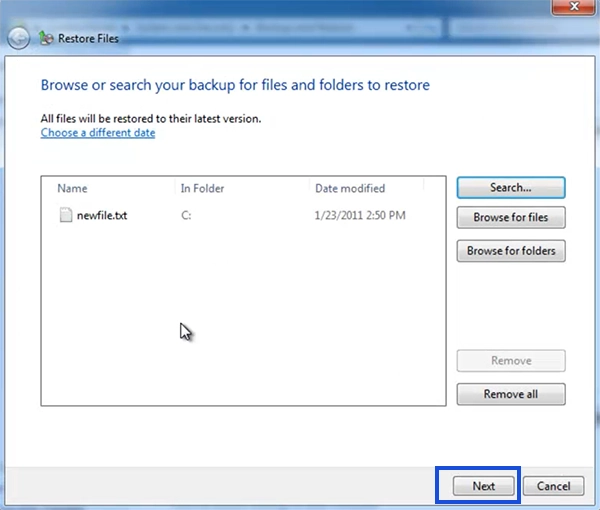
Step 7: You can also click Browse for files, Browse for folders, or Search to add files to this list.
Step 8: Click the Next button.
Step 9: Select the file location to restore.
To restore to the same place, check the In the original location.
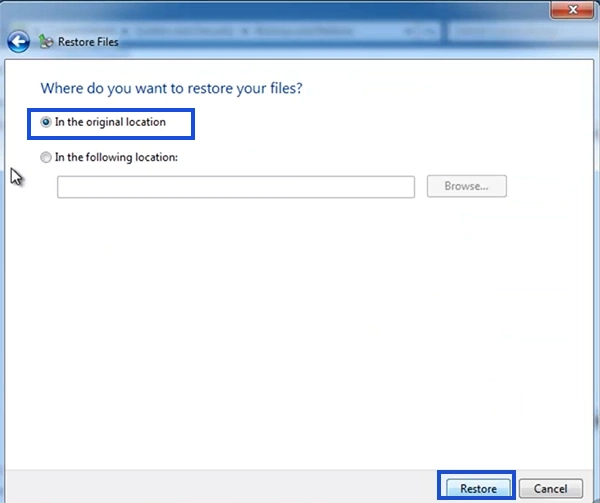
To restore in a different location, check the In the following location and click Browse > Select Location > Click Ok.
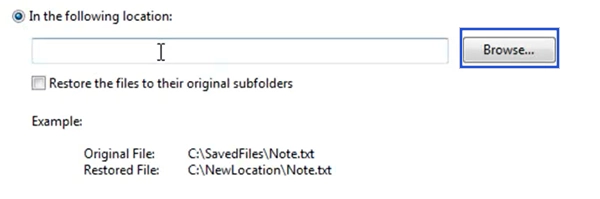
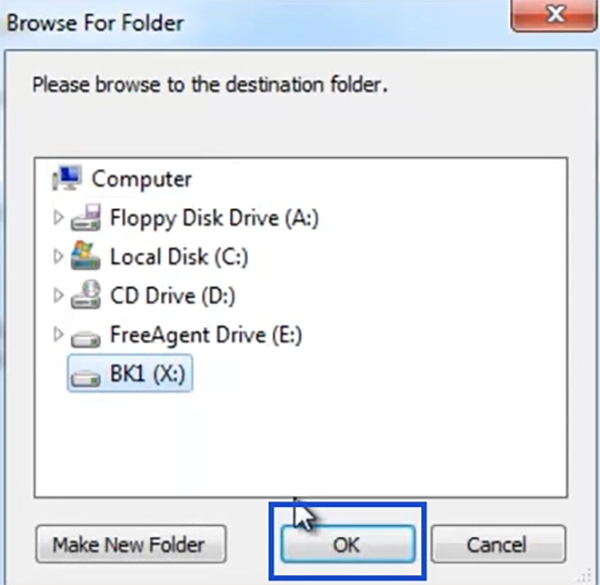
Step 10: A successful modal window pops up stating your files have been restored. Click Finish.

Windows File Recovery
The official free solution is Windows File Recovery, a command-line tool available from the Microsoft Store for Windows 10/11. Though free, it is not easy to use because it runs through the command prompt, without a Graphical User Interface (GUI), requiring specific command syntax.
If you prefer a simpler alternative, third-party data recovery tools provide easy data recovery with an interactive GUI.
Here’s how to use Windows File Recovery to get back your Shift+Deleted files.
Step 1: Download and install the Windows File Recovery app from the Microsoft Store.
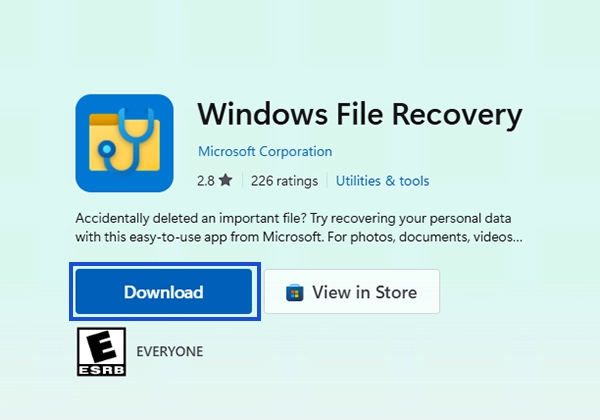
Step 2: Click on Start and search for “Windows File Recovery” and select Windows File Recovery.
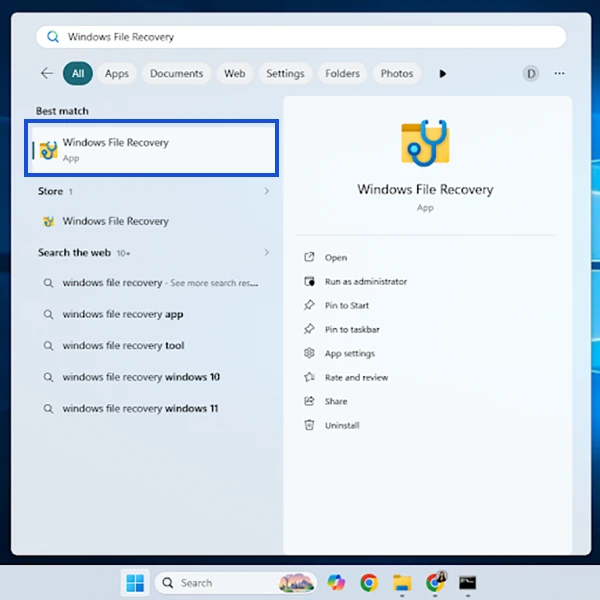
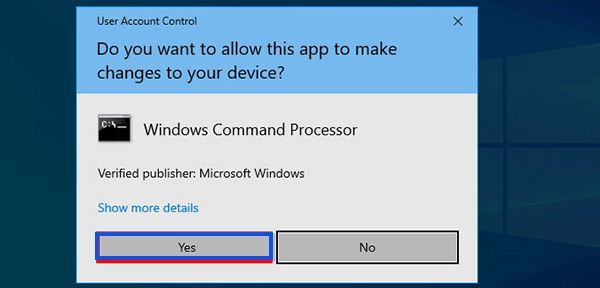
Step 3: A User Account Control (UAC) dialog box opens. Click Yes to run Windows File Recovery.
Step 4: A command prompt window opens. Enter the following command:
winfr source-drive: destination-drive: [/mode] [/switches]
Step 5: There are 2 primary modes to restore files, requiring different source/destination drives and generating a Recovery_<date and time> folder.
Regular Mode: Fast and best for recently deleted files on NTFS drives.
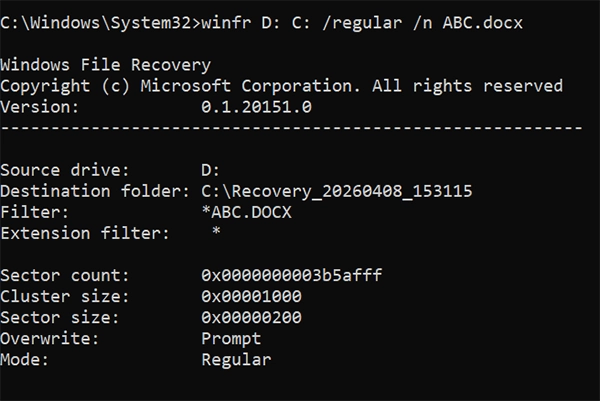
Example: To recover ABC.docx Word files from your D: drive to the recovery folder on a C: drive, use this command:
winfr D: C: /regular /n ABC.docx
Extensive Mode: Deep scans for older files, formatted drives, or corrupted discs.
Example: To recover a specific document named “Report.doc” from your Documents folder to the E: drive, use this command:
winfr C: E: /n \Users\<username>\Documents\Report.doc \
Step 6: When prompted to continue, type “Y” and press Enter to start the recovery process. To stop the recovery process, press Ctrl+C.
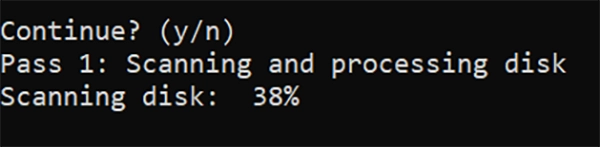
Step 7: The Tool scans the source drive and recovers the file to the target destination.
Method 2: Using the Cloud Backup
Whether you are using OneDrive, Dropbox, or Google Drive, your files are likely living there or in the Recycle Bin waiting to be permanently deleted or recovered. Since cloud services process deletion as a sync event rather than an instant action, a copy of the data often remains saved in remote servers. You can recover files after Shift+Delete from the cloud, given the sync is on.
Recovering from OneDrive
Microsoft OneDrive is a cloud-based file storage service that allows you to back up your important files, photos, apps, and settings, so they are available no matter what happens to your device or the files. You can access files via web, desktop, or mobile applications.
The file you Shift+deleted from your file explorer on Windows won’t be there in your native recycle bin, but can be found in OneDrive’s Recycle Bin.
Steps to recover your file from OneDrive:
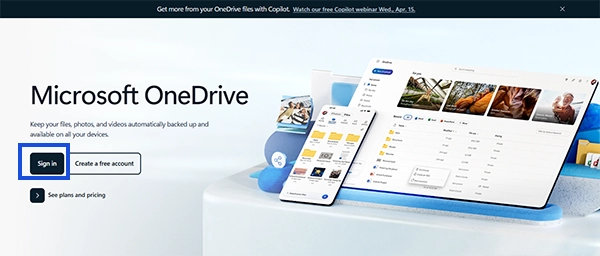
Step 1: Go to the OneDrive website and sign in with your Microsoft account.
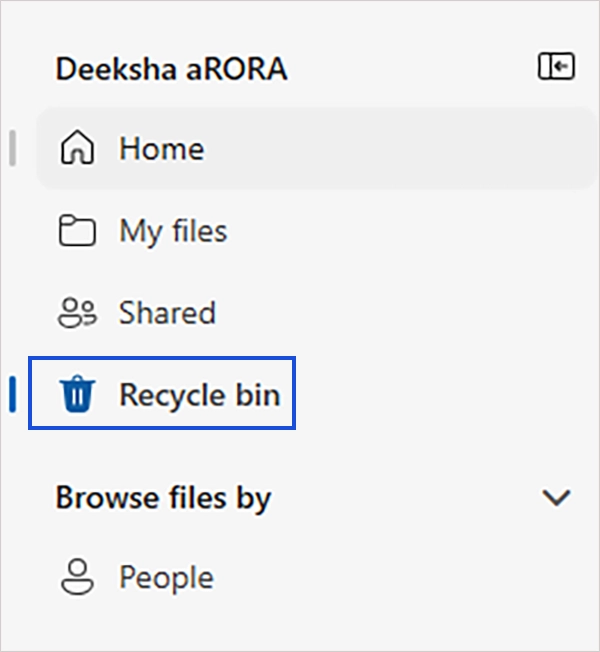
Step 2: Go to the Recycle Bin and look for the file Shift+Deleted.
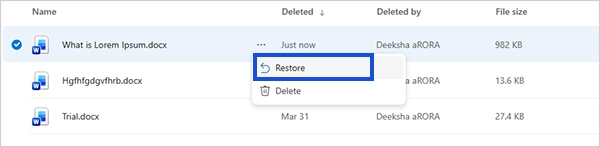
Step 3: Click on Options (…) and select Restore.
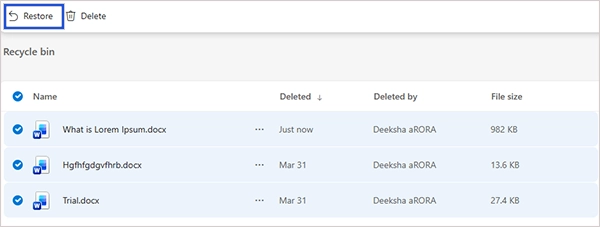
To restore multiple files: Check the files you want to retrieve and click Restore.
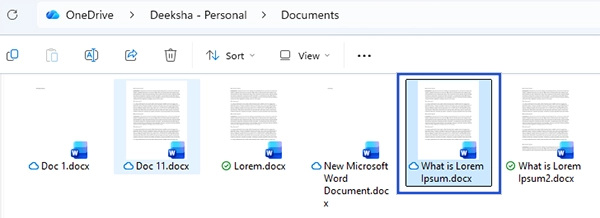
Step 4: The file will be restored to the original destination on both OneDrive and your PC.
Method 3: Using Third-Party Data Recovery Software
When none of the above-mentioned solutions work, you can use third-party data recovery software as a powerful DIY approach to recover files after Shift+Delete. These tools are designed to scan a storage drive to locate data that is no longer recognized by data recovery software. Leading solutions like Disk Drill, Recuva, and Stellar data recovery software can recover data, whatever the reason for data deletion may be.
Tips to Avoid Future File Loss
Accidentally pressing Shift+Delete is a frequent cause of permanent file loss by bypassing the recycle bin, making recovery complex. To avoid future data loss, it’s important to stop using the Shift+Delete shortcut daily and practice these digital habits:
- Regular Backup: Use automated tools like OneDrive and Windows File History to automatically keep a backup of your newly created files on the computer, allowing you to recover even if they are Shift-Deleted.
- Cloud Sync On: Keep important files cloud-synced on to OneDrive or Google Drive, as they have their own recycle bin and can be recovered from there if deleted.
- Pause and Verify: Make it a habit to check before pressing the confirmation button to delete the files permanently.
- Enable Confirmation Dialogs: Configure Windows to show a confirmation dialog box when such an action is taken, so that you get a moment to check and confirm the deletion.
- Use Third-Party Software: Use third-party data recovery software to recover deleted data, ready for immediate action if a file is lost.
Conclusion
Shift+Delete permanently deletes files, bypassing the recycle bin, making the storage space available, but not immediately erasing the data. It is usually recoverable if acted on quickly before new data overwrites it. Because the file isn’t truly gone instantly, you can recover it using Windows File History, built-in backups, or, in many cases, reliable data recovery software.
Frequently Asked Questions
Where does the file I Shift+Deleted go?
How to recover a Shift+Deleted file without a backup?
Ans. Use Windows File Recovery or third-party data recovery tools such as Disk Drill, Recuva, and Stellar.
Can I recover a Shift+Deleted file without installing software?
Ans. Yes, you can recover a Shift+Deleted file without installing software using File History Restore, Backup and Restore, and Cloud backups like OneDrive, Google Drive, Dropbox, etc.
Does Shift+Delete permanently delete files?
Ans. No, Shift+Delete deleted the file bypassing the recycle bin, making it appear as permanently deleted, but the file data remains until overwritten.
Can “Restore Previous Versions” work for Shift+ Deleted files?
Ans. Yes, if you have Windows backup enabled, you can use “Restore Previous Versions” to work for Shift+ Deleted files.
What does Shift+Delete do?
Ans. Shift+Delete deletes the file immediately without moving it to the recycle bin.
Can files be recovered after being permanently deleted?
Ans. Yes, files can be recovered after being permanently deleted until new data has been written over the area where the file was stored.
How to retrieve Shift+deleted files?
Ans. To retrieve Shift+deleted files:
- Use File History restore.
- Use Backup and Restore.
- Check the cloud storage.
- Use Windows File Recovery.
- Use file recovery software.
Sources:
Related Blogs
You Might Also Like
8 min read
Hard Drive Repair: How to Diagnose, Fix, and Recover Data From a Failing Drive Hard drive repair is the process of fixing a broken (logically or physically) storage drive to get your files back.…
Data Recovery
August 13, 2026
8 min read
How to Recover Data from Hitachi Drive? Data recovery from Hitachi drive (now often HGST/Western Digital) requires a cautious approach, especially if the drive makes unusual noises.…
Data Recovery
August 11, 2026
8 min read
How to Recover Deleted JPG/JPEG Files? You are here because you’ve likely deleted the important images. Whether you accidentally hit “delete” or your SD card got…
Data Recovery
August 11, 2026

8 min read
What is Data Recovery Agent (DRA)? Windows EFS & BitLocker Recovery Guide Data Recovery Agent (DRA) is a designated Windows user account authorized to decrypt data encrypted by other users or the…
Data Recovery
August 7, 2026
8 min read
What Is DIY Data Recovery and How Does It Work? Your file is accidentally deleted, or let’s assume there was some software issue and you cannot get your files back.…
Data Recovery
August 5, 2026
8 min read
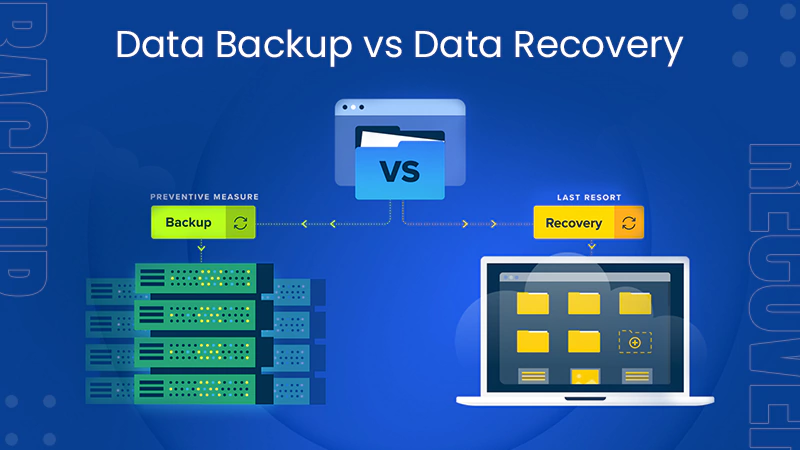
Data Backup vs Data Recovery: What’s the Difference and Why Does It Matter? Assuming that your data is secure just because you clicked “backup” is not right. Many organizations learn too late that…
Guides
August 5, 2026