You can quickly fix Windows errors by running the built-in diagnostic tool, sfc scannow through an administrative Command Prompt. By typing sfc /scannow, you launch the System File Checker (SFC) that inspects all core operating system files for corruption. It also fixes them automatically with healthy backup copies.
This article covers a step-by-step method built directly from official Microsoft Support documentation so that your PC remains safe. We will see how to prepare a system image using DISM and run an online or offline SFC scan. Understanding the scan results and what to do in such situations.
Quick Answer: To fix Windows errors, open Command Prompt as an administrator and run DISM.exe /Online /Cleanup-image /Restorehealth first to repair your system reference image. Once completed, type sfc /scannow and press Enter to automatically find and repair operating system files.
What is SFC Scannow?
The System File Checker (SFC) is a built-in Windows diagnostic tool that scans and automatically repairs corrupted, modified, or missing core operating system files. You can run this tool by using the sfc /scannow command. During this, Windows verifies the integrity of every critical file on your computer against a backup copy.
How it fixes your PC: It automatically replaces damaged system files (like .dll or .exe components) with a healthy copy cached inside a protected Windows system folder.
When to Use SFC /Scannow?
You should run an SFC scan whenever your computer shows some unpredictable behaviour or when system applications stop working. It is like your first solution to these problems, which isolates and repairs fundamental code damage without needing a full system reinstallation.
Run an SFC scan immediately if you notice any of the following warning signs:
The PC crashes randomly and shows blue screen errors. You see stop codes pointing to a faulty .sys or .dll system file.
Built-in features like the Start Menu, File Explorer, Windows Settings, Task Manager, etc. freeze or refuse to open.
There is post-malware damage. Although the virus has been removed, files are still damaged and unable to open.
The application shows an error window indicating that a specific component is missing.
Windows experiences unexpected shutdowns.
Note: You must run DISM (Deployment Image Servicing and Management) first to repair the local Windows image. This ensures SFC has a healthy reference source to replace your corrupt files.
How to Run SFC Scannow (Official Microsoft Method)
The sfc /scannow command is run easily inside the Windows Command Prompt. Because it repairs the operating system files, you need to open Command Prompt with administrative privileges. The scan runs for about 15 to 30 minutes.
Note: Once the scan is started, you need to leave the window open until the verification process reaches 100%.
Step-by-step method for running SFC Scannow:
Step 1: Run DISM
Press the Windows Key on your keyboard or click the Windows icon on your taskbar to open the search field.
Type cmd into the search bar to locate the Command Prompt and click Run as administrator to launch it.
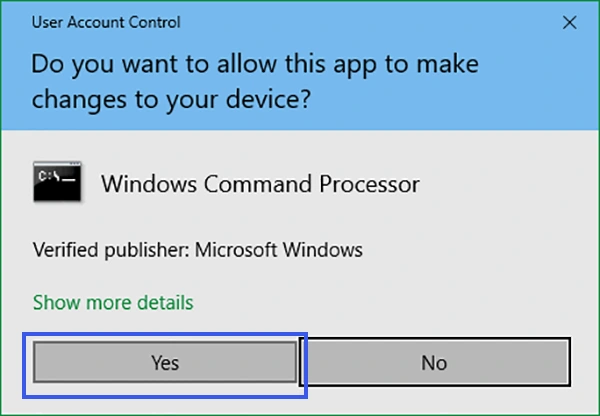
Click Yes if a User Account Control (UAC) window asks for permission.
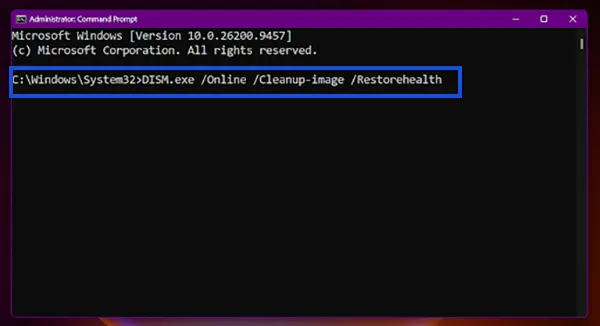
Before starting the file checkup, type the following command and press Enter. Wait for this process to complete to ensure your repair source is healthy.
DISM.exe /Online /Cleanup-image /Restorehealth
Step 2: Run System File Checker
Type the following command into the Command Prompt window and press Enter.
sfc /scannow
Warning: Leave the Command Prompt open while the system runs the verification. Do not close the app or shut down your PC until the screen displays that the scan is 100% complete and shows your final results.
Understanding and Interpreting SFC Scan Results
After the verification process finishes, the Command Prompt will display a summary message explaining exactly what the tool found. You must know these because they help you determine if your computer is completely healthy or requires troubleshooting.
Here is what each official Windows Resource Protection message means for your system:
Scan Result Message
What It Actually Means
Windows Resource Protection did not find any integrity violations.
Your core system files are healthy, and no corruption was detected.
Windows Resource Protection found corrupt files and successfully repaired them.
The tool found damaged files and replaced them with healthy copies.
Windows Resource Protection found corrupt files but was unable to fix some of them.
File corruption exists, but the scanner cannot replace the files while Windows is running.
Windows Resource Protection could not perform the requested operation.
A system block or error prevented the scanner from launching or finishing.
What to Do Next Based on Your SFC Scan Result
If no problems were found: You do not need to take any further action regarding your system files. Look into hardware or software drivers if you are still facing issues.
If files were successfully repaired: Restart your computer so that Windows finalizes the file replacements.
If files could not be fixed: View the CBS.log file to find broken components or immediately run an offline scan in Safe Mode.
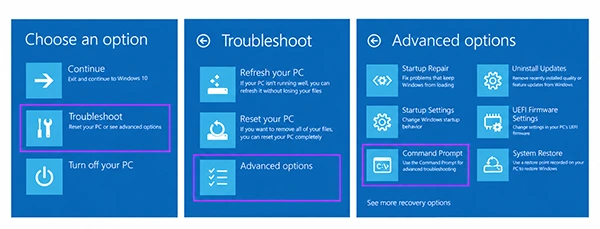
If the operation could not be performed: Reboot your PC into the Windows Recovery Environment (WinRE).
How to Run an Offline SFC Scannow (When Windows Fails to Boot)
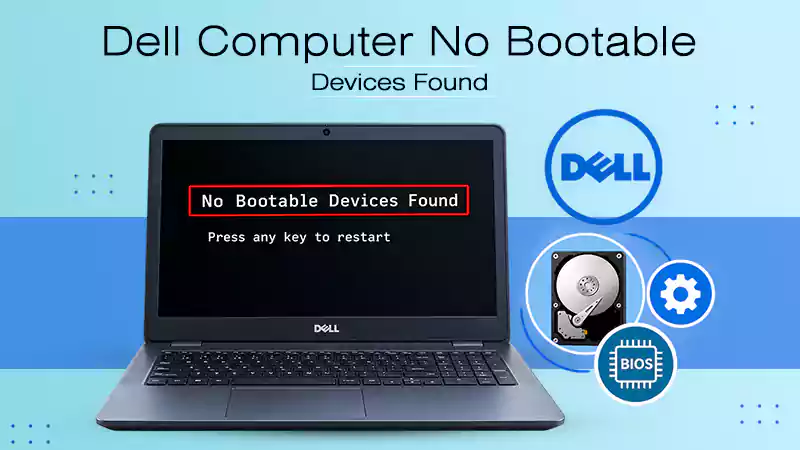
You can still repair corrupted files even when your computer refuses to boot into Windows by running an offline SFC scan. This method uses the Windows Recovery Environment to fix your system files from outside the broken operating system. This way, no background program can block the repair.
Steps to perform an offline SFC Scan:
Turn on your PC, and as soon as the Windows logo appears, hold the power button to force a shutdown. Repeat this three times until your computer boots into the blue “Automatic Repair” screen.
Note: The recovery environment might shift drive letters. Type bcdedit and press Enter. Look under the “Windows Boot Loader” section for osdevice. It will show your Windows drive letter.
Quick Recap
The System File Checker (SFC) is the safest tool to repair hard drive or internal drive on a glitchy or crashing Windows computer. By running the sfc /scannow command in an administrative Command Prompt, Windows will automatically find and replace broken system files with healthy copies.
To get the best results, remember this quick workflow:
Always run DISM first to verify your Windows image source.
Run SFC second to automatically fix your operating system files.
If Windows won’t boot at all, boot into the Recovery Environment to run an offline scan.
If both scans complete but your computer continues to crash, the issue is with a hardware component or an outdated device driver.
Frequently Asked Questions About SFC Scan
What is a System File Checker?
The System File Checker (SFC) is a built-in diagnostic tool included in all modern versions of Windows. Its main purpose is to scan your computer’s system files for corruption or damage. It detects the problem and automatically fixes it by replacing the faulty operating system files with a healthy backup copy.
What is the SFC scannow command for?
The sfc /scannow command is used to launch a full system scan. When typed into Command Prompt, it tells the utility to inspect every system file required by the operating system.
Should I run SFC or DISM?
You should run both tools together, starting with DISM first. DISM (Deployment Imaging and Servicing Management) repairs the master Windows reference image on your hard drive. Once that source image is healthy, running SFC has a perfect backup copy available to replace and repair any broken files it finds.
How to run sfc scannow?
To run the SFC scan:
Type cmd in your Windows search bar.
Select Run as administrator on Command Prompt in the search results.
Type sfc /scannow and press Enter.
Does SFC scannow repair anything?
Yes, it automatically repairs corrupted or missing Windows system files. If the scan finds an essential file like a .dll or .sys component that has been damaged by a software crash or malware, it immediately replaces it. It only repairs core Windows operating system files.
What is the difference between sfc and CHKDSK?
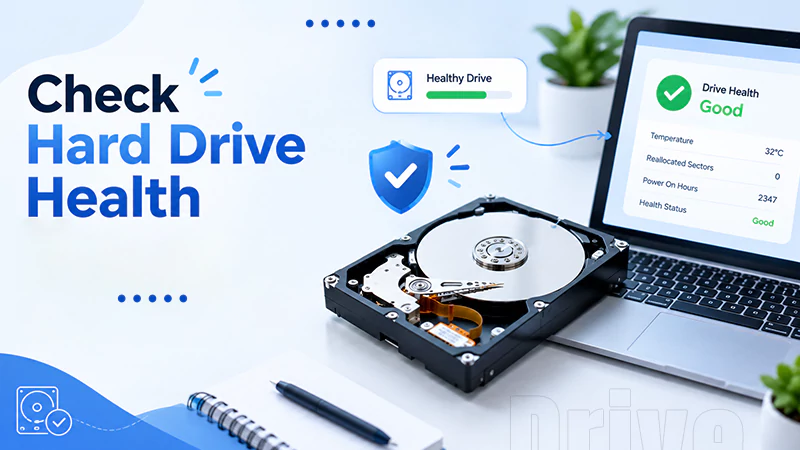
The main difference between SFC and CHKDSK is that SFC repairs software errors within your Windows operating system files, and CHKDSK (Check Disk) scans and repairs physical or structural errors on your physical drive hardware to prevent drive failure.
Is sfc scannow safe?
Yes, sfc /scannow is completely safe to run because it is an official built-in Windows diagnostic tool. It only modifies protected Windows system components and will never modify or delete your personal files.
How long will sfc scannow take?
An SFC scan usually takes between 15 and 30 minutes to complete.