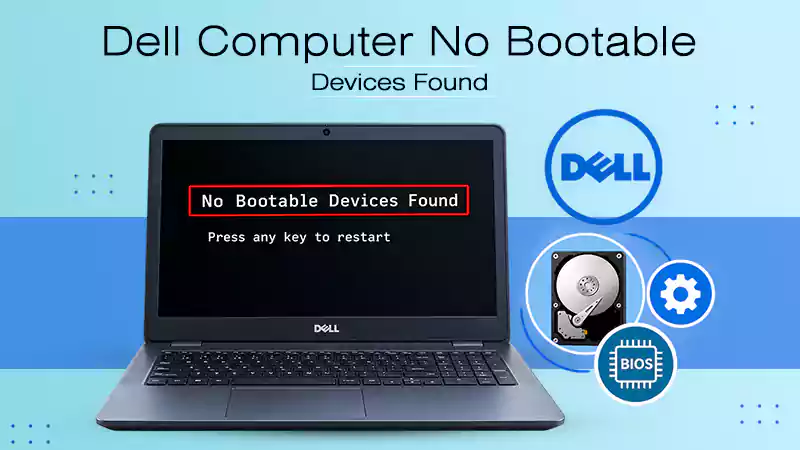
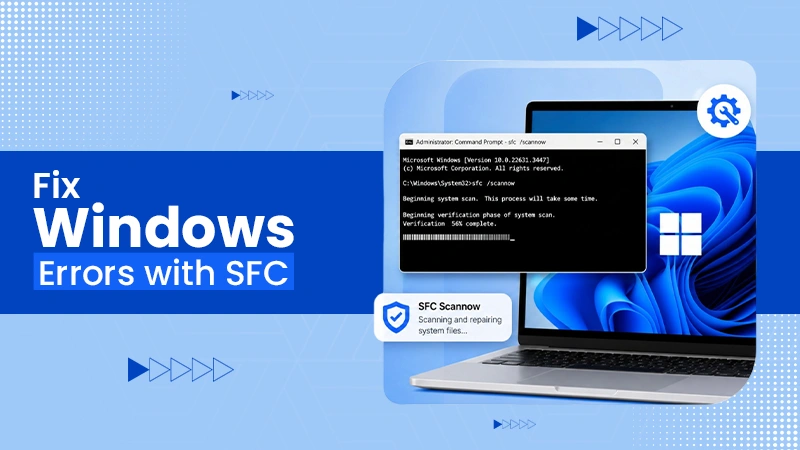
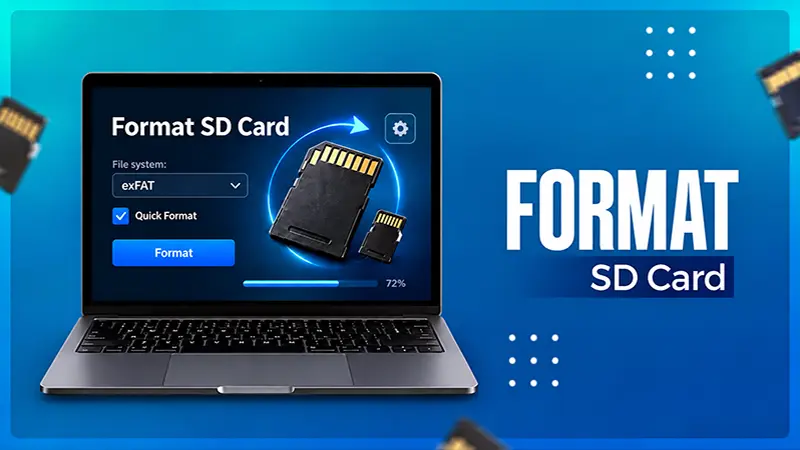
To fix the “Chrome OS is missing or damaged, Please insert a recovery USB stick or SD card” error, you must reinstall the operating system using either the USB/SD card Recovery method or the Internet recovery method.
For the standard USB method, you will need an 8GB+ USB drive or SD card to make an OS flash drive. The Internet Recovery method (applicable to newer Chromebook models manufactured after 2022) makes the recovery easy by restoring the system directly over Wi-Fi without any external hard drive needed.
Quick Answer: Take a USB drive and connect it to a working PC, visit Chromebook Recovery Utility, download it on the drive, enter the Chromebook code, and make the OS installation flash drive. Now, connect this flash drive to the Chromebook and restore the system files to fix the “Chrome OS is missing or damaged. Please insert a recovery USB stick or SD card” error. For newer Chromebooks, use the Internet Recovery method to install OS files.
How to Fix the “Please insert a recovery USB stick or SD card” Error?
To fix the “Please insert a recovery USB stick or SD card” error, you must create a bootable Chrome OS recovery drive on a working computer, plug it into your Chromebook, and then reinstall the operating system. You see this error when the Chromebook’s core system files fail an integrity check, when the software partition is corrupted, or due to internal storage issues.
We will see how to fix this error step-by-step. Basically, explaining how to download the official Chromebook Recovery Utility, flash the operating system onto a flash drive, and restore your device to normal.
Modern Recovery Update: Devices built after 2022 download complete operating system images without any external hardware.
Recovery Option 1: Using a USB Drive or SD Card
The Chromebook is showing that Chrome OS is missing or damaged. Please insert a recovery USB stick or SD card” error can be fixed using the universal standard USB/SD card method. It works on all Chromebook models. You create a bootable flash drive for a fresh OS installation.
What You Need Before Starting?
Before you begin the restoration process to fix the “Chrome OS is missing or damaged. Please insert a recovery USB stick or SD card” error, make sure you have all the tools necessary so that you don’t have to stop the process in between.
You need a working laptop (Windows PC, Mac, or a secondary Chromebook). Make sure it has the Google Chrome browser installed to download recovery files.
A blank external USB drive that has at least 8GB of empty storage space. Note that all data on the USB will be erased in this process.
Note the hardware ID string listed at the bottom of your device’s error screen to download matching software.
Note: Google has officially updated and rebranded the Chromebook Recovery Utility extension as the Device Recovery Utility on October 7, 2026, to create recovery media for both Chromebook and Googlebook devices, as stated by Chrome Unboxed.
Step 1: Download the Chromebook Recovery Utility
To begin the recovery process, you cannot just download the files directly to your broken device. Instead of that, you must use your secondary working computer (be it Windows, Mac, or Chromebook) and open the Google Chrome web browser on it, then follow these steps:
Search for the Chromebook Recovery Utility tool. You will see the Device Recovery Utility – Chrome Web Store link at the top. Click it, and you will be redirected to the Chrome Web Store.
Click the blue Add to Chrome button on the extension page. This will automatically begin the download of Chromebook Recovery Utility.
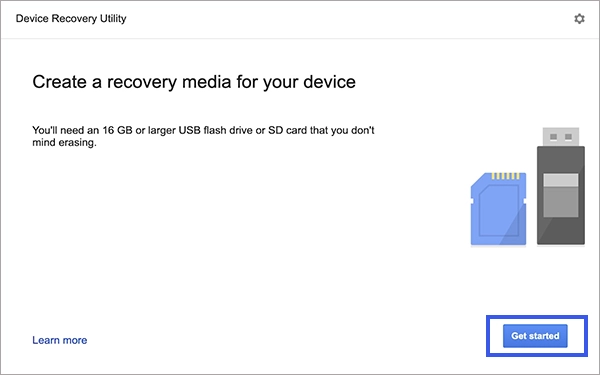
Click the puzzle piece extension icon in the top right corner of Chrome. Select the utility and click Get Started.
Step 2: Using the Recovery Media
Once you have successfully downloaded and opened the Chromebook Recovery Utility, you will need to format your external drive and turn it into a bootable installer. Connect your USB drive to the working computer, and follow these steps:
Create Recovery Media
Type the exact model number from your error screen into the utility text box, or select the model from the drop-down menu.
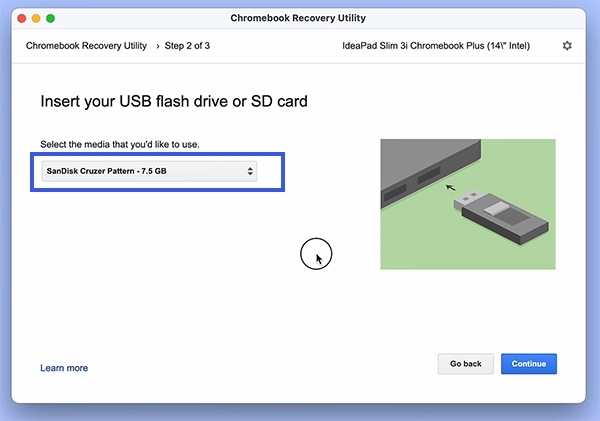
Insert the USB flash drive or SD card, choose it from the drop-down list, and verify it is the correct drive.
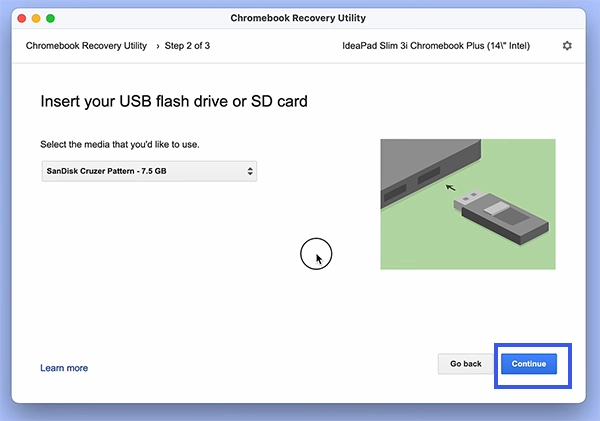
Click Continue and then Create Now to let the utility clear the drive and write the fresh Chrome OS installation files.
Start Recovery
Do not remove the storage drive while the utility downloads, writes, and verifies the system recovery files on your computer.
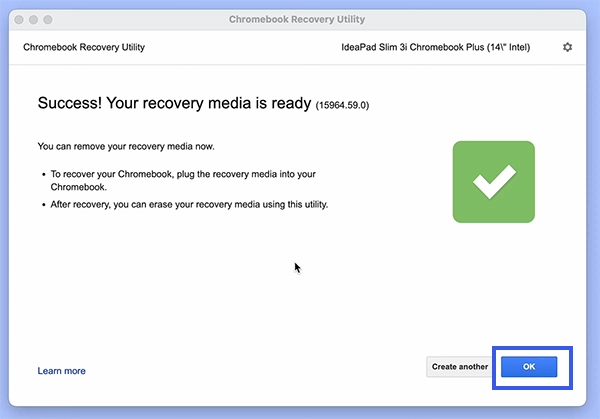
Once you see “Success! Your recovery media is ready,” click OK, and safely eject the drive from your PC.
Step 3: Boot Your Chromebook into Recovery Mode
Now that your recovery drive is ready, you can return to your Chromebook that is to be fixed. This step involves triggering the system recovery pipeline and letting the hardware install the fresh files.
Turn off the Chromebook, press and hold the Esc + Refresh keys together, then press the Power button before releasing all keys.
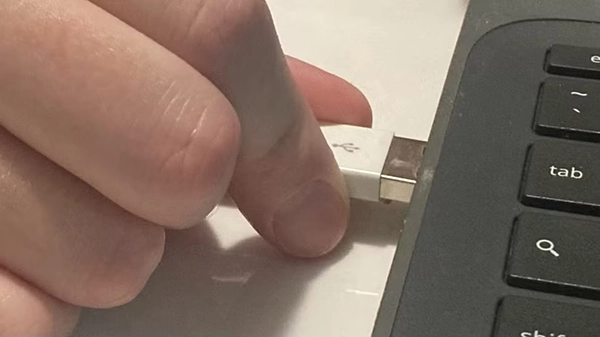
With the “Chrome OS is missing or damaged” screen shown, connect your recovery USB drive to the Chromebook.
The Chromebook will immediately detect the drive and begin installation. Keep the device plugged into power and wait 5 to 15 minutes.
Once you see “Recovery is complete,” unplug the USB drive. Your Chromebook will automatically reboot into the clean setup wizard.
Recovery Option 2: Using Internet Connection
There is another method to fix the “Chrome OS is missing or damaged. Please insert a recovery USB stick or SD card” error without using an external USB drive; i.e., using an internet connection, your device downloads the verified system image directly from Google’s servers over your local Wi-Fi. This automates the recovery process in around 10 minutes. This is no doubt the fastest diagnostic repair tool available for compatible hardware variants.
Power off your Chromebook. Press and hold the Esc + Refresh keys together, then tap the Power button.
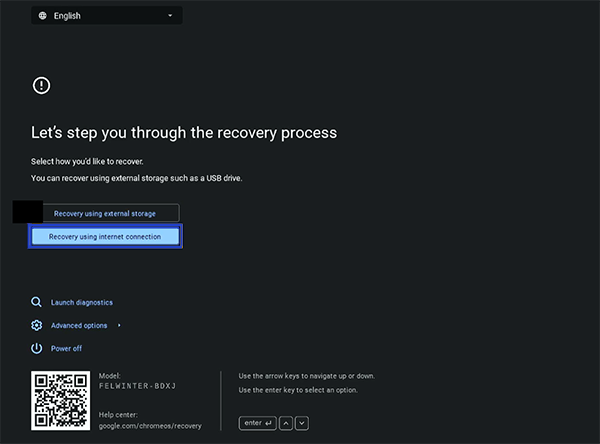
Look at the on-screen choices and click Recover using internet connection. You need to use your keyboard arrow keys to initialize cloud setup.
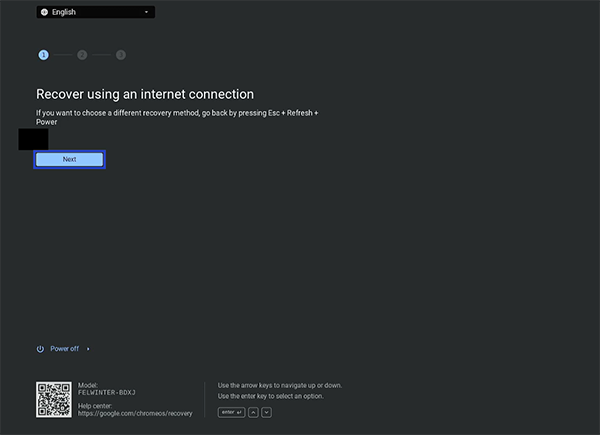
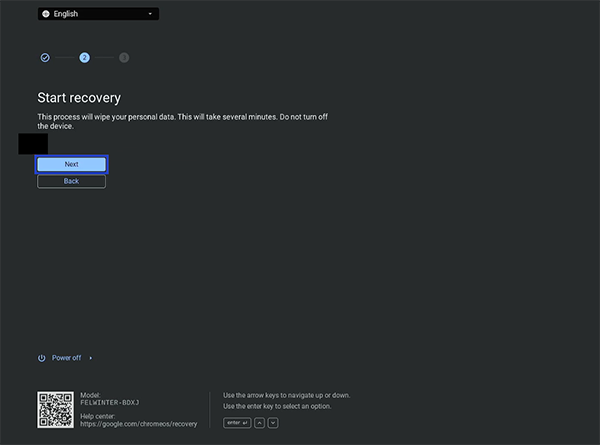
Watch the screen change to the confirmation prompt and click the Next button using your trackpad or keyboard.
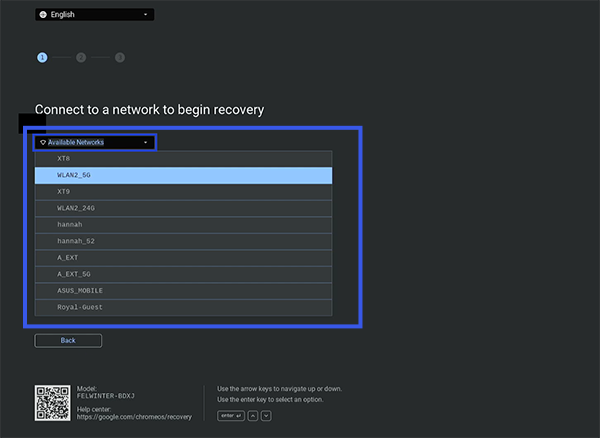
Select your local Wi-Fi, type your security password, and connect to the network.
After connecting to a network, click the Next button to start recovery.
Let the system automatically download and install the new system software without turning off the system power.
Troubleshooting Common Recovery Errors
Though the Chrome OS recovery process is automated, there might be some hardware mismatch or configuration issue you encounter. Use the following troubleshooting section to resolve the most common errors encountered during manual system restoration.
Error
Error Image
How to Troubleshoot?
An unexpected error has occurred.
You need to reformat your USB drive to FAT32 using Disk Management on Windows or Disk Utility on Mac. This will wipe any hidden partitions present before running the recovery utility again.
The security module on this device isn’t working.
Unplug the power adapter, hold the Power button for 30 seconds to perform a hard reset, then attempt the USB recovery process again. If the error persists, contact your device manufacturer or Google Support.
Please remove all connected devices and start recovery.
Disconnect all external devices connected to your device and then re-enter recovery mode.
The recovery media you are using does not contain Chrome OS.
The flash drive might be generic or cheap. Recreate your bootable media using a reliable USB drive.
Chromebook Fix Summarised
The “Chrome OS is missing or damaged. Please insert a recovery USB stick or SD card” error pops up when system files get corrupted and cannot be fixed by simply restarting the laptop. You need to resolve this by downloading a clean version of Chrome OS using a separate working computer. Use the Chromebook Recovery Utility extension. You then write these files to an external USB (or use the built-in Internet Recovery feature on compatible models), boot your affected Chromebook into Recovery Mode, and let the automated reinstallation run.
Frequently Asked Questions
How to Fix ‘Please Insert a Recovery USB Stick or SD card’ error on Chromebook?
To fix the ‘Please Insert a Recovery USB Stick or SD card’ error, follow these steps:
Install the Chromebook Recovery Utility extension on a working computer
Launch it and enter the Chromebook model number.
Insert an 8GB+ flash drive or SD card into the computer.
Select the storage drive from the application dropdown configuration menu.
Click Create Now button to write the recovery software payload.
Eject the completed flash drive.
Hold the Esc + Refresh keys while pressing the Power button on the Chromebook.
Insert the prepared USB drive or SD card.
Keep power plugged in during automatic file installation.
Remove the storage media drive when the process completes.
Will fixing this error delete all my personal files and data?
Yes. Since this error will be fixed only by reinstalling Chrome OS, it will completely wipe the Chromebook’s internal storage drive. But because your device is linked directly to the cloud, you will not lose everything. Your Google Drive files, saved browser passwords, history, and extensions will automatically download and sync back to your Chromebook the moment you log into your Google Account again.
Can I use an Android phone or an iPhone to create the recovery USB drive?
No, you cannot use a smartphone to create the installation media. The official Chromebook Recovery utility needs standard computer administrative privileges to write system partitions. You must use a working PC, Apple Mac, or a secondary Chromebook to build the recovery USB drive.
How long does it take to complete the entire recovery process?
The complete process takes between 10 and 15 minutes from start to finish. Downloading the OS files onto your computer depends on your internet speed. Once you plug the USB drive or SD card into your Chromebook that is to be fixed, the actual installation takes about 5 to 10 minutes.
Why does my Chromebook keep saying the recovery media does not contain Chrome OS?
If you’re seeing “The recovery media does not contain Chrome OS” again and again, it means the system cannot detect Chrome OS on your USB drive or SD card. The download process on your working computer was interrupted, or the flash drive has a hidden, corrupted partition. To fix it, open the recovery utility on a working computer, click the settings icon, and select “Erase recovery media. Format the drive to FAT32 and then recreate the recovery files from scratch.
Can I fix this error without using a USB drive or SD card?
Yes, you can fix this error without using a USB drive or SD card, but only if your Chromebook model supports “Internet Recovery.” Select Recover using Internet connection from your error screen, connect to Wi-Fi, and download a clean operating system directly from Google’s cloud.