


Choose exFAT if you need your drive to work on both Windows PCs and Apple Macs. It is the best choice for external storage and flash drives. Choose NTFS if the drive will stay permanently inside a Windows computer or will be used on Windows PCs only.
exFAT vs NTFS: What is the Difference Between These Formats?
exFAT and NTFS are the two dominant file systems that tell how your computer reads, writes, and manages your files. They basically are the architectural blueprints for your data. Whenever you set up a new storage drive, you get to choose between file formats. Though there are alternative formats like FAT32 or Mac’s APFS, exFAT and NTFS are the most widely used choices for modern storage.
In this blog, we will look at how exFAT vs NTFS function and understand their technical workings and limitations that will help you pick the right format to keep your files safe and accessible.
exFAT vs NTFS Comparison
Before understanding each one in detail, let’s see a side-by-side comparison that makes choosing between them simple. Remember, the choice ultimately depends on whether you value universal compatibility or advanced data security.
Here is a straightforward comparison of how exFAT and NTFS compare across everyday categories to help you decide which format fits your storage needs.
Comparison: exFAT vs NTFS
| Feature | exFAT | NTFS |
| Main Purpose | External storage and flash drives | Internal computer hard drives |
| Windows Support | Full (Read and Write) | Full (Read and Write) |
| macOS Support | Full (Read and Write) | Read-Only (Cannot save or edit) |
| Data Protection | Basic (Risk of corruption if unplugged) | High (Built-in journaling repairs files) |
| File Security | None | Advanced (File permissions and BitLocker) |
| Max File Size | Practically unlimited (Up to 16 EB) | Practically unlimited (Up to 8 EB) |
| Best For | USB drives, SD cards, and cross-platform use | Windows system installation drives |
What is exFAT?
exFAT (Extended File Allocation Table) is a lightweight file system introduced by Microsoft in 2006, specifically optimized for flash memory like USB drives and SD cards. It acts as the modern successor to the older FAT32 format. So, since FAT32 is restricted to a 4GB limit, exFAT removes this barrier. You can store and transfer massive files like 4K videos and large database backups.
How Does exFAT Work?
exFAT works as a simple and high-speed map for your storage drive. Every time you connect a flash drive or SD card to a computer, exFAT organizes the empty storage space into tiny sections called clusters.
When you save a file, exFAT writes the data into these clusters and logs the exact file name and location in a single central directory table.
Here is a step-by-step process of how exFAT handles data:
- Space Allocation: When you plug in the drive, exFAT maps out the storage into uniform clusters.
- File Creation: While saving a file, it assigns it a designated cluster chain.
- Directory Recording: The file name, size, and starting cluster location are logged into the main directory table.
- Data Retrieval: When opening a file, the OS reads the directory table to instantly piece the clusters back together.
exFAT Compatibility
exFAT gives the best cross-platform compatibility of any modern high-capacity file system. It does not lock you into a specific operating system. You get plug-and-play compatibility without requiring any extra software or drivers. This breaks the barriers between Apple and Microsoft products, so you can read and write large files on almost any modern device. This makes it a standard choice for external storage used across multiple platforms.
- Windows and Mac: Full native read and write support on Windows and macOS.
- Linux: Natively supported on all modern Linux distributions.
- Consoles: Fully compatible with PlayStation 5 and Xbox Series X/S.
- Mobile and Cameras: Works perfectly with Android, iPhones, and professional DSLRs.
Vulnerability Exposure: Recent cybersecurity reports show that Fatfs (the lightweight FAT32/exFAT) driver faces unexpected security vulnerabilities in millions of smart home and embedded devices.
What is NTFS?
NTFS (New Technology File System) is Microsoft’s default file system designed for internal computer hard drives. Unlike the lightweight exFAT, NTFS is built like a secure vault with built-in tools. It handles massive files easily, but its power is in its advanced data protection. This uses a special feature called “journaling” to log every file change. This protects your data from sudden power cuts or system crashes.
How Does NTFS Work?
NTFS works like a high-security automated process that protects your data along with managing in real-time. Whenever your computer writes, edits, or deletes a file, NTFS does not just dump the data onto the drive; it passes it through a verification pipeline.
Process of how NTFS works to handle data:
- Transaction Logging: NTFS writes a quick note in a background journal. It details the exact change it is about to make.
- Master File Table (MFT) Update: The system checks the Master File Table (MFT), which is the main database. It gets the file’s information and location from there.
- Cluster Allocation: The system looks at the physical storage drive and finds the empty spaces called clusters. It then maps out where the new data will sit on the drive.
- Security Check: NTFS verifies users’ permissions. It checks to make sure you have authority to create, edit, or open the file. This keeps unauthorized users away from your data.
- Commit: The file is written safely to the drive. Once everything is securely saved, the job is marked as successfully completed.
NTFS Compatibility
NTFS compatibility is highly restrictive because the file system is exclusively built for the Microsoft ecosystem. In a Windows environment, it works flawlessly, but other operating systems view NTFS drives as “read-only,” meaning you can only look at the files but cannot edit, add, delete, or modify without installing any third-party software. Due to this, it is not a good choice for external drives meant to work between different types of computers.
- Windows: Full native read and write support on Windows 7, 8, 10, and 11.
- macOS: Read-only access by default. You can open files but cannot save or modify them without extra software.
- Linux: Supports reading and writing on modern distributions, though it can require manual setup on older systems. A stable release of Linux Kernel 7.1 officially introduces a fully rewritten in-kernel NTFS driver.
- Consoles and Media Devices: Very limited support. Most smart TVs, cameras, older game consoles, etc. cannot read NTFS drives at all.
Choosing the Right Format for Your Drive
To make the decision of choosing between NTFS vs exFAT, you need to answer one simple question: Where will you plug this drive in? You need not think about storage limits (as both formats can handle massive files). Your choice depends on whether you need a flexible drive that works on any computer or just for a Windows PC.
When to Use exFAT?
You should choose exFAT if you are formatting an external storage device that needs to move between different systems.
Use exFAT for:
- USB flash drives and SD cards used in cameras or phones.
- External SSDs or hard drives that you plug into both Macs and Windows PCs.
- External gaming storage for consoles like PlayStation 5 or Xbox Series X.
Note: When choosing exFAT vs FAT32, remember that exFAT supports massive files, while FAT32 limits individual file sizes to 4GB.
When to Use NTFS?
You should choose NTFS if you are formatting a drive that will stay permanently in a Windows environment. It is built for maximum stability and protection.
Use NTFS for:
- Internal hard drives (C: Drive) where the Windows operating system is installed.
- Backup drives inside a Windows PC where you need your data secured.
- Dedicated Windows gaming drives.
How to Format a Drive to exFAT or NTFS?
Now let’s see how to apply these formats. You can apply them by formatting a drive and choosing between exFAT or NTFS formats. Also, if your drive is using the wrong format for your workflow, you can easily change it by formatting the drive.
Warning: Formatting will completely erase all data on the disk. If you accidentally format the wrong drive without a backup, you will need paid or free data recovery software to scan for lost files.
Steps to format a drive on a Windows PC:
Changing the file system on a Windows computer is straightforward and can be done directly from File Explorer. Windows naturally supports both internal and external storage layouts without requiring extra software downloads.
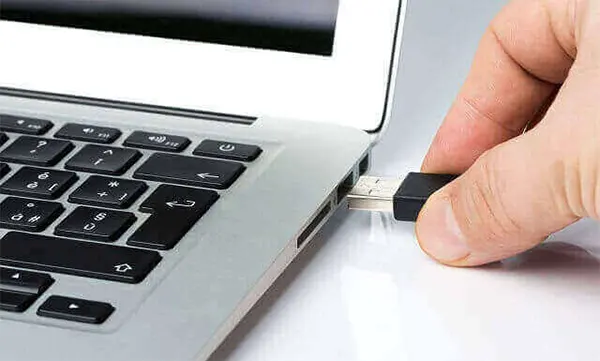
- Plug your external hard drive or USB drive into an open USB port.
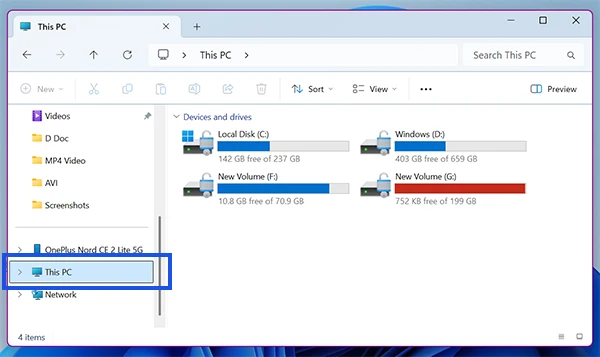
- Open File Explorer (or press Windows Key + E on your keyboard) and go to This PC.
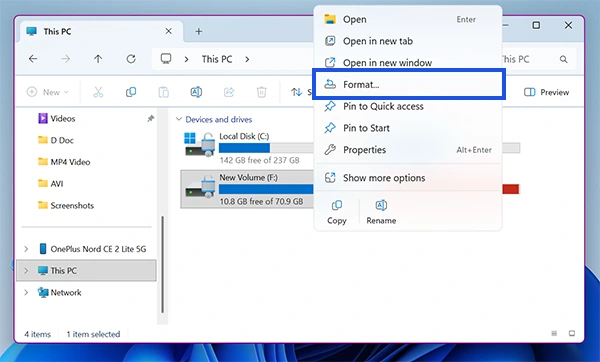
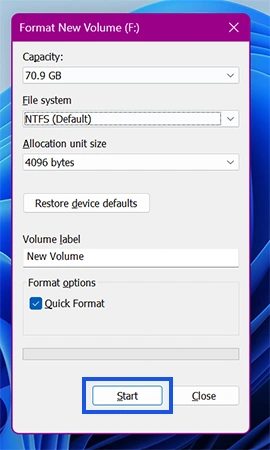
- Right-click your connected drive icon and choose Format… from the menu.
- Click the File system drop-down menu and select either NTFS or exFAT.
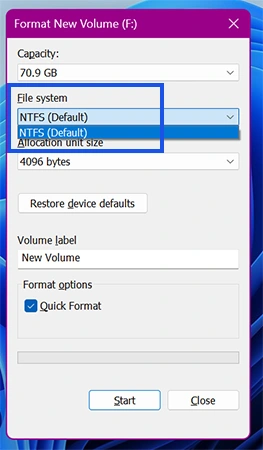
Note: If it is an internal Windows drive, the format configuration settings will show NTFS by default only.
- Leave the allocation size as default, check the Quick Format option, and click Start to apply the changes and begin the format.
Steps to format a drive on macOS:
Set up the drive on macOS using the native storage manager tool called Disk Utility. Because Apple environments handle security and partitions differently than Windows, formatting a drive prepares it to handle files properly in macOS.
- Plug your external drive (if any) into your Mac.
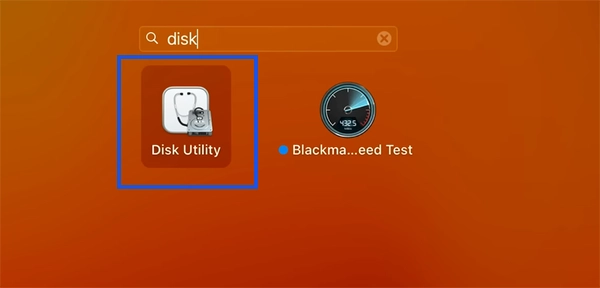
- Press Command (⌘) + Spacebar to open Spotlight search, type Disk Utility, and press Return.
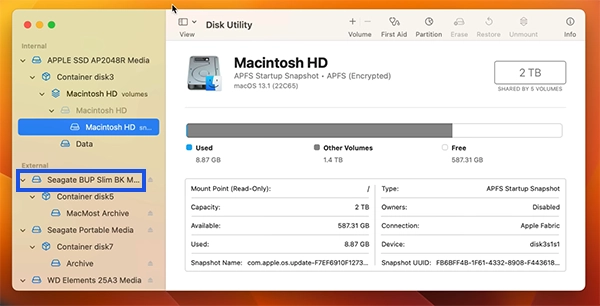
- In the left sidebar menu, click the name of your external drive.
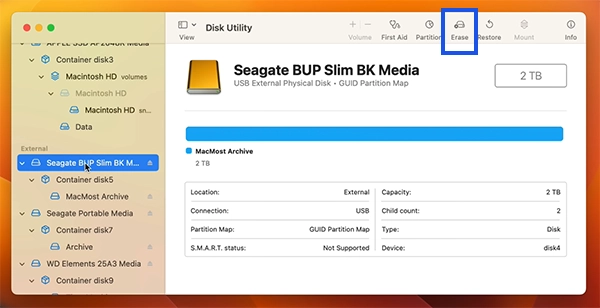
- Click the Erase button located at the top of the window.
- Open the Format dropdown and select exFAT or NTFS (if you have a special NTFS app installed).
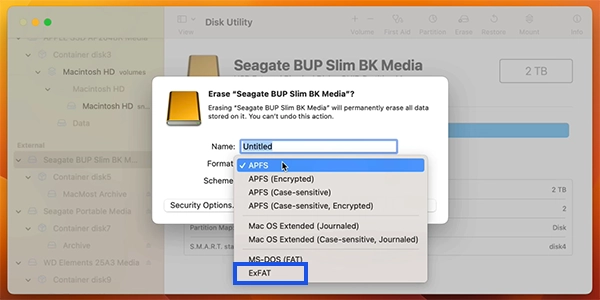
- Click the Erase button at the bottom of the pop-up window to format the drive.
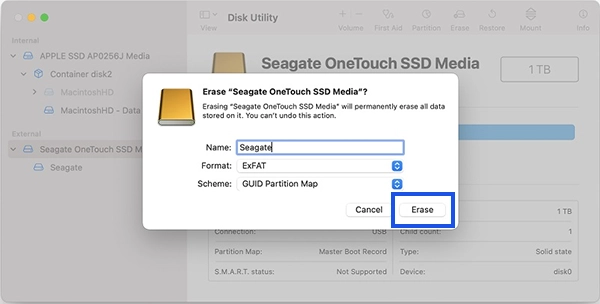
Note: For drives over 2TB, choose GPT partition style. Use MBR for smaller drives when formatting.
In Summary: exFAT vs NTFS
exFAT and NTFS both file systems have their own applications. If you need a drive that is to be used on a Windows PC and a Mac, exFAT is the perfect option because it gives universal compatibility. But if you are setting up an internal drive that will stay permanently inside a Windows computer, NTFS is the better choice because its advanced security features will protect your data.
Frequently Asked Questions
Which one to choose: exFAT vs NTFS?
What are the disadvantages of using exFAT?
The main disadvantage of exFAT is its lack of a data safety feature called journaling. If you accidentally wipe an exFAT drive while it is writing data, the files are highly likely to get corrupted.
Is exFAT easily corrupted?
Yes, exFAT is more easily corrupted because it lacks a background journaling system that NTFS has. It does not track changes before they happen, so a sudden power cut or system crash can result in file corruption.
Should external hard drive be exFAT or NTFS?
Your external hard drive should be exFAT if you want to share files between a Mac and a Windows PC. But if you only use Windows computers and want to keep your external drive securely backed up with encryption, format it to NTFS.
What is the best USB drive format for Windows 11?
The best USB drive format for Windows 11 is NTFS. It is secure and a Windows-only format.
What happens if I format my hard drive as exFAT?
Formatting your hard drive as exFAT clears all its existing data and sets up a new file map.
Is exFAT slower than NTFS?
No, exFAT is not noticeably slower than NTFS because exFAT is lightweight and does not run heavy background tasks. In fact, it is slightly faster when writing on flash memory drives like USBs or SD cards.
How to format USB to FAT32?
To format a USB to FAT32 on Windows, plug in the drive, right-click its icon in File Explorer, and select Format. Choose FAT32 from the file system drop-down menu and click Start. Note that this limits individual files to 4GB.
Sources:
NTFS overview – Microsoft Learn
exFAT file system specification – Microsoft Learn
File system formats available in Disk Utility on Mac – Apple Support
Erase and reformat a storage device in Disk Utility on Mac – Apple Support
Related Blogs
You Might Also Like
8 min read
How to Format SD Card Safely: Easy Methods for Every Device Formatting an SD card is the fastest way to wipe old data and fix performance glitches. To format an SD…
Guides
October 6, 2026
8 min read
BitLocker Recovery Key: Why You Need It and Where to Find It A BitLocker recovery key is a unique, 48-digit numerical password automatically generated to protect your Windows computer from data theft.…
Data Recovery
September 22, 2026
8 min read
How to Check Hard Drive Health (No Software Downloads Required) You can check your hard drive health for free using your computer’s built-in tools like Windows CHKDSK terminal command, macOS…
Guides
September 14, 2026
8 min read
SSD Data Recovery: DIY Steps, Professional Services, Costs, and Prevention You can recover data from an SSD, but the success depends on how fast you disconnect the power to beat…
Data Recovery
September 7, 2026
8 min read
5 Best Free Data Recovery Software: Features, Limits, and Alternatives Finding reliable 100% free data recovery software requires searching through thousands of sites and data-capped trials. In this guide, we…
Top 5
August 24, 2026
8 min read
Data Error Cyclic Redundancy Check (CRC): What It Means, Causes, and How to Fix… A Data Error Cyclic Redundancy Check means that your system has detected corrupted data on your storage drive. This happens…
Data Recovery
August 24, 2026