A BitLocker recovery key is a unique, 48-digit numerical password automatically generated to protect your Windows computer from data theft. You need this code because Windows locks your hard drive whenever it detects a major Windows update, hardware modification, BIOS flash, or other unexpected security event.
If you are currently locked out of your computer because of BitLocker drive encryption, this guide will show you how to find your recovery key. You will learn how to find BitLocker recovery key using five official methods, including checking your online Microsoft account, searching physical printouts, external USB drives, and using Windows built-in Command Prompt or PowerShell. Let’s get your computer unlocked now.
Quick Answer: A BitLocker recovery key is a special security code generated when Windows encrypts your hard drive to protect your personal files from unauthorized access. Your computer requires this code because it automatically locks itself when detected a suspicious activity or unauthorised access.
What is a BitLocker Microsoft Recovery Key?
A BitLocker Microsoft recovery key is a unique 48-digit numerical password that is automatically generated when BitLocker Encryption is activated on your Windows device. It is like the emergency security backup to unlock your hard drive if Windows detects an unauthorized access attempt or an unexpected system change.
During normal boot-up, your computer relies on internal hardware to unlock your files. But if Windows senses an unexpected hardware issue or security threats, it enters a protective lockdown state where you need to enter this BitLocker recovery key to access your data.
Features of BitLocker Recovery Key:
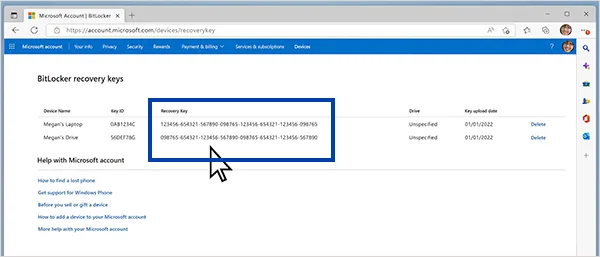
It is a string of numbers broken into six-digit segments, such as 123456-123456-123456-123456-123456-123456-123456-123456.
It is created instantly when drive encryption is turned on.
For most users, it automatically saves to their personal, work, or school Microsoft account online.
Why Do You Need a BitLocker Recovery Key?
You need a BitLocker recovery key because it is the only way to regain access to your files if Windows detects a security environment change and locks your drive. In this locked state, all standard login methods, like your PIN, password, or fingerprint, are suspended. The recovery key is the only administrative tool that can override this automated vault and save your files from being permanently encrypted and unrecoverable.
How to Access BitLocker Drive Encryption?
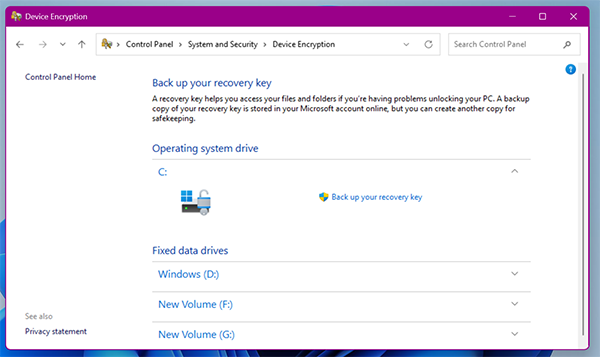
Accessing the built-in BitLocker Drive Encryption settings inside Windows is an easy process when you are already signed in to an administrative account. Using this, you can check your active encryption status and manually back up your recovery keys safely.
Steps to access BitLocker drive encryption:
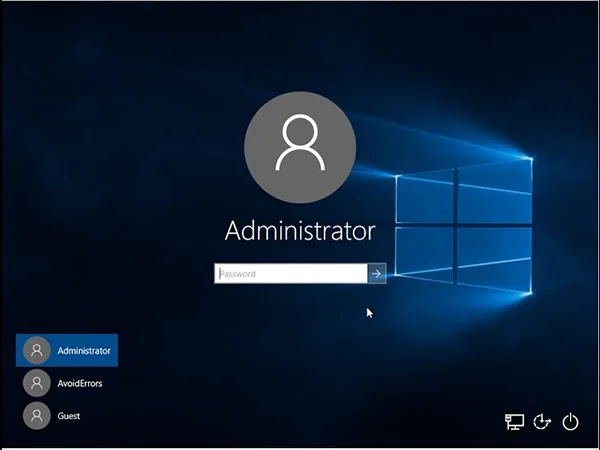
Sign in to Windows with an administrator account.
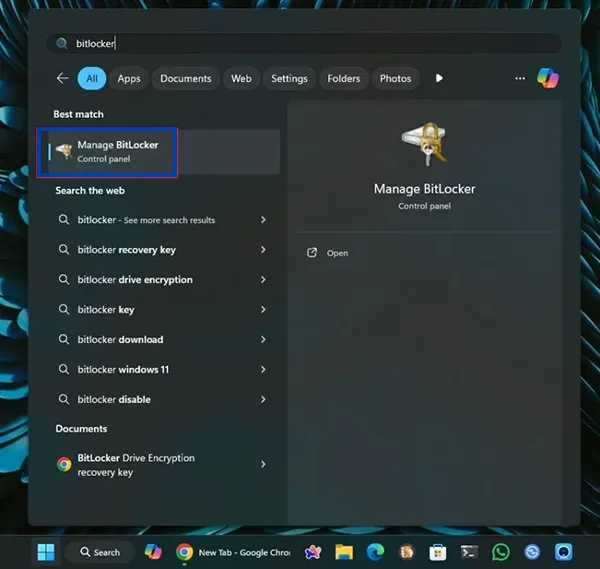
Click the Windows icon or press the Win key, type BitLocker into the Search bar, and select Manage BitLocker.
Here you can view the encrypted drives.
Privacy Alert: A recent Forbes report revealed that Microsoft can provide BitLocker recovery keys, but only to law enforcement, and that too if it is saved to their cloud servers. A company spokesperson noted that if you store your key completely locally, Microsoft cannot assist authorities because they do not have access to it.
How to Find Your BitLocker Recovery Key?
The BitLocker recovery key is tied to your hardware profile. Because this 48-digit security code cannot be modified, Windows automatically prompts you to save it to a secure location during the initial device setup. You need not look for complex technical steps, instead, you can easily find your key by checking your linked digital accounts or personal storage backups.
Depending on how your computer was set up, you can recover this code using five methods:
Method 1: Check Your Microsoft Account
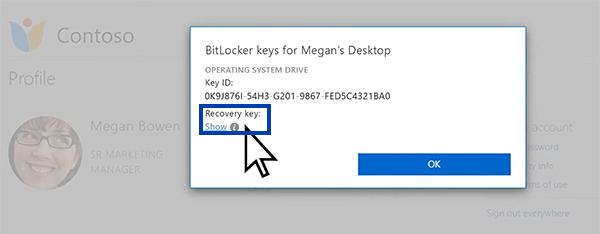
Checking your personal Microsoft Account is the fastest and most reliable way to find your BitLocker recovery key. For the majority of modern Windows laptops and desktops, this process is completely automated. When you first log into your computer using a Microsoft email address, Windows creates and uploads this key to the cloud.
Note: Even if your PC is stuck in a blue recovery loop or unresponsive state, your key remains safely accessible from any secondary device such as a smartphone, tablet, or another PC/ computer.
Follow these simple steps from any working smartphone or computer to get your Microsoft recovery key:
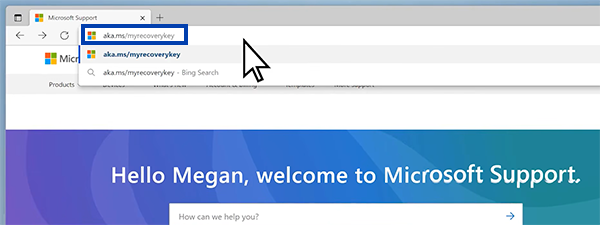
Launch a web browser and go directly to the official link: aka.ms/myrecoverykey.
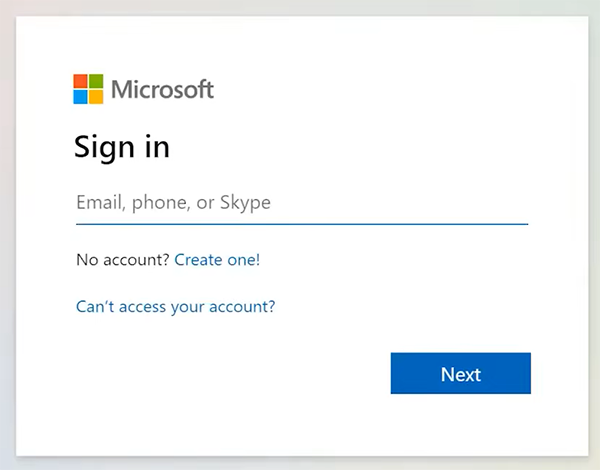
Enter the email address and password for the Microsoft account linked to your computer.
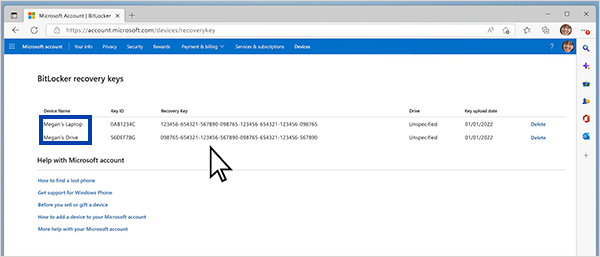
Browse through the list of registered devices to find the specific computer that is currently locked.
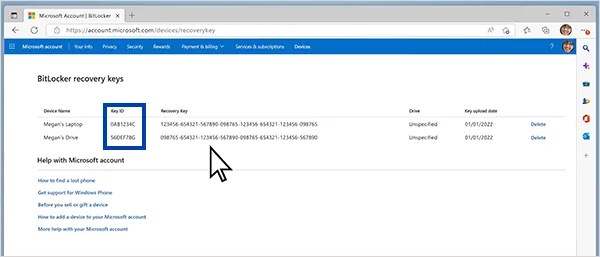
Look at the Key ID shown on your locked computer screen. Match its first 8 characters with the Key ID listed on the webpage to ensure you are selecting the correct code.
Note down the corresponding 48-digit numerical key and enter it into the BitLocker prompt on your locked PC to regain access.
Method 2: Look for a Printed Document or Saved Text File
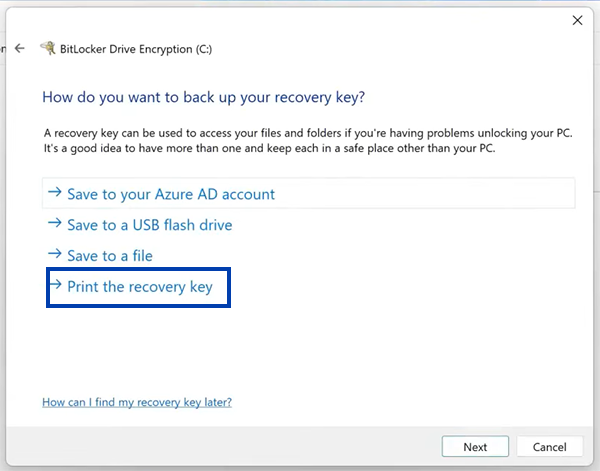
If your key is not in a cloud account, you might have saved a copy yourself when you first turned on BitLocker. Windows forces you to pick a backup method during setup, and many people choose to print the key on paper or save it as a simple text file.
To find a physical copy, look through your home files where you keep important papers or computer manuals.
In case you saved it as a digital file, plug your external hard drives or backup drives into a working computer and look for a file with the name “BitLocker Recovery Key.” Inside that paper or file, you will find the 48-digit number needed to unlock BitLocker drive encryption.
Method 3: Check Your Active Directory (Work or School Accounts)
For computers that belong to organizations, like a business or a school, the BitLocker recovery key is managed by the IT department. The IT admins can access the key directly from their server using a Data Recovery Agent profile because when you connect a device to a work or school network, Windows automatically backs up the 48-digit key to the organization’s central database rather than a personal cloud.
Note: If your device uses Microsoft Entra ID (formerly Azure Active Directory), you can log into the organization’s web portal yourself to view the key.
Method 4: Check a USB Flash Drive
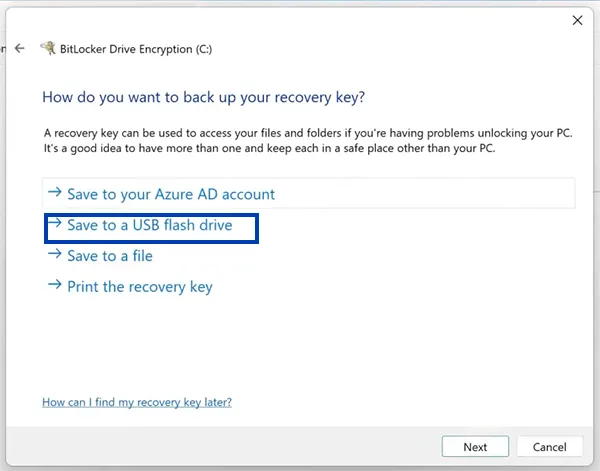
Microsoft officially recommends using a flash drive if you choose to save your recovery details locally during the initial BitLocker setup. Windows exports your 48-digit security code directly onto the external drive as a plain text document. This method keeps your decryption credentials completely offline and safe from network breaches.
To recover the BitLocker recovery key, you must plug this flash drive into your locked computer or read its contents on a separate working device to follow the setup file’s instructions.
Connect the specific USB drive you used when first encrypting your system drive to your locked device.
Note: Use a separate working computer to read the file if you saved the recovery key as a text file.
Open the drive and look at the saved text file.
Enter the 48-digit numerical key to bypass the lockdown screen and restore access.
Note: Do not confuse this backup USB with a Windows installation drive. This is a standard flash drive containing only your saved text key.
Method 5: Using Command Prompt or PowerShell
Using the built-in command-line tools in Windows can help you recover an active encryption key directly from the operating system’s security storage. This local lookup method is also perfect for verifying or backing up the recovery key before initiating major firmware updates or changing the system BIOS.
You can extract your BitLocker recovery key using either Command Prompt or PowerShell. Choose your preferred utility below:
Option A: How to find BitLocker recovery key using Command Prompt (CMD):
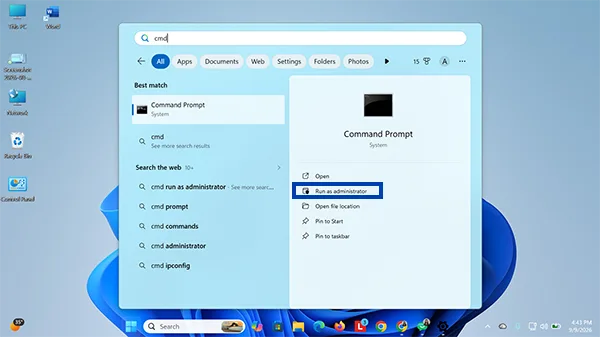
Click the Windows Start menu or press the Win key.
Type cmd. Select Command Prompt and click Run as administrator.
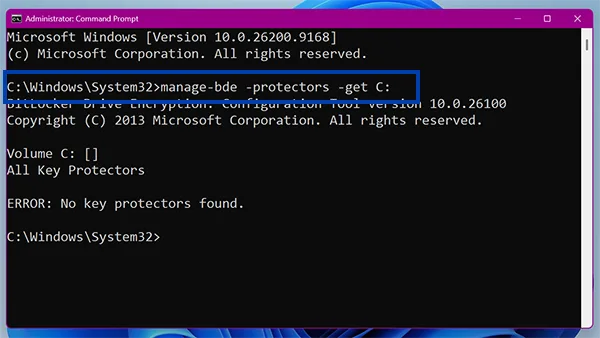
Type or copy the following command and press Enter:
manage-bde -protectors -get C:
(Note: If your operating system is installed on a different drive, replace “C:” with that letter.)
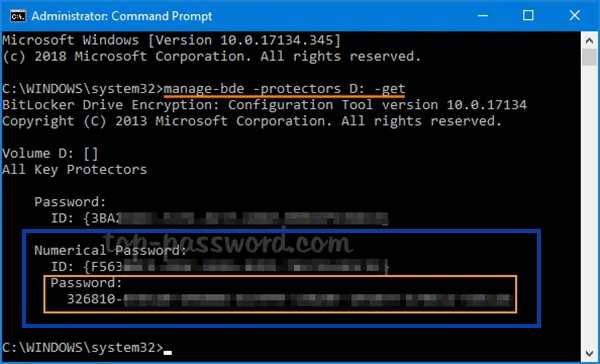
Look under the “Numerical Password:” section to find your 48-digit BitLocker recovery key.
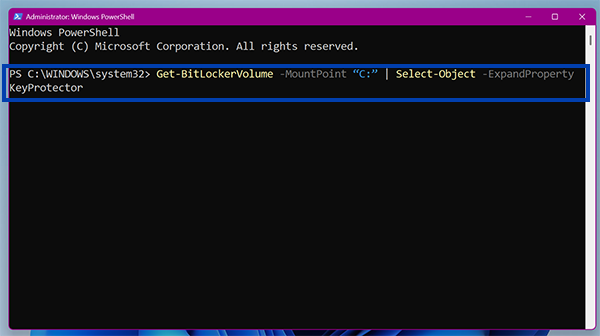
Option B: How to find recovery key of BitLocker using PowerShell:
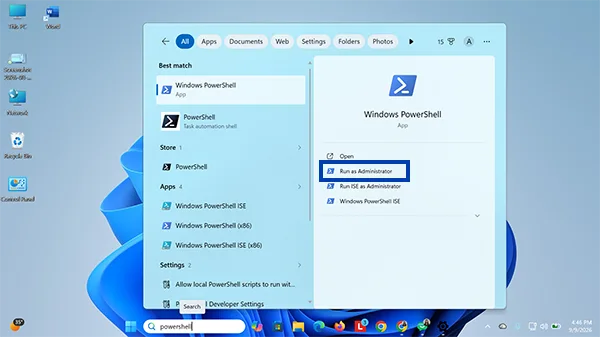
Open your Windows search bar.
Type PowerShell. Select Windows PowerShell and click Run as administrator.<
Type or copy the following script and press Enter:
Scan the output for the RecoveryKey row to get your 48-digit numerical password.
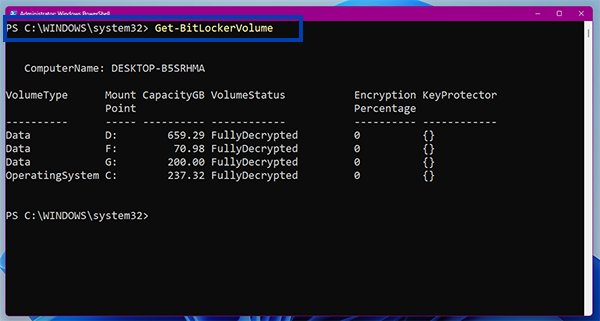
Note: To check whether BitLocker Drive Encryption is enabled on your PC or not, run the following command in PowerShell:
Get-BitLockerVolume
Fun Fact: There are nearly 300 nonillion possible combinations for a 48-digit key, making it mathematically impossible to guess.
What to Do If You Can’t Find Your BitLocker Key?
Microsoft support agents cannot look up or duplicate your lost BitLocker key to protect your data privacy. If you have checked every cloud account and physical backup location but still cannot find your 48-digit code, you cannot unlock your current system drive. Your only option to make the computer usable again is to completely reset and reformat the device. This process bypasses the lock screen but will permanently erase all data stored on that drive.
Quick Recap
A BitLocker recovery key is your computer’s shield against data theft. This 48-digit numerical password automatically activates during security triggers like major Windows updates, BIOS changes, etc. You can quickly retrieve the BitLocker recovery key by checking your personal Microsoft account online, contacting the IT desk, using command prompt/ PowerShell, or checking local backups or USB flash drives for the text file.
If you are already logged into Windows, you can easily back up your key using Command Prompt or PowerShell. Remember to always store a copy of your recovery details in a safe place so you never risk losing your personal files.
Frequently Asked Questions About BitLocker Recovery Key
What is BitLocker recovery key?
Ans. A BitLocker recovery key is a unique 48-digit numerical password generated automatically when BitLocker Drive Encryption is enabled on Windows. It acts as a safety vault key to unlock your hard drive, making your data inaccessible if the system detects unauthorized access or an unexpected security change.
Why is BitLocker suddenly asking for a recovery key?
Ans. BitLocker requests this key because it detects a change in your computer’s secure boot environment and suspects a data breach. This usually happens due to major Windows updates, BIOS or firmware flashes, or hardware modifications like replacing your motherboard or graphics card.
How to find the BitLocker recovery key?
Ans. To get your BitLocker recovery key, log into the official Microsoft Account portal using a phone or secondary computer. Other methods you can use to find BitLocker recovery key are:
Look for a printed document or saved text file
Check your Active Directory
Check a USB flash drive backup
Use Command Prompt or PowerShell
Where is my BitLocker recovery key stored by default?
Ans. If you logged in with a personal Microsoft account during the initial Windows device setup, the 48-digit key is automatically backed up online to your cloud account by default. For business or institutional devices, the system automatically saves the encryption credentials to the organization’s central network database.
Can Microsoft support agents look up my lost BitLocker recovery key?
Ans. No, Microsoft support agents cannot look up or copy a lost BitLocker recovery key.
How do I match the right BitLocker recovery key?
Ans. Look closely at the blue BitLocker recovery screen on your computer to locate the Key ID label. Compare the first 8 characters of that specific ID against the key ID listed next to the 48-digit passwords in your Microsoft cloud account or backup file to check for a match.
How do I get my computer out of BitLocker Recovery?
Ans. Type your BitLocker recovery key into the screen prompt to boot into Windows. If your PC gets stuck in a recovery loop on every single reboot, log in once, open Manage BitLocker, click Suspend protection, and then click Resume protection to recalibrate the security system.
Can I reset a PC without a BitLocker key?
Ans. Yes, you can reset your PC without the key, but it will permanently erase your files.