


Yes, a cyclic redundancy check error might be a sign of a dying hard drive. Recurring instances strongly indicate that your storage drive is collecting bad sectors.
Data Error Cyclic Redundancy Check (CRC): What It Means, Causes, and How to Fix It Safely
A Data Error Cyclic Redundancy Check means that your system has detected corrupted data on your storage drive. This happens when your operating system finds that the file bytes it read do not match the original data sent.
CRC might appear on your Windows computer as “D:\ is not accessible. Data error (cyclic redundancy check).” It essentially blocks access to the affected area to prevent further corruption. Since you are locked out of your drive, this needs to be fixed ASAP. This article will give you quick troubleshooting steps to fix it and protect your digital assets.
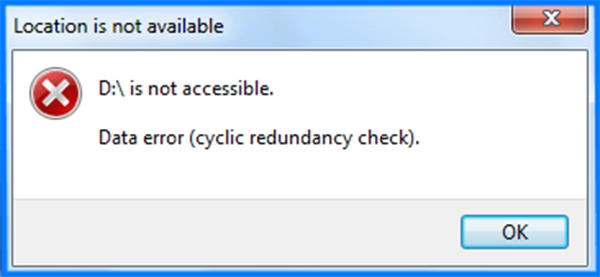
Introduction to “Data Error Cyclic Redundancy Check” Message
Seeing a “Data Error Cyclic Redundancy Check” message pop up on your screen is your operating system’s way of showing a red flag, signaling that a file or storage device has failed.
This warning means that the data your computer is trying to read has been altered or corrupted since it was originally written. Instead of allowing your application to process corrupted files, Windows or macOS immediately steps back and blocks access. This, in a way, removes the risk of destabilizing your system due to corrupted files.
This blocking mechanism behaves identically across different applications. For example, locking a spreadsheet, a folder, pausing an archive file extraction with a CRC failed 7zip error, etc.
Common signs and formats of a CRC check error:
- Data error (cyclic redundancy check)
- “Disk read error” during Windows boot
- “CRC failed” in WinRAR or 7-zip
- “The file or directory is corrupted or unreadable.”
- “Cannot copy: Data error CRC”
Note: CRC errors are highly unpredictable and can happen when opening any file type, extracting archived data, transferring folders, etc.
What Does CRC Error Mean?
A Cyclic Redundancy Check (CRC) is a mathematical algorithm that devices use to verify data integrity. When your computer stores a file, it runs the data through this algorithm to generate a checksum (short check value) and saves it alongside. When you later attempt to open, copy, or read that file, the operating system recalculates the checksum and compares it to the original value stored on the disk.
If the values match, the data is verified. If they don’t match, the system triggers a “Data Error Cyclic Redundancy Check” message. CRC error means the data your computer is reading has changed or become unreadable since the time it was originally created.
Note: A “cyclic redundancy test” is a common alternative name or misnomer for a cyclic redundancy check (CRC).
Impact of Cyclic Redundancy Check Error
| Problem Type | What is Happening | System Impact |
| Data Corruption | Digital bits are changed or scrambled | Mismatch file bytes |
| Storage Failure | Storage sectors or memory blocks lose physical stability | Unreadable storage sectors |
| Transmission Interruption | Digital data stream misses packets mid-transition | Incomplete information |
| System Lockout | The operating system creates a protective barrier | Data/drive access is blocked |
How Does CRC Work?
To understand why a Data Error Cyclic Redundancy Check error happens, you need to look at how your computer double-checks its memory. The CRC is basically the verification system used by computers, which can be split into the following stages:
- File Creation: When you first create a file, your storage system treats the data as a massive binary number.
- Polynomial Division: The system divides this binary number by a fixed mathematical number called the polynomial divider.
- Checksum Saved: The remainder left over from the division becomes a short code known as the CRC checksum. This is saved next to your file.
- Re-Calculation Check: Your computer performs the same mathematical division again when you later try to open or copy that file.
- Mismatch Blocked: The computer compares the new remainder against the original saved checksum. If they match, your file opens. And if even a single bit has changed, the values mismatch, and the system blocks access with a CRC check error.
Top Causes of CRC Data Errors
Because the cyclic redundancy check error shows a mismatch in the data checksum, the main cause can be either physical hardware or software. It’s important to understand the causes, as it will determine your fixing steps.
- Bad Sectors on Storage Drives: Drives degrade over time. This makes clusters on hard drives or SSDs permanently unreadable.
- Damaged/Loose Connection Cables: Connections interrupt data streams mid-transfer. This leads to missing bits.
- File System Corruption: An operating system crash might result in file system corruption, which further means missing the drive’s file allocation table. This misaligns the stored CRC checksums.
- Interrupted Data Transfers: Pulling out the USB flash drive or losing network connection in between downloading or transferring files leaves the data incomplete.
- Malware or Virus Attacks: Malicious software can intentionally corrupt or delete important segments of your file data.
How to Fix Data Error Cyclic Redundancy Check?
Resolving a data error cyclic redundancy check needs a systematic approach to pinpoint whether the hardware or software is at fault. We will walk through the steps to fix it in order, from simple quick fixes to repair tools. Stop as soon as the error is resolved to save time and protect your drive from unnecessary scans.
Fix 1: Quick Fixes
One must always begin with the quick fixes because most of the time the error is either due to a loose data cable or a dusty USB port. These initial steps do not require any technical expertise and can safely resolve the error in no time.
Method 1: Reconnecting Cables and Changing Ports
- Power down your computer completely if dealing with an internal drive.
- Unplug the storage device from its current slot.
- Inspect the connectors for any dust or physical damage.
- Plug the drive into a different port. Avoid using external hubs.
- Turn on the PC and attempt to access your files again.
Method 2: Restarting the System
Rebooting refreshes the system because a clean system reboot removes any temporary system errors that operating systems might have.
- Close all applications.
- Click the Start Menu, select the Power icon, and click Restart.
- Now open File Explorer and re-attempt the exact file copy or read operation.
Fix 2: Using Built-In Windows Repair Tools
If physical checks don’t fix the errors, the operating system has various built-in diagnostic tools for hard drive repair. Remember to restore your data first because using these methods might overwrite current data. Windows CHKDSK, SFC scan, updating drivers, and Mac First Aid scan your drive and fix any scrambled file systems to restore your access.
Method 1: Running Check Disk (CHKDSK)
The Check Disk (CHKDSK) is the primary diagnostic command of Windows. It’s a deep drive scanner that walks through all possible layers and restores stable drive access.
- Open Command Prompt as administrator.
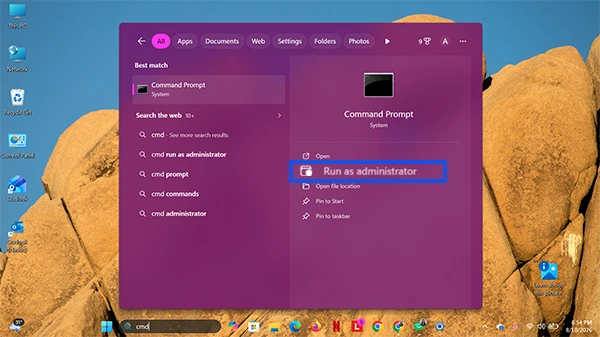
- Type the following command in the command window and press Enter. (Replace X with your drive letter)
chkdsk X: /f /r
/f – fix drive errors found in the drive’s file system metadata
/r – scan for bad sectors and attempt to recover them
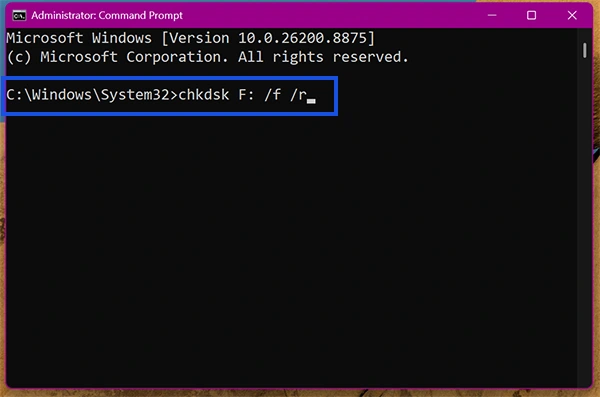
Note: If scanning your primary system drive (C:), type Y when prompted to schedule the repair scan for your next system restart.
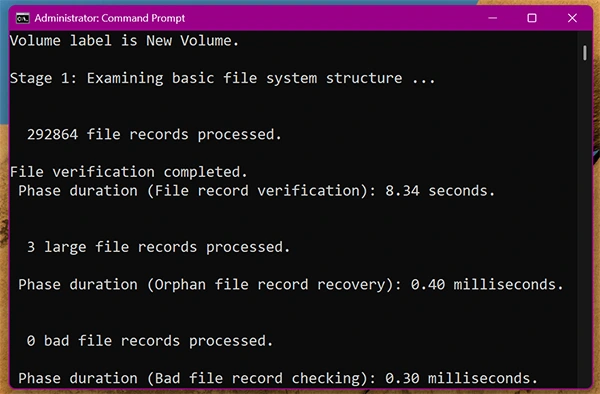
- Let the process complete. Do not close the window mid-process.
Method 2: Using the SFC Command
The System File Scan (SFC) tool is a built-in Windows utility that scans for corruption in core operating system files.
How does this help to fix a CRC error? So, if any corrupted Windows file is preventing the computer from reading CRC values, an SFC scan will fix it.
- Open Command Prompt as administrator.
- In the command window, type the following command:
sfc /scannow
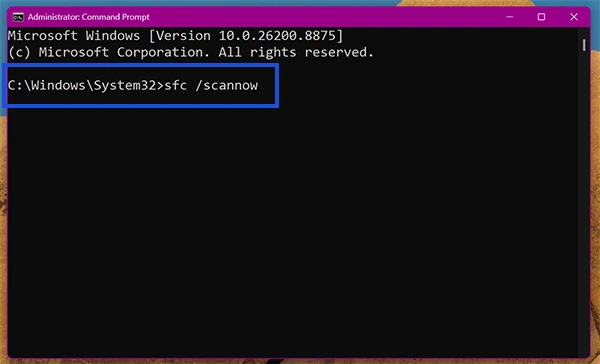
- Wait for the verification phase to reach 100% completion. Do not close the window early.
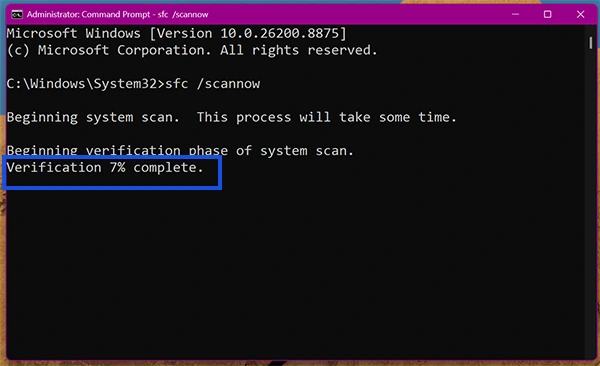
- Review the final report on screen and restart your PC.
Method 3: Using First Aid in Disk Utility (macOS)
Cyclic Redundancy Check warnings are native to Windows. Mac OS users experience the same type of data packet blockades under different system messages. First Aid in Disk Utility will scan the drive and fix any missing file system structure.
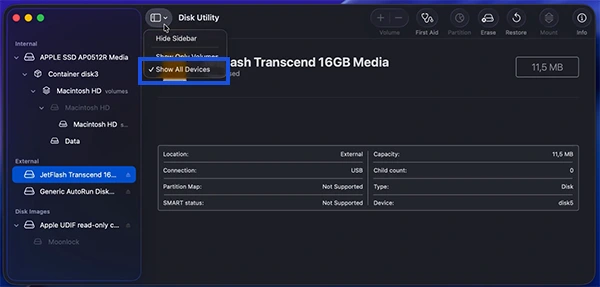
- Launch Disk Utility on your Mac by pressing Command (⌘) + Spacebar to open Spotlight, typing Disk Utility, and hitting Return.

- Click the View drop-down menu in the upper left corner of the window and select Show All Devices.
- Select your drive and click the First Aid button at the top toolbar.
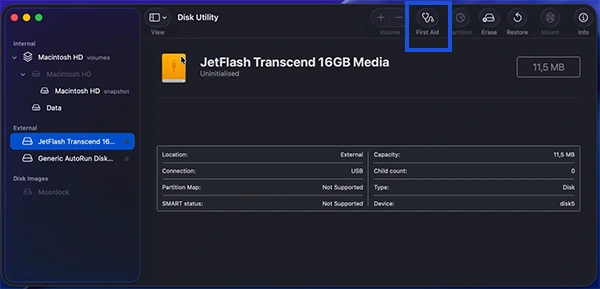
- Click Run on the warning prompt to start the diagnostic scan.
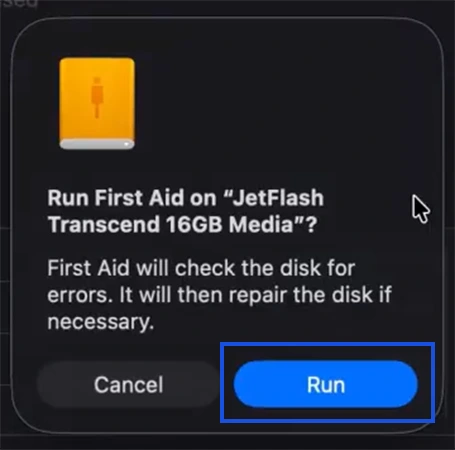
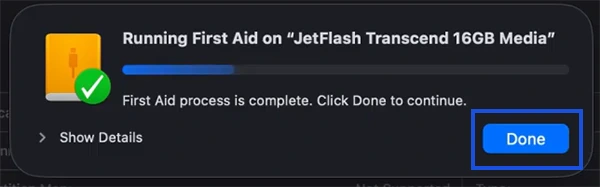
- Click Done after the utility successfully verifies and cleans your disk structures.
Method 4: Running the Graphical Disk Check
Windows includes a visual version of its repair engine that is accessible directly from File Manager. It scans the drive’s file system allocation tables and fixes any logical error that is causing a data error cyclic redundancy check.
- Open File Explorer from the taskbar or press Windows Key + E.

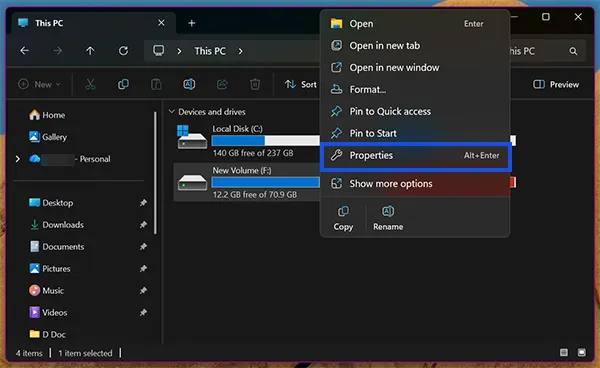
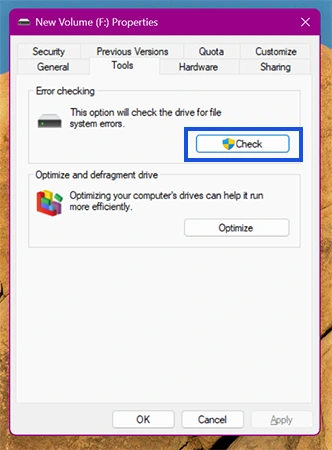
- Right-click on the drive that is displaying a CRC error and select Properties.
- Go to the Tools tab at the top of the properties dialog box.
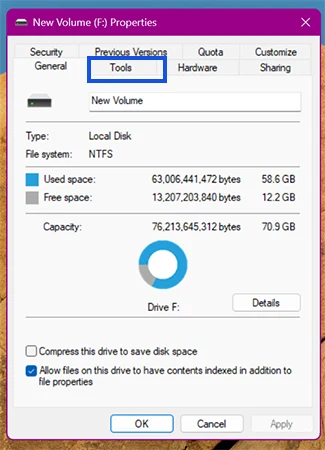
- Under the Error checking section, click the Check button.
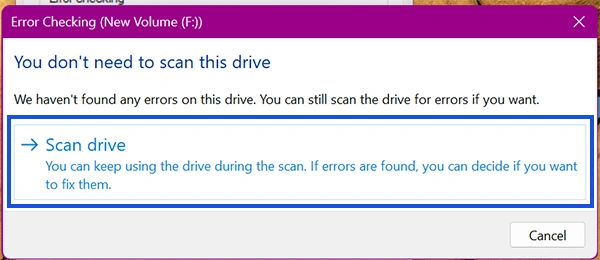
- Click Scan drive in the pop-up prompt to let Windows automatically locate and patch the disk errors.
Method 5: Updating Storage Drivers
A cyclic redundancy check error can be caused by your computer’s software’s inability to communicate accurately with your hardware. It drops data packets mid-transfer and incorrectly flags healthy data as a CRC error.
Refreshing your storage controller drivers and installing fresh firmware updates fixes this.
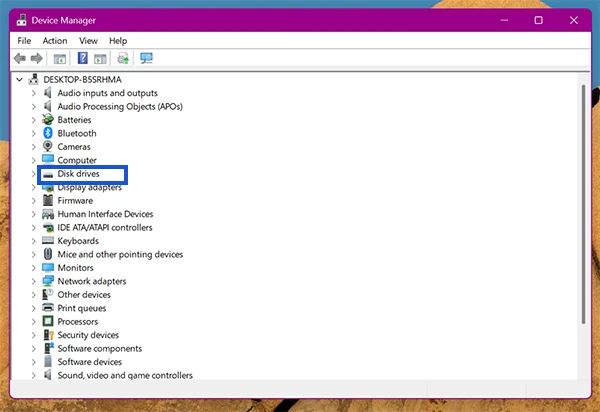
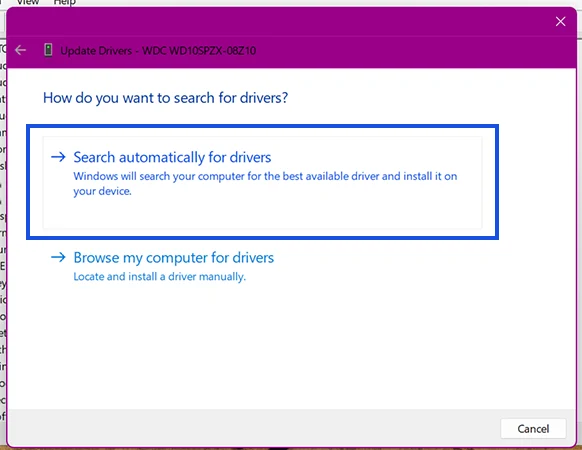
- Right-click on the Start button and select Device Manager from the list.

- Click the arrow next to Disk drivers to view your active hard drives or SSDs.
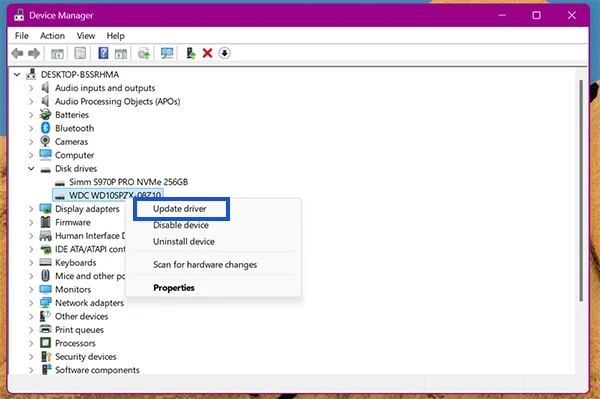
- Right-click on the selected driver and select Update driver.
- Click on Search automatically for drivers.
Data Recovery Options for CRC-Affected Drives
Continuing to read or write the files can lead to severe data corruption. At this point, your priority must shift from trying to repair the hardware to actively rescuing your files.
The table below shows your data recovery options based on the severity of the drive’s condition.
| Recovery Method | When to Use It |
| DIY Data Recovery Software |
|
| Professional Cleanroom Services |
|
To make sure you do not accidentally destroy your files, follow these three essential data-safety rules:
- Halt All Active File Writes: Stop downloading new data on the affected device.
- Isolate Your Software Installation: If you choose the DIY data recovery route, install the data recovery software on a secondary drive. Never onto the corrupted or blocked drive itself.
- Redirect Recovery Path: When extracting the files, always select a separate space as your destination folder.
Quick Recap
A Data Error Cyclic Redundancy Check is a system validation warning that can be due to either physical hardware or software degradation. It is the first sign of storage device failure, so be careful while trying to fix it.
To resolve this, you can test physical connections and further use system repair tools, prioritising data recovery.
For the future, you can protect your drives from CRC check errors by systematically ejecting the drive and maintaining regular drive checkups.
Frequently Asked Questions
Is a cyclic redundancy check error a sign of a dying hard drive?
Can a virus or malware cause a data error (Cyclic Redundancy Check)?
Yes, malware can cause a cyclic redundancy check error. Certain malicious software programs target system files and misalign file directory structures, causing cyclic redundancy check blocks.
What could have caused a Cyclic Redundancy Check?
Cyclic Redundancy Check is caused by:
- Bad sectors on storage drives
- Damaged or loose connection cables
- File system corruption
- Interrupted data transfers
- Malware or virus attacks
What is a cyclic redundancy test?
Cyclic redundancy test is an alternative term for a Cyclic Redundancy Check (CRC). It refers to the automated background verification algorithm your computer runs to test data integrity.
What does data error cyclic redundancy mean?
Data error cyclic redundancy means data has changed or become unreadable since it was written. This is checked by the operating system using a mathematical verification loop.
How can I fix a data error cyclic redundancy check in Excel?
You can fix a data error cyclic redundancy check by repairing the file or the hosting drive using:
- CHKDSK command
- Open and Repair in Excel
- SDC scan
How to resolve cyclic redundancy check?
To resolve the cyclic redundancy check error:
- Check the connections
- Run system repairs using CHKDSK and SFC commands
- Run First Aid on Mac
Can a faulty SSD cause CRC error?
Yes, a faulty SSD can absolutely cause a CRC error. SSDs are highly susceptible to electronic and flash memory degradation. When the physical components of SSDs begin to fail, the drive misreads data blocks and triggers a CRC error.
Sources:
CHKDSK – Microsoft Learn
How to repair a Mac storage device with Disk Utility – Apple Support
Update drivers through Device Manager in Windows – Microsoft Support
Related Blogs
You Might Also Like
8 min read
BitLocker Recovery Key: Why You Need It and Where to Find It A BitLocker recovery key is a unique, 48-digit numerical password automatically generated to protect your Windows computer from data theft.…
Data Recovery
September 22, 2026

8 min read
How to Check Hard Drive Health (No Software Downloads Required) You can check your hard drive health for free using your computer’s built-in tools like Windows CHKDSK terminal command, macOS…
Guides
September 14, 2026
8 min read
SSD Data Recovery: DIY Steps, Professional Services, Costs, and Prevention You can recover data from an SSD, but the success depends on how fast you disconnect the power to beat…
Data Recovery
September 7, 2026

8 min read
5 Best Free Data Recovery Software: Features, Limits, and Alternatives Finding reliable 100% free data recovery software requires searching through thousands of sites and data-capped trials. In this guide, we…
Data Recovery
August 24, 2026

8 min read
Hard Drive Repair: How to Diagnose, Fix, and Recover Data From a Failing Drive Hard drive repair is the process of fixing a broken (logically or physically) storage drive to get your files back.…
Data Recovery
August 13, 2026

8 min read
How to Recover Files After Shift+Delete? Data Recovery Hacks We were browsing Reddit recently and noticed that the forums are packed with people asking queries like: “Need advice on…
Data Recovery
August 11, 2026