


Yes, tools like Windows File Recovery, TestDisk, and PhotoRec are 100% free and unlimited. They contain no hidden paywalls or data caps, allowing you to scan and rescue as many gigabytes of data as you need.
5 Best Free Data Recovery Software: Features, Limits, and Alternatives
Finding reliable 100% free data recovery software requires searching through thousands of sites and data-capped trials. In this guide, we break down five of the absolute best 100% free data recovery tools designed to scan storage media and extract files: Windows File Recovery, Recuva, PhotoRec, TestDisk, and FreeUndelete.
Unlike commercial tools that give limited free data recovery and lock your files behind a paywall at the final step, these five options allow you to scan and extract an unlimited number of gigabytes without a single penny. This overview explains their features, pros and cons, best use case, and system support so that you know which one to use.
Quick Comparison Table of Free Data Recovery Software
| Feature | Windows File Recovery | Recuva | PhotoRec | TestDisk | FreeUndelete |
| Logo |  |  |  |  |  |
| Use Case | Command-line file recovery tool | Everyday file recovery | Deep file carving for media/photos | Repairing corrupted partitions and boot sectors | Quick recovery of recently emptied Recycle Bin |
| User Interface (UI) | Command-Line Interface (Text-only) | Graphical (Wizard & Advanced modes) | Command-Line Interface (Text-only) | Command-Line Interface (Text-only) | Graphical (Simple, Legacy) |
| Data Recovery Limit | Unlimited | Unlimited | Unlimited | Unlimited | Unlimited |
| Supported OS | Windows 10/11 | Windows only | Multi-platform (Win, Mac, Linux) | Multi-platform (Win, Mac, Linux) | Windows Only |
| Supported File Systems | NTFS, FAT, exFAT, ReFS | NTFS, FAT, exFAT, ext2/3/4 | Reads raw block data | NTFS, FAT, exFAT, ex2/3/4, HFS+ | NTFS(1.0/2.0), FAT(12/16/32) |
| Technical Skill Required | Beginner | Beginner | Intermediate | Advanced | Beginner |
| Benefit | Safely recovers files on Windows | Deep scan mode and secure file shredding feature | Exceptionally powerful at finding rare file signatures | Rebuilds missing partition tables without moving files | Extremely lightweight recovery tool |
Top 5 Free Data Recovery Software
While all five options offer unlimited data retraction at zero cost, they are designed differently; some applications rely on standard operating system file tables to quickly recover recently deleted items, while others completely ignore them and scan the data blocks directly.
To choose the best one, you need to analyse each software’s features, advantages, and loopholes. The following section provides a detailed look into the working and operational strengths of each listed software.
#1 Windows File Recovery
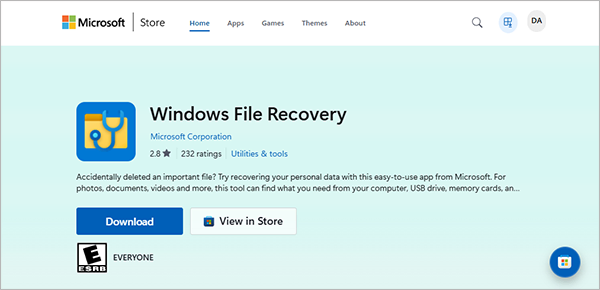
Windows File Recovery is the command-line app available from the Microsoft Store. It is the best app for Windows users to recover lost files that have been deleted from a local storage device (including internal drives, external drives, USB, etc.). It allows free, unlimited data recovery on Windows.
Key Features
- Unlimited free data recovery on Windows.
- Command-line interface provides direct execution through Windows Terminal.
- Regular and extensive methods handle both recent deletions and corrupted drives.
- Official Microsoft engineering with Windows security.
Best For
This tool is best for technically confident users who want an official and secure Microsoft tool and are comfortable typing command syntax into a terminal.
| Pros | Cons |
|
|
System Support
- Operating Systems: Windows 10 (Build 19041 or later), Windows 11
- File Systems: NTFS, FAT, exFAT, ReFS
#2 Recuva
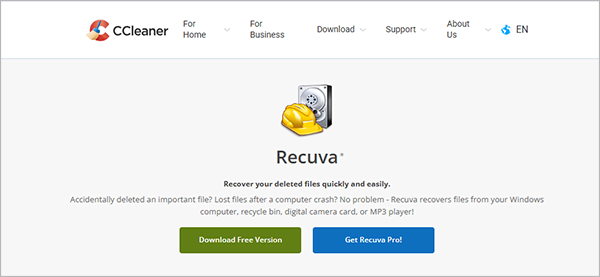
Recuva, developed by Piriform, is undoubtedly completely free hard drive recovery software for Windows. It comes with a user-friendly graphical user interface. With a wizard-based interface, it guides you through the data recovery process step-by-step. It provides unlimited data recovery from storage devices such as hard drives, USB drives, memory cards, etc.
Note: Along with unlimited free recovery, the Recuva Professional tier is available for $24.95, adding advanced file support, automatic updates, customer support, and more.
Key Features
- Guided startup wizard eases target selection for non-technical computer users.
- Deep scanning technology to recover deeply buried files.
- Health indicators show the integrity of files before extraction.
- Flexible folder structure with filtering option.
Best For
This software is ideal for beginners recovering recently deleted photos, videos, audio, or documents from Windows computers, USB drives, memory cards, and external drives.
| Pros | Cons |
|
|
System Support
- Operating Systems: Windows 11, 10, 8.1, 4, Vista, XP
- File Systems: NTFS, FAT, exFAT, ext2, ext3, ext4
#3 PhotoRec
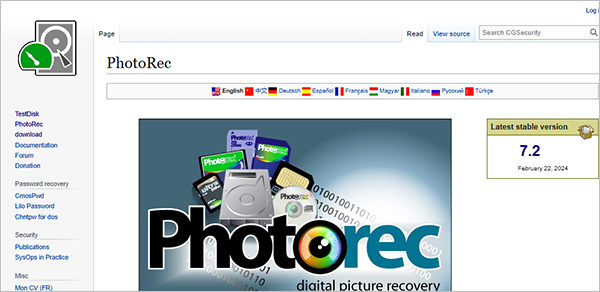
PhotoRec is open-source digital picture and free file recovery software. It ignores the file system and goes after the underlying data, giving you easy data recovery in severely damaged or formatted situations too. For safety, PhotoRec uses read-only access to handle the drive you want to recover the files from.
Key Features
- File carving technology reads raw data blocks.
- Recognizes over 480 distinct file format extensions.
- Free and open-source recovery software
- Multi-platform capabilities allow execution across almost all desktop OS.
Best For
This tool is best for advanced users and IT professionals who require deep scanning and powerful data recovery.
| Pros | Cons |
|
|
System Support
- Operating Systems: DOS, Windows 11, 10, 8.1, 8, 7, Vista, XP, Linux, FreeBSD, NetBSD, OpenBSD, Mac OS X
- File Systems: FAT, NTFS, exFAT, ext2/ext3/ext4 filesystem, HFS+
#4 TestDisk
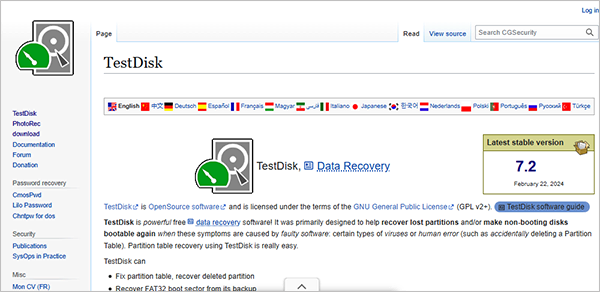
TestDisk is a powerful sister application to PhotoRec. It is a free, open-source data recovery tool for partition recovery and is only beneficial if your entire partition is missing. Therefore, it is mainly used in advanced cases. It can be used on both internal and external HDDs. Since it is more advanced, it works at the disk structure level, not the individual file recovery level.
Key Features
- Partition table recovery finds and restores deleted or missing drive volumes.
- Fixes corrupted file table with boot sector repair.
Best For
This application is useful for advanced users dealing with missing partitions on an external HDD. Especially used in Linux recovery.
| Pros | Cons |
|
|
System Support
- Operating Systems: Windows Vista and above, macOS 10.15 and above, Linux 2.6.18 or later
- File Systems: NTFS, FAT, exFAT, ext2/3/4, HFS+, dynamic disks
#5 FreeUndelete
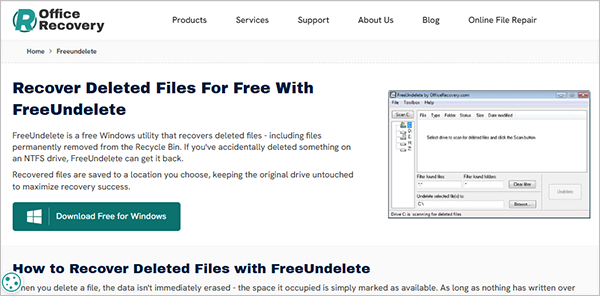
FreeUndelete is a lightweight, freeware data recovery utility that supports NTFS and FAT file systems. It features a minimal retro-type interface focused on recovering files after Shift+Delete (files that are even deleted from the Recycle Bin). It works on a variety of fixed and removable media such as hard drives and SD cards.
Key Features
- Minimal installation memory required.
- The simple folder tree view matches the familiar layout of Windows Explorer.
- Recreates the index entry to restore the file.
Best For
This software is best for users operating older Windows systems who need a quick fix to undelete a recently removed folder without exhausting system memory.
| Pros | Cons |
|
|
System Support
- Operating Systems: Windows 10, 8, 7, Vista, XP, Windows Server 2003/2008
- File Systems: NTFS, FAT12, FAT16, FAT32
How to Choose the Best Free Data Recovery Software?
Selecting the ideal data recovery tool requires you to match the specific nature of your data loss with the strengths of the software. Because installing the wrong tool can risk overwriting your files, making an informed choice is important. You must evaluate the conditions of your hardware, your operating system, and your own technical comfort level with recovery software before starting DIY data recovery.
Here are the main things that you should use to evaluate and choose your software:
- Assessing the Condition of Your File System
Your choice depends on whether your storage drive is healthy or logically broken. If you simply emptied the Recycle Bin on a functioning drive, standard tools like Recuva or FreeUndelete can quickly scan and retrieve your data.
If your computer asks you to format the drive, or if it reads raw, you must select PhotoRec, which can restore data in such scenarios.
- Match the Interface to Your Technical Skills
Beginners should prefer graphical tools like Recuva, which has clear menus and helpful wizards. If you are comfortable navigating command-line terminals, advanced tools such as Windows File Recovery or TestDisk offer much deeper access to the drive structure but require precise input to avoid mistakes.
- Verifying Operating System and File System Compatibility
Before downloading any software, ensure it natively supports your specific computer setup and the format of your drive. Free data recovery software like Windows File Recovery and FreeUndelete are built exclusively for Windows environments. For Mac or Linux machines, or an external drive formatted in an architecture like ext4 or HFS+, you must choose either PhotoRec or TestDisk.
- Determine If You Need File Extraction or Partition Repair
You must identify whether you are missing individual files or an entire drive volume. Recuva, Windows File Recovery, or PhotoRec are the correct choices for specific photo, document, or video file extractions. But if your entire drive is missing, a system repair tool like TestDisk should be used to rebuild the partition architecture.
Free Data Recovery Software Alternatives
There are numerous software options available in the market that allow limited free recovery, which can be the best alternative to these free software options with additional advanced features. Though they do not provide unlimited data restoration, they surely provide features such as free file preview, sorting, selective recovery, etc., that these free tools lack.
Let’s have a look at advanced free data recovery software alternatives and compare them to get the best one.
Free Data Recovery Software Alternatives
| Specifications | Disk Drill | EaseUS Data Recovery Wizard | Stellar Data Recovery | MiniTool Power Data Recovery | Wondershare Recoverit |
| Logo |  |  |  |  |  |
| Free Data Recovery Limit | 100 MB (Windows only) | 2 GB | 2 GB | 1 GB | 500 MB |
| Best For | Modern UI and high-fidelity file preview | High recovery success rates for beginners | Recovering corrupted media and office documents | Guided desktop file restoration | Advanced video file restoration and sector repair |
| Entry-Level Paid Pricing | $89.00 per year | $69.95 per month | $59.99 per year | $69.00 per year | $41.99 per month (Student plan) |
| Supporting Operating System | Windows, macOS | Windows, macOS | Windows, macOS | Windows only | Windows, macOS |
These freemium tools offer a better interface and user experience but limited free data recovery. If you only need to rescue a handful of document files or photos, a freemium trial might suffice.
Free Data Recovery Tools Summary
We looked at five completely free data recovery software programs: Windows File Recovery, Recuva, PhotoRec, TestDisk, and FreeUndelete. This software allows you to recover deleted files for free, as many files as you want. The only drawback is that they might look a bit older or require you to type out text commands.
On the other hand, premium options like Disk Drill, EaseUS, etc. are very easy to use, but they give you limited data recovery.
For a major data loss, learning to use one of the unlimited free tools is your best choice. Simply pick the tool that matches your recovery situation and system, and restore your deleted files for free.
Frequently Asked Questions
Are there any truly free data recovery software?
What is the best free data recovery software in 2026?
Windows File Recover is the best option for native Windows users who want an official and secure free data recovery software. For those preferring a clickable interface, Recuva is excellent.
Can data recovery software restore 100% of my lost files?
No software guarantees a 100% success rate. Recovery depends entirely on whether the space where your deleted files lived has been overwritten by new system data or fresh file creation before you ran the scan.
Is Recuva 100% free?
Yes, the standard version of Recuva is completely free and allows you to recover unlimited files. There is a paid Professional version of Recuva that comes with advanced recovery features.
Can I recover data for free?
You can easily recover your data for free by using unlimited open-source tools or free tools like Windows File Recovery. Additionally, if you only need to rescue a few items, premium tools like Disk Drill and EaseUS offer a limited free recovery.
What is better than Recuva?
Windows File Recovery is a better option if you want a built-in Microsoft engine that offers superior integration with modern Windows updates.
How to recover all data from a PC?
First, stop using your computer immediately to prevent overwriting files. Download data recovery software (free/paid) onto an external drive. Run the software to scan the drive and extract the files to a completely separate storage device.
Related Blogs
You Might Also Like
8 min read
BitLocker Recovery Key: Why You Need It and Where to Find It A BitLocker recovery key is a unique, 48-digit numerical password automatically generated to protect your Windows computer from data theft.…
Data Recovery
September 22, 2026
8 min read
How to Check Hard Drive Health (No Software Downloads Required) You can check your hard drive health for free using your computer’s built-in tools like Windows CHKDSK terminal command, macOS…
Guides
September 14, 2026
8 min read
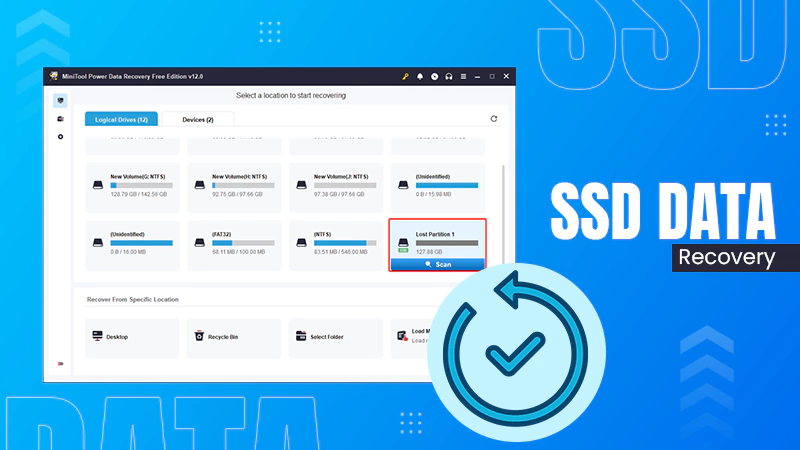
SSD Data Recovery: DIY Steps, Professional Services, Costs, and Prevention You can recover data from an SSD, but the success depends on how fast you disconnect the power to beat…
Data Recovery
September 7, 2026
8 min read
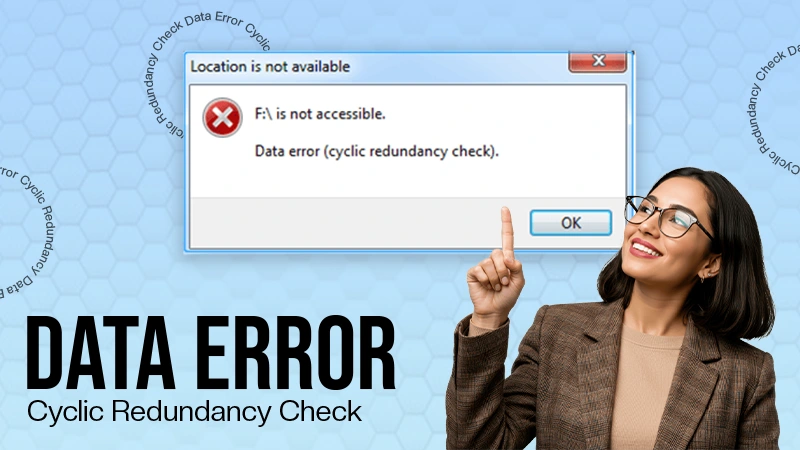
Data Error Cyclic Redundancy Check (CRC): What It Means, Causes, and How to Fix… A Data Error Cyclic Redundancy Check means that your system has detected corrupted data on your storage drive. This happens…
Data Recovery
August 24, 2026
8 min read
Hard Drive Repair: How to Diagnose, Fix, and Recover Data From a Failing Drive Hard drive repair is the process of fixing a broken (logically or physically) storage drive to get your files back.…
Data Recovery
August 13, 2026
8 min read
How to Recover Files After Shift+Delete? Data Recovery Hacks We were browsing Reddit recently and noticed that the forums are packed with people asking queries like: “Need advice on…
Data Recovery
August 11, 2026