


Yes, formatting an SD card completely wipes out all existing data, including photos, videos, and system directories. The process resets the storage structure so that the device can read it like fresh storage.
How to Format SD Card Safely: Easy Methods for Every Device
Formatting an SD card is the fastest way to wipe old data and fix performance glitches. To format an SD card safely, always back up your important files first, select the correct file system (like exFAT or FAT32), and use built-in system tools as per your device. Because every gadget handles data slightly differently, the safest approach depends on the specific device you are using.
In this guide, we will see how to format SD card for all your everyday devices. You will see step-by-step methods for Windows PC, Apple Mac, smartphones, and digital cameras, along with troubleshooting tips. Following these steps will make sure your SD card is perfectly formatted for your next use.
Quick Answer: To format SD card on a computer, open Windows File Explorer or Mac Disk Utility, right-click on your SD card, and select Format or Erase. Choose exFAT for cards 64GB or larger or FAT32 for 32GB or smaller and click Start.
To format SD card on a mobile phone or camera, insert the card into the device, go to settings, and click Format.
How to Format SD Card on Windows and macOS
Windows PCs and Apple Macs have built-in ways to format SD cards, which you can use to clean your card safely without any external app. To make your card function properly after reset, you need to choose the right file format according to your device, such as exFAT, FAT32, NTFS, APFS, etc.
The built-in methods for how to format SD card on Windows include using File Explorer, Disk Management, and DiskPart commands, and for macOS, Disk Utility gives the direct way to format SD card safely.
Method 1: Using File Explorer
Formatting your SD card through Windows File Explorer is the quickest and easiest method for PC users. Since Windows has the tool built into the system, you do not need to download any extra software. It is the best choice for a fast reset if your card is working normally.
Steps to format SD card using File Explorer:
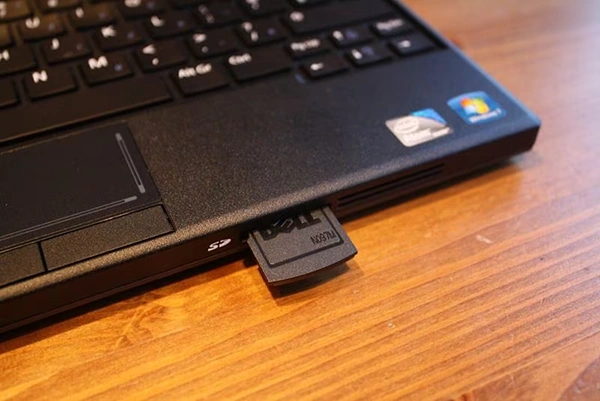
Step 1: Insert the SD card into your computer’s built-in slot or use an external card reader.
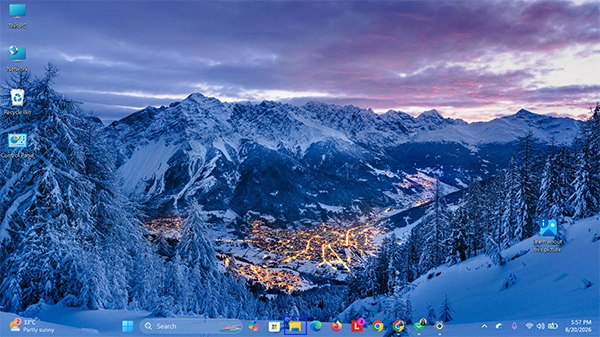
Step 2: Search and open File Explorer or press Windows Key + E on your keyboard to open the file window.
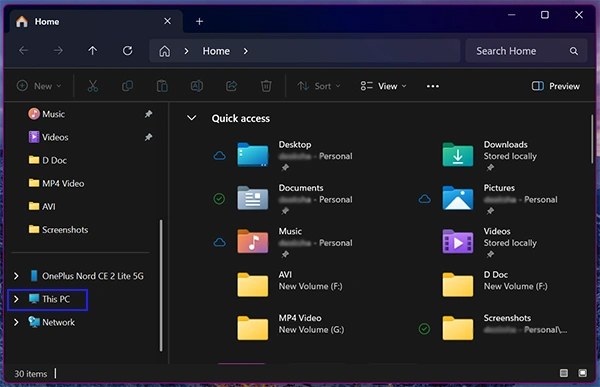
Step 3: Click on This PC in the left sidebar.
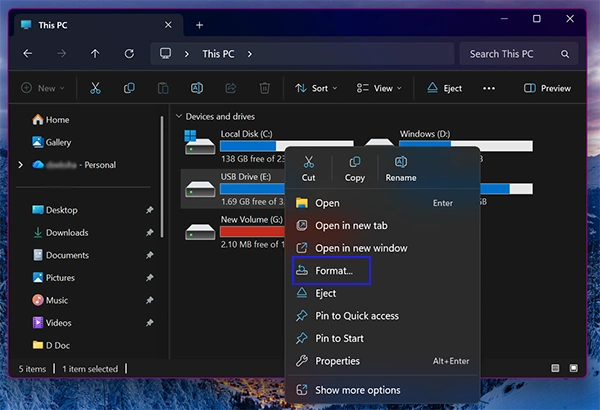
Step 4: Find your SD card under the “Devices and drives” section. Right-click on it and select Format from the drop-down menu.
Step 5: Configure the format. Select the file system from the drop-down (choose FAT32 if your card is 32GB or smaller, or choose exFAT if it is larger than 64GB).
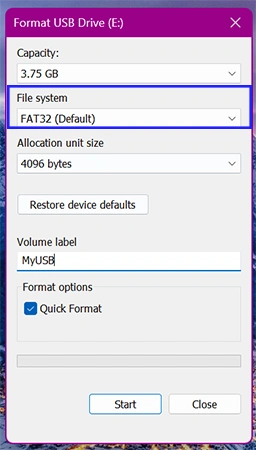
Step 6: Check the box next to Quick Format.
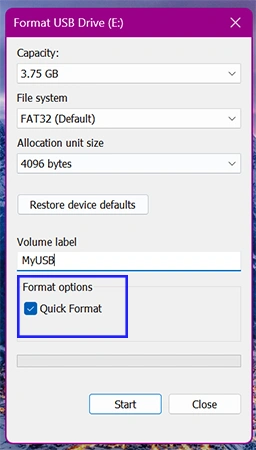
Step 7: Click the Start button to begin the format.
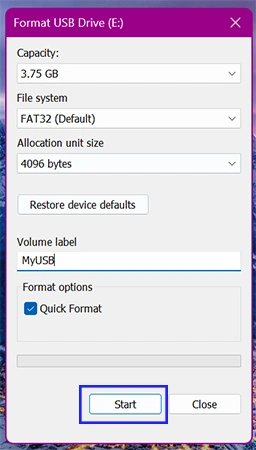
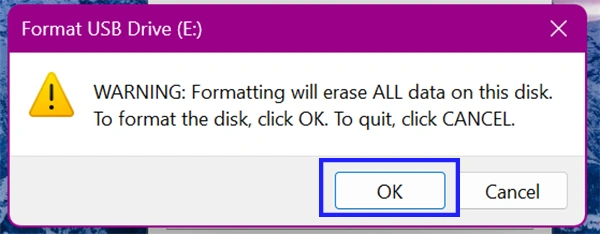
Step 8: Click OK on the warning pop-up to permanently clear all data and complete the format.
Method 2: Using Windows Disk Management
Windows Disk Management is a more powerful built-in tool that you should use when your SD card does not show up in File Explorer. This tool recognizes your SD card even if it is corrupted or shows an “Unallocated space” error. So, if your computer recognizes that a device is plugged in but won’t let you open it normally, Disk Management can force the system to format it.
How to format an SD card using Disk Management in Windows?
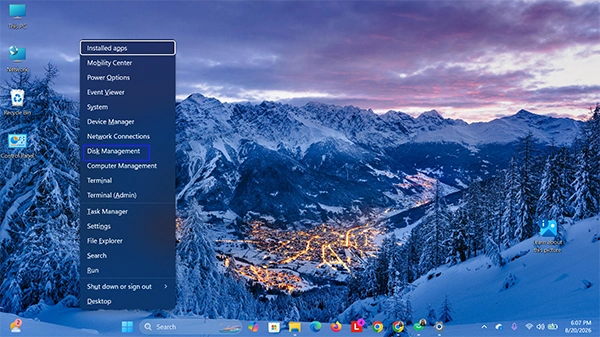
Step 1: Right-click the Windows Start button and select Disk Management from the pop-up menu.
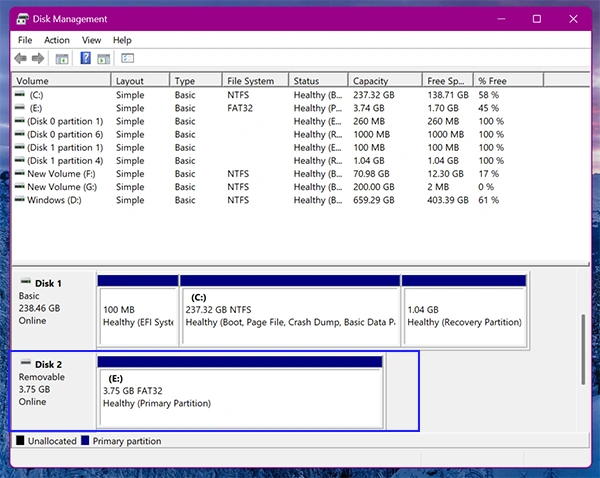
Step 2: Look through the list of drives at the bottom to find your SD card, which is usually labeled as a “Removable” disk.
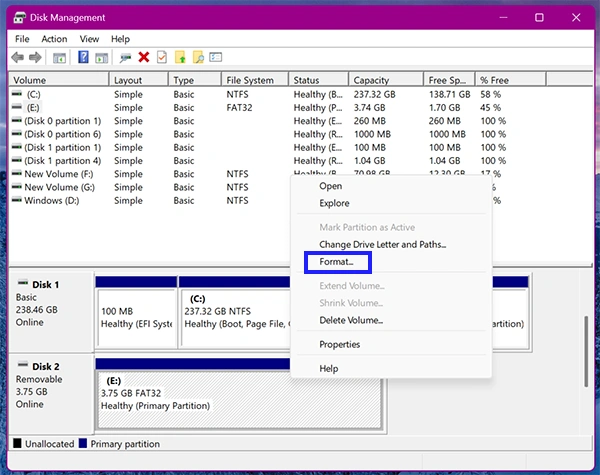
Step 3: Right-click the large rectangular bar next to the SD card’s name and choose Format from the menu.
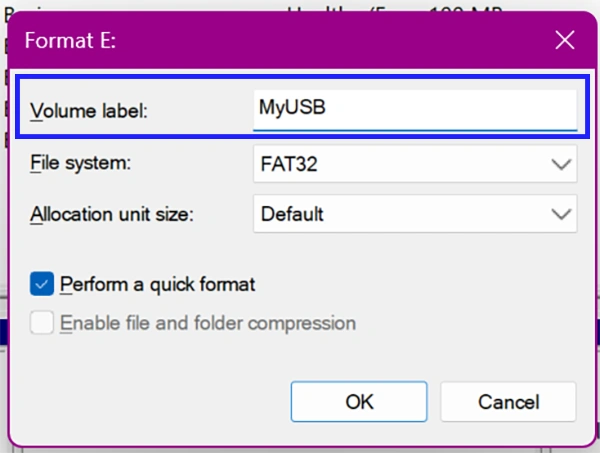
Step 4: Type a name for your card in the Volume label box so you can easily recognize it later.
Step 5: Set the file system. Select FAT32 for cards under 32GB or exFAT for cards 64 GB and larger.
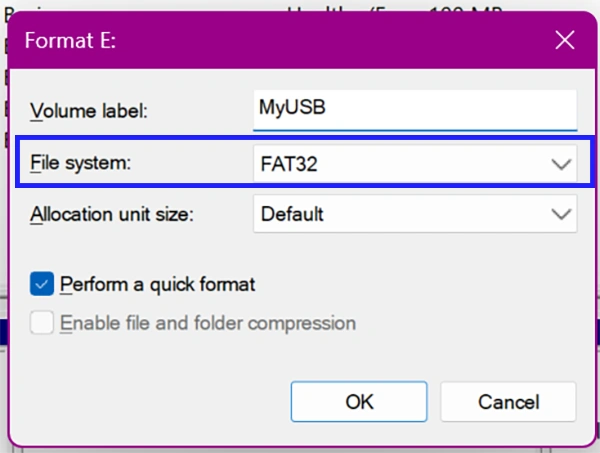
Step 6: Ensure the checkbox for Perform a quick format is ticked.
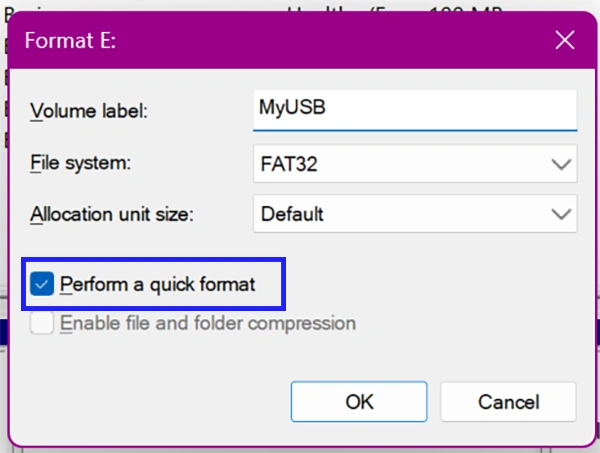
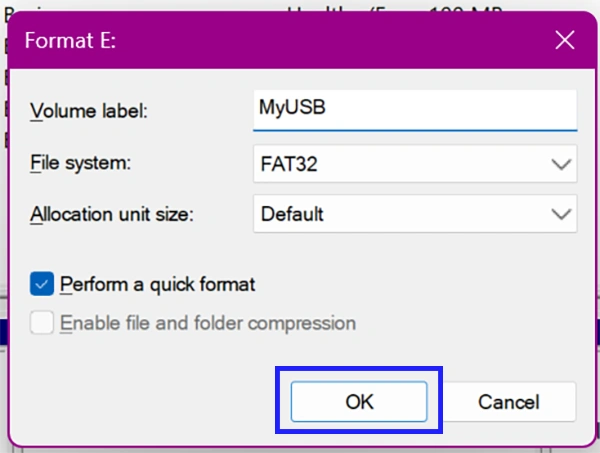
Step 7: Click OK to apply the changes and start the format process.
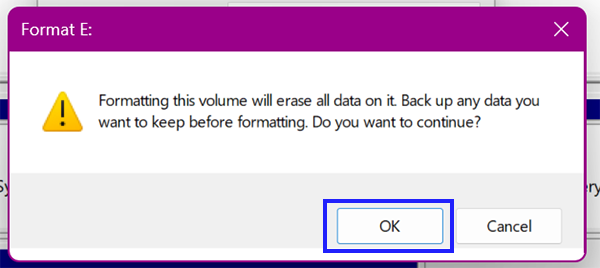
Step 8: Click OK again on the data loss warning to finish the process.
Method 3: Using DiskPart Command
The DiskPart Command Prompt method is the one you should try if nothing else works on Windows to format SD card. DiskPart bypasses the standard Windows visual menus to clean and wipe the raw storage drives directly at the system level.
How to reformat SD card using the DiskPart Command:
Step 1: Type cmd into the Windows Search bar, select Command Prompt, and click Run as administrator.
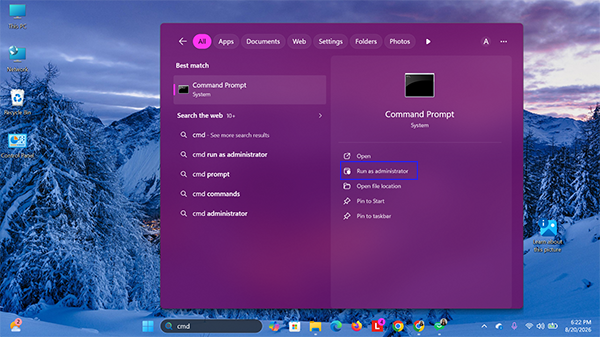
Step 2: Type diskpart into the black window and press Enter.
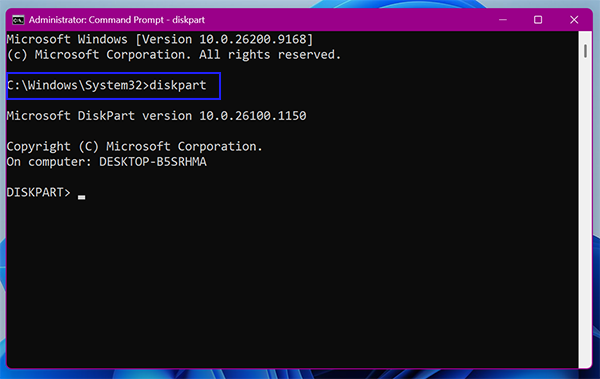
Step 3: Type list disk and press Enter to see all storage drives connected to your computer.
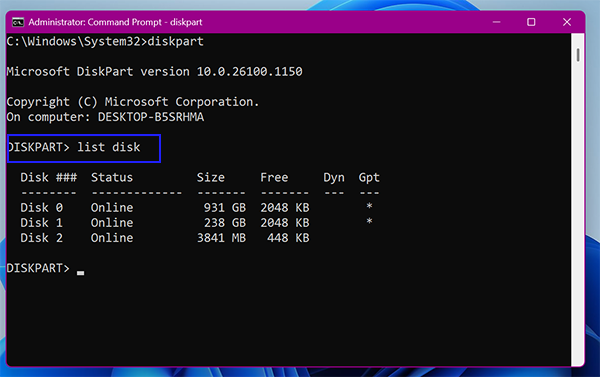
Step 4: Look closely at the Size column to find your SD card number (for example, Disk1 or Disk 2).
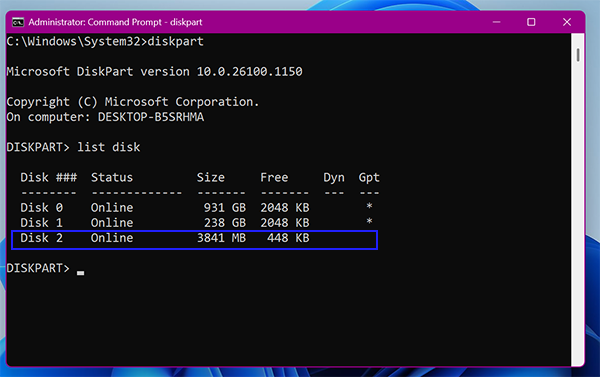
Step 5: Type select disk X (replace X with your SD card number) and press Enter.
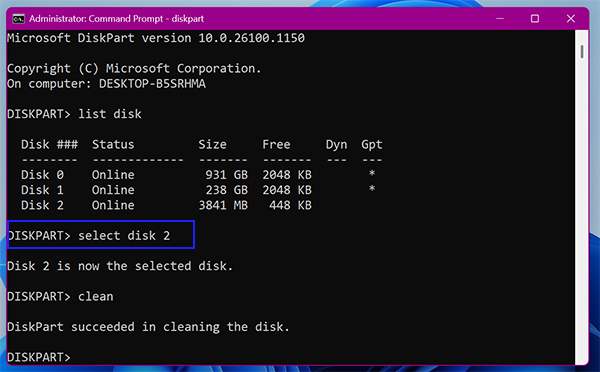
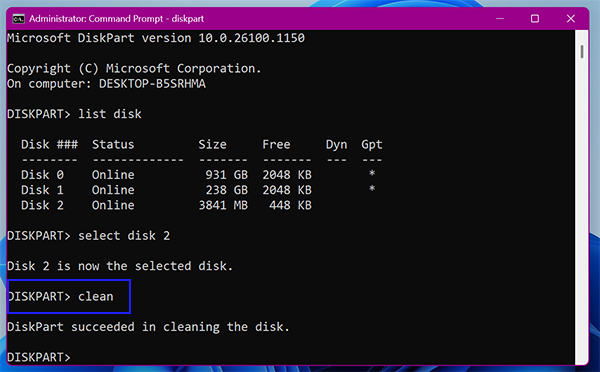
Step 6: To clear the drive, type clean and press Enter. This will wipe all data partitions and errors.
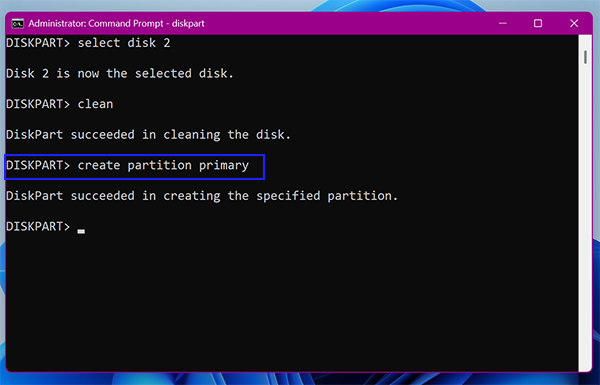
Step 7: Type create partition primary and press Enter to build a fresh data block.
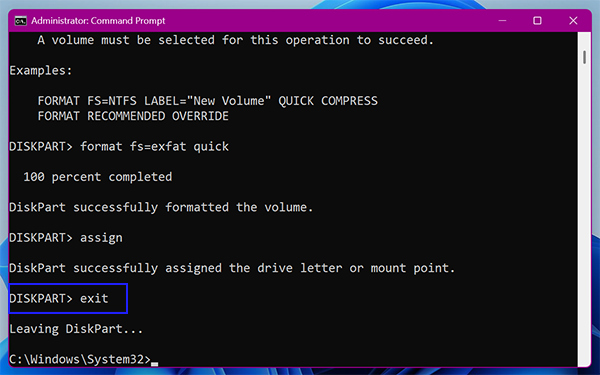
Step 8: Type format fs=exfat quick for large cards (or fs=fat32 quick for 32GB or smaller) and press Enter.
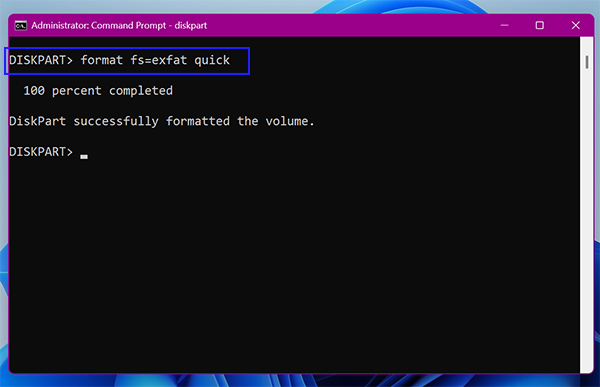
Step 9: The formatting process will take a few minutes. Type exit and press Enter once the screen shows that formatting was successful.
Method 4: Using macOS Disk Utility
Using macOS Disk Utility is the quickest and safest method to format SD card if you are using an Apple computer. This method can also be used to clear files, fix read-only errors, or reformat the SD card. Also, you can format to prepare a card that was previously used on a Windows PC. It handles all the formatting tasks directly without any need for third-party software.
Here are the step-by-step instructions for how to format SD card on Mac using Disk Utility:
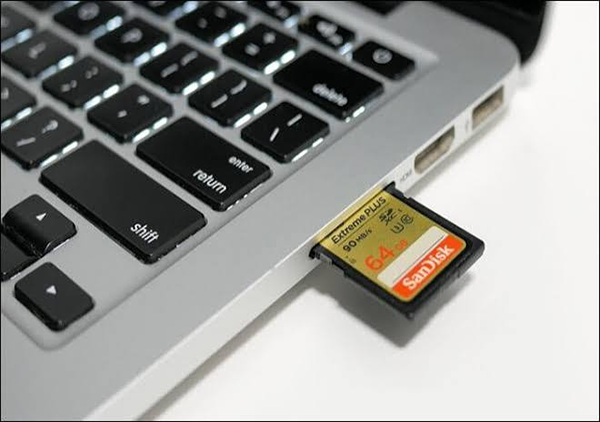
Step 1: Insert the SD card into your Mac’s slot or connect an external card reader to a USB port.
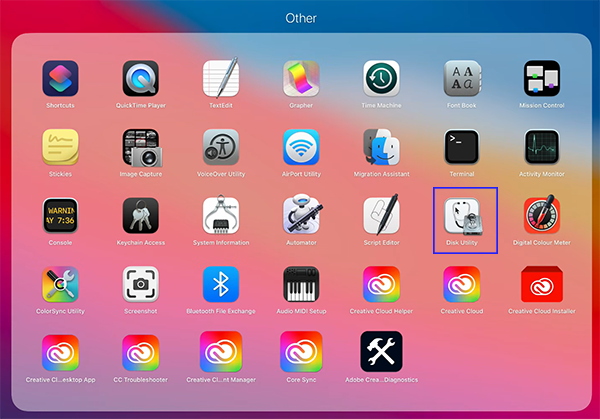
Step 2: Press Command + Spacebar to open Spotlight search, type Disk Utility, and press Return.
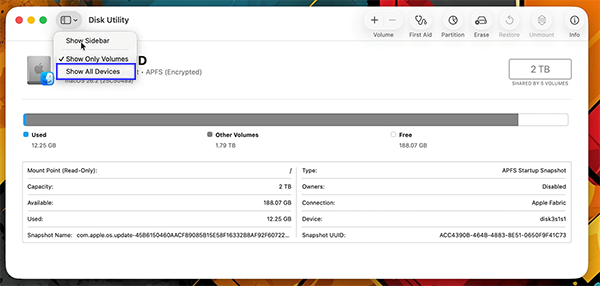
Step 3: Click the View dropdown menu in the top-left corner of the window and select Show All Devices.
Step 4: Locate your SD card under the “External” section in the left sidebar and click on it.
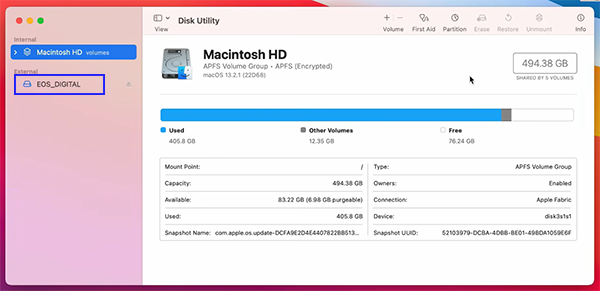
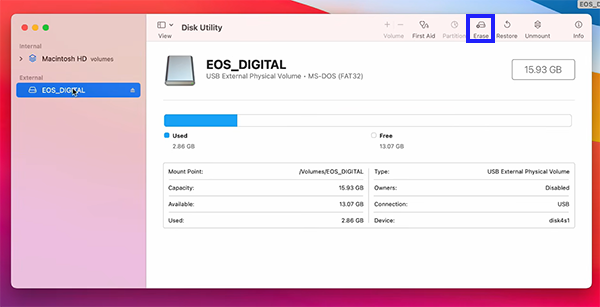
Step 5: Click the Erase button located in the top menu bar of the Disk Utility window.
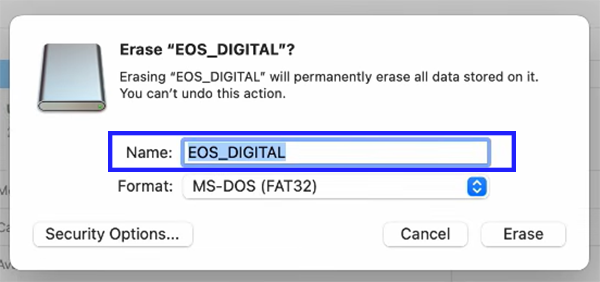
Step 6: Type a new name for your SD card in the Name field.
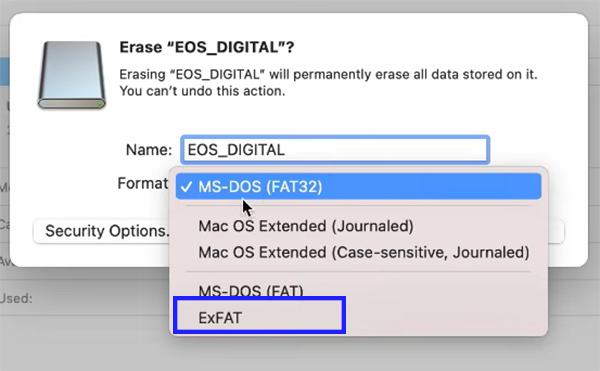
Step 7: Click the Format dropdown menu and choose MS-DOS (FAT) for cards 32GB or smaller, or ExFAT for cards 64GB or larger.
Step 8: Click the Erase button in the pop-up window.
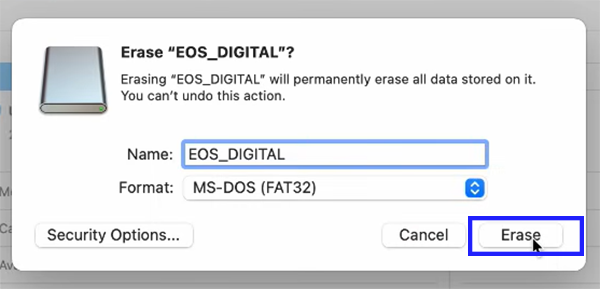
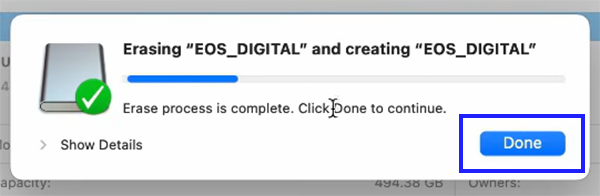
Step 9: Click Done once the progress bar finishes.
Quick Guide: Which File System Should You Choose?
- FAT32: Best for SD cards 32GB or smaller. Use this for older devices, classic game consoles, and basic digital cameras.
Note: You cannot save individual files larger than 4GB.
- exFAT: Best for SD cards 64GB or larger. Use this for modern Android phones, video cameras, drones, and consoles.
Note: Works perfectly on both Windows and macOS.
- NTFS: Best for internal computer drives only. Avoid using this format for portable SD cards because most phones and cameras cannot read it.
How to Format SD Card for Specific Devices?
Formatting your SD card inside the device you plan to use is the single best way to ensure there are no format issues. Gadgets like digital cameras, action cameras, gaming consoles, and smartphones need internal formatting to build their own custom folder paths.
Depending on the device, either a full-sized SD card is used (generally for larger cameras) or a tiny microSD card (for mobile phones and handheld consoles). Here we will see how to format SD card in your camera and mobile phones specifically.
Scenario 1: Formatting SD Card on a Camera
Formatting the SD card right from the camera it is in is also possible; in fact, it is the best way to ensure maximum performance and stability. Because cameras use specific folder structures to organize photos and videos, formatting within the device prevents file system errors. You should always use this built-in feature to clear space on your card rather than deleting files one by one on a computer.
How to format SD card inside a digital camera:
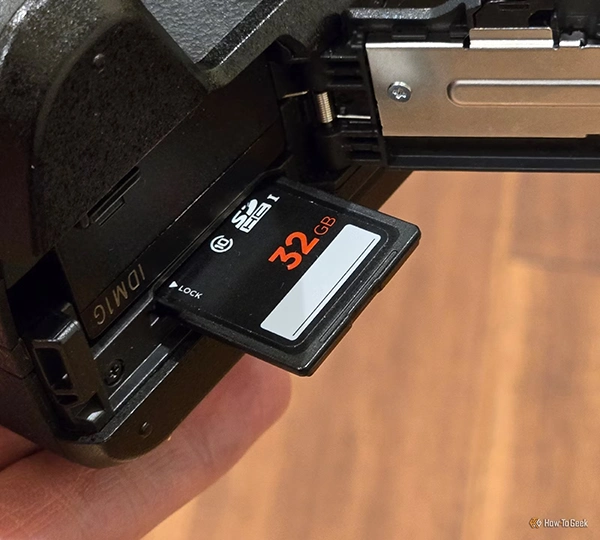
Step 1: Push the SD card firmly into the camera’s slot until it clicks into place.
Step 2: Press the Menu button on the back of your camera body to open the system settings.
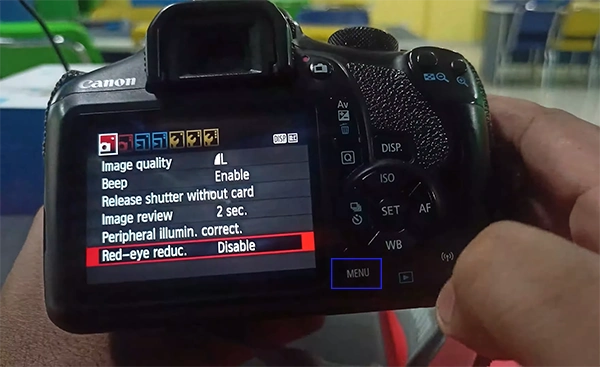
Step 3: Use the directional pad/keys to find the Setup or Options menu, which is generally marked by a gear icon.
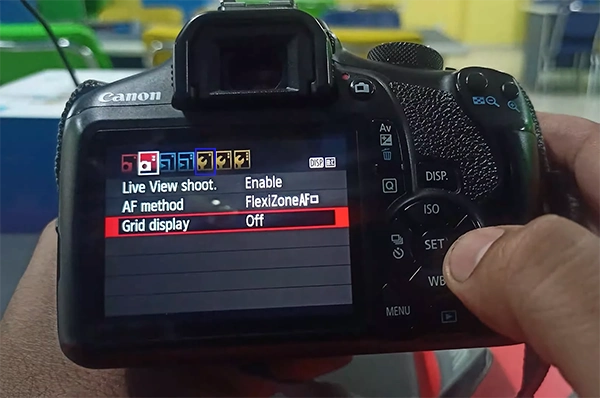
Note: Make sure your camera battery is fully charged so the device does not shut down mid-format.
Step 4: Scroll through the submenus until you find the Format card option.
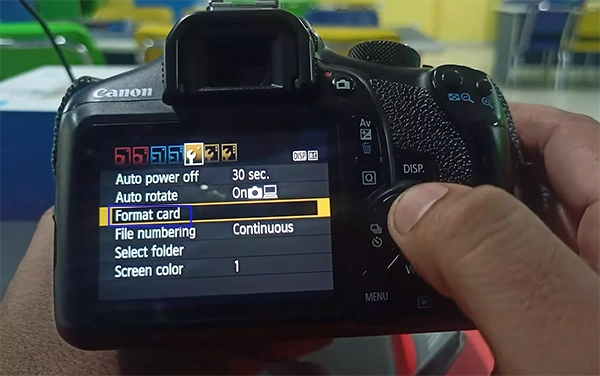
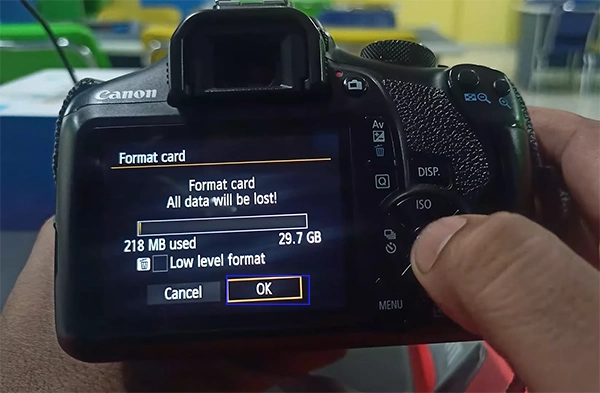
Step 5: Select OK or Enter when the screen warns you that all images or videos will be permanently deleted.
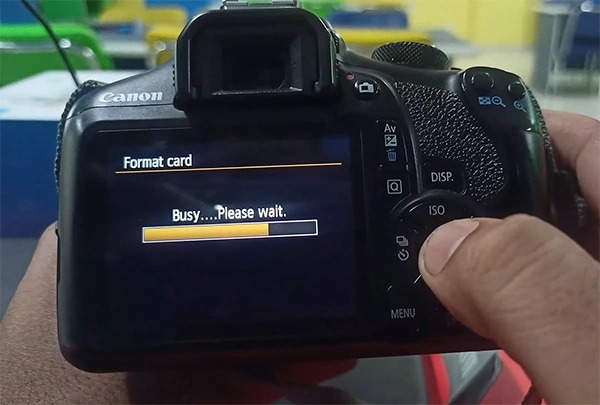
Step 6: Keep the camera steady and do not turn it off until the loading screen disappears and you return to the main menu.
Scenario 2: Format SD Card on Smartphone
Start formatting your phone’s memory card directly inside the device to remove any file compatibility errors. While iPhones do not feature built-in slots, this technique is a must-have for Android owners or anyone connecting a portable card reader to their phones.
How to format an SD card on a mobile phone:
Step 1: Insert the microSD card into your Android phone’s tray, or plug the external card reader directly into your phone’s charging port.
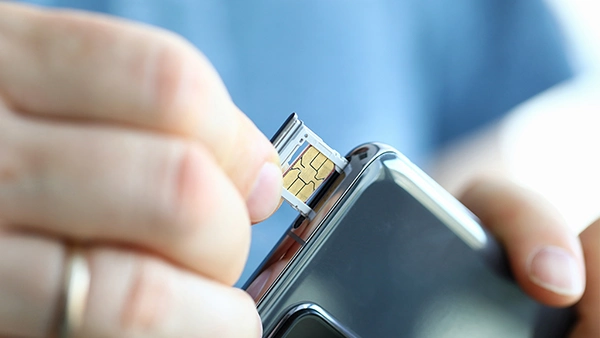
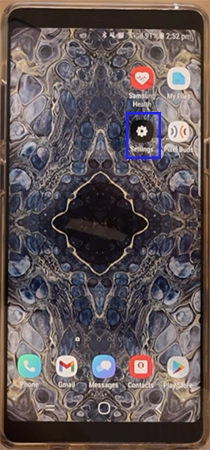
Step 2: Open the Settings app from your home screen or app drawer.
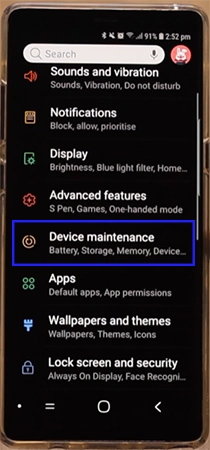
Step 3: Scroll down and select Storage or Device Care, depending on your phone’s design.
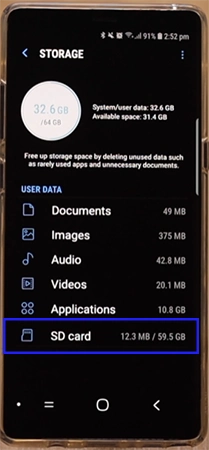
Step 4: Tap on the SD card on your connected external drive from the list of available storage locations.
Step 5: Tap the three vertical dots (⋮) in the top right corner to open the menu, then select Storage.
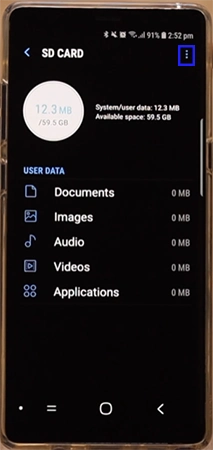
Step 6: Tap the Format option (some devices may show it as Format as portable).
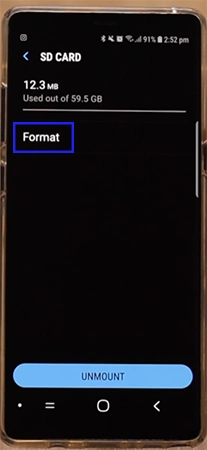
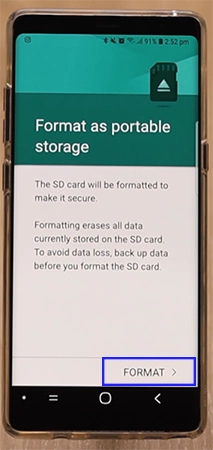
Step 7: Confirm your choice by tapping Format or Erase & Format. Wait for the progress bar to finish before tapping Done.
Troubleshooting Common Issues While Formatting the SD Card
You should format your memory card immediately if you encounter persistent read-only bugs or missing media storage alerts, but before that, make sure you have a backup of the data. When the standard files refuse to be deleted, your hardware shows a problem; reset the underlying file structure as a complete system recovery tool.
Here are certain situations that you might be stuck at and wondering how to format SD card then. Match your problem to these quick fixes below:
SD Card Not Recognized
If your computer or phone refuses to acknowledge your plugged-in memory card, the issue is usually physical or a dirty connection.
- Start by removing the card and gently wiping the gold metal contacts with a dry microfiber cloth to clear away dust.
- If it still fails, test the card in a different USB slot or another device.
Card Shows a “Write Protected” Error
Eject the card and look closely at its left plastic side edge. You will find a tiny tab called the lock switch. Slide it upward to unlock the drive and re-enable full write and formatting capabilities.
Wrong Storage Capacity
You can fix this capacity error by connecting the device to a computer and opening Windows Disk Management or Mac Disk Utility. Simply select the drive, delete any unallocated or broken partition blocks, and run a fresh format.
Device Says “SD Card Is Corrupted”
- Immediately stop saving or downloading files onto the SD card to prevent overwriting the data.
- Run trusted data recovery software to restore any important data.
- Perform a full format to completely clean out the corrupted system sectors.
Formatting Failure
Not able to format SD card due to system blockages or bad storage memory sectors can use Command Prompt for formatting.
- Open Windows Command Prompt as an administrator, start the DiskPart tool, and format SD card.
Conclusion
Formatting SD card is the fastest and most reliable way to clear out space and system data corruption. How to format SD card using File Explorer, Disk Management, Command Prompt, or Disk Utility (on macOS); choosing any of these methods gives you direct, built-in way to format SD card easily. Choose the right file system (exFAT or FAT32) and your storage will remain stable and secure.
Before you start any format, always double-check that you have backed up your important photos and documents to a safe location because this process will permanently erase all data.
Frequently Asked Questions
Does formatting an SD card delete everything?
What is the difference between Quick Format and Full Format?
A quick format only deletes the file directory mapping and makes the card look empty, while a full format completely erases every piece of data from the storage blocks; therefore, it takes a much longer time.
Do SD cards need to be formatted before use?
New SD cards usually come pre-formatted out of the package and are ready to use right away. Yet it is recommended to format SD card before using it because it sets up its own custom folders and storage systems. This prevents any system errors and file glitches later on.
How do I format an SD card without a computer?
You can easily format an SD card without a computer by using your phone or camera settings.
- Just insert the card into your smartphone or digital camera.
- Open the device’s main settings menu.
- Select the card and format option.
Should I format a SD card as FAT32 or EXFAT?
This depends completely on the storage size of your SD card. If your SD card is 32GB or smaller, format it as FAT32. If your card is 64GB or larger, always choose exFAT.
What is the best format for SD cards?
The best all-around format for SD cards is exFAT. It works across both Windows PCs and Apple Mac computers. Also, it is fully compatible with smartphones, drones, cameras, etc.
Do all SD cards support FAT32?
Almost any SD card can be forced into a FAT32 format using computer tools. But modern cards that are 64GB or larger are made natively for the exFAT system instead. So, forcing SD card to use FAT32 can slow down its performance and restrict you from saving files that are larger than 4GB.
What to do if you can’t format a SD card?
If the SD card refuses to format, first check the tiny physical switch on the side of the card or its adapter. Make sure it is pushed up away from the lock position to disable write protection. If it still fails, use Disk management/ Disk Utility or the Terminal commands. It bypasses any system restrictions and allows you direct access. If none of these methods work, the card is likely permanently broken.
Source:
File System Functionality Comparison – Microsoft Learn
Disk Management in Windows – Microsoft Support
Format-Volume – Microsoft Learn
Format a disk for Windows computers in Disk Utility on Mac – Mac Disk Utility User Guide
Related Blogs
You Might Also Like
8 min read
exFAT vs NTFS: What is the Difference Between These Formats? exFAT and NTFS are the two dominant file systems that tell how your computer reads, writes, and manages your files.…
Guides
October 1, 2026

8 min read
BitLocker Recovery Key: Why You Need It and Where to Find It A BitLocker recovery key is a unique, 48-digit numerical password automatically generated to protect your Windows computer from data theft.…
Data Recovery
September 22, 2026
8 min read
How to Check Hard Drive Health (No Software Downloads Required) You can check your hard drive health for free using your computer’s built-in tools like Windows CHKDSK terminal command, macOS…
Guides
September 14, 2026
8 min read
SSD Data Recovery: DIY Steps, Professional Services, Costs, and Prevention You can recover data from an SSD, but the success depends on how fast you disconnect the power to beat…
Data Recovery
September 7, 2026

8 min read
5 Best Free Data Recovery Software: Features, Limits, and Alternatives Finding reliable 100% free data recovery software requires searching through thousands of sites and data-capped trials. In this guide, we…
Top 5
August 24, 2026
8 min read
Data Error Cyclic Redundancy Check (CRC): What It Means, Causes, and How to Fix… A Data Error Cyclic Redundancy Check means that your system has detected corrupted data on your storage drive. This happens…
Data Recovery
August 24, 2026