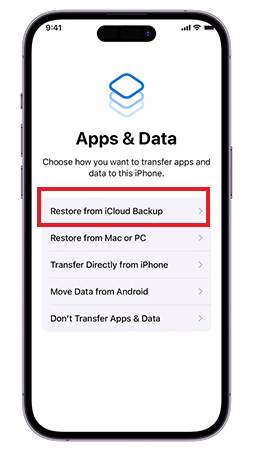
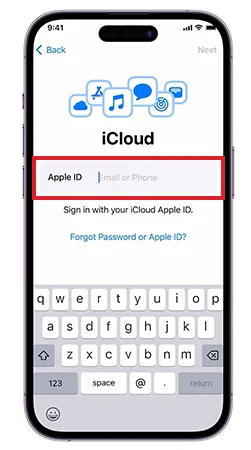
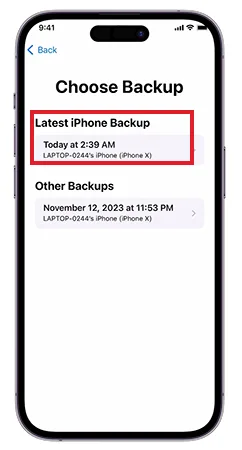
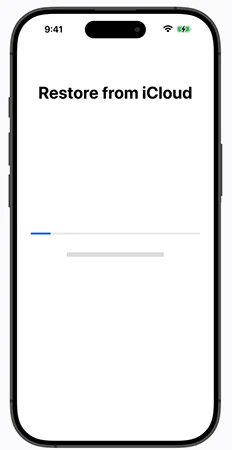
Choose the “Restore from iCloud Backup” option on the initial setup screen and log in with your Apple ID over Wi-Fi. Next, select the most recent backup you wish to restore, and your phone downloads all your apps and data automatically. This is iCloud backup restoration.
In case of no cloud backup, you could also use computer backup restoration using Finder/ iTunes, provided you have maintained an external backup. Apple also offers a service appointment option for frozen or physically damaged devices under certain conditions. This guide helps you to understand step-by-step all the official methods for how to restore iPhone from backup: iCloud and Finder/iTunes backup.
Quick Answer: Apple provides three official recovery options: wireless iCloud synchronization, Mac Finder/Windows iTunes backup, and professional restoration via an Apple Service appointment for severe physical damage. Restoring from iCloud stays the best recovery option, as you just need to format the iPhone and select Restore from iCloud over Wi-Fi; no additional device needed.
How to Restore iPhone from Backup?
Restoring your iPhone from an official backup is the safest way to fully recover your personal data using Apple’s certified ecosystems. Depending on your available storage and tools, you can restore a backup wirelessly or physically through a computer. Wireless is the iCloud backup that lets you restore from anywhere with an active network. The other computer backup lets you flash the full system image onto your phone through Finder/iTunes.
Method 1: Restore iPhone from an iCloud Backup
The best way to restore an iPhone is using an iCloud backup. You simply log in with your Apple ID and select the most recent backup date. Let your phone download everything over a Wi-Fi connection.
Whether you are setting up a new iPhone or recovering a lost or broken phone, an iCloud backup restores your apps, photos, files, contacts, settings, and messages securely. You do not need any other device or software to restore using this method.
Steps to restore iPhone from iCloud backup:
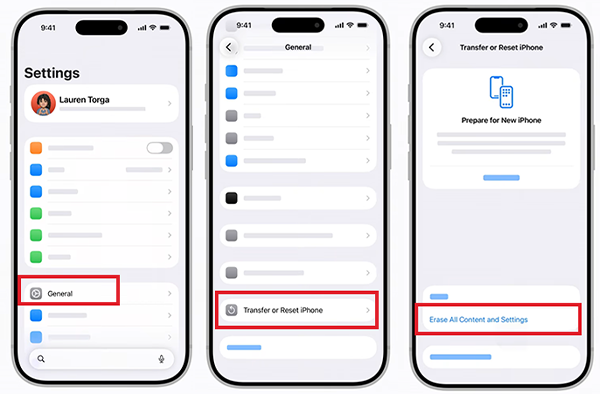
If your iPhone is already set up and you want to overwrite it with an older backup, go to Settings > General > Transfer or Reset iPhone and tap Erase All Content and Settings. Skip this step if you are setting up a new iPhone.
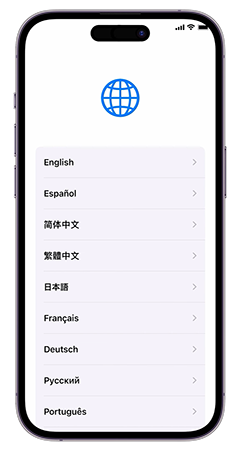
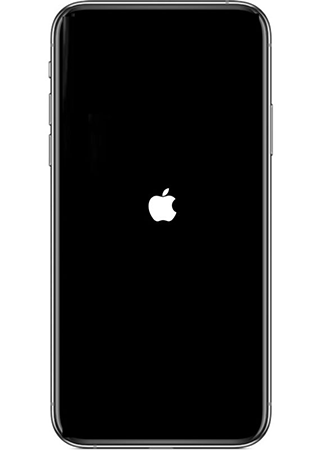
Turn on the iPhone. Follow on-screen instructions. Select your language, region, and set up Face ID or Touch ID.
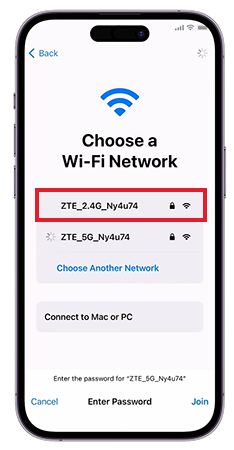
Select a reliable Wi-Fi network from the list and enter the password.
On Transfer Your Apps & Data, tap Restore from iCloud Backup.
Enter the Apple ID email address and password associated with your iCloud backup.
Note: If you have two-factor authentication enabled, enter the verification code sent to your other Apple devices.
From the list of backups available, select the most relevant or recent backup to initiate.
Keep your iPhone connected to Wi-Fi and plugged into a power outlet. Wait for the progress bar on the screen to finish filling.
Method 2: Restore iPhone from a Computer Backup
How to restore iPhone from backup when you don’t have an iCloud backup? Restoring an iPhone from a computer backup is the best alternative when you do not have enough iCloud storage or need a safer offline method. This method is faster because it does not depend on Wi-Fi to download.
There are two ways you can use this method depending on your operating system:
Finder Backup: For newer Mac versions
iTunes Backup: For Windows and older Macs.
Using Mac Finder
For macOS Catalina or newer, Apple has integrated device management directly into the operating system. You need not install any special app or software; just open the built-in Mac Finder and follow these steps:
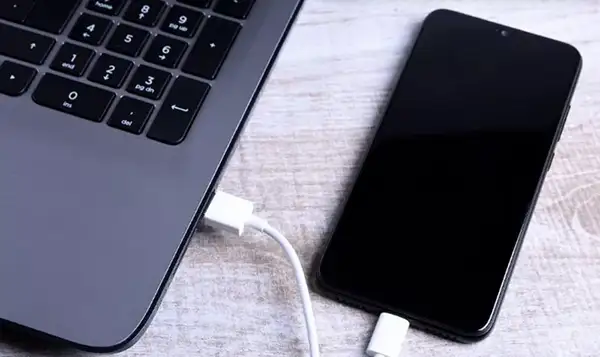
Connect your iPhone to your Mac using a compatible USB or USB-C cable.
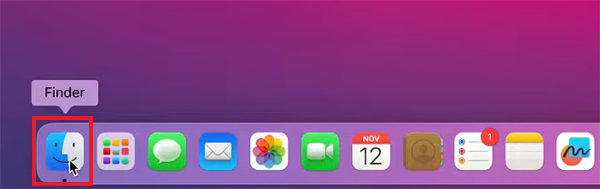
Launch the Finder app from the Dock.
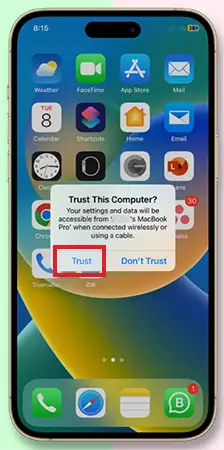
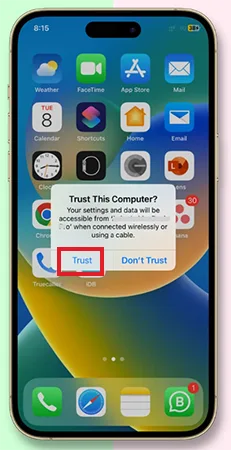
Unlock your iPhone screen and tap Trust to establish a connection between the computer and the iPhone.
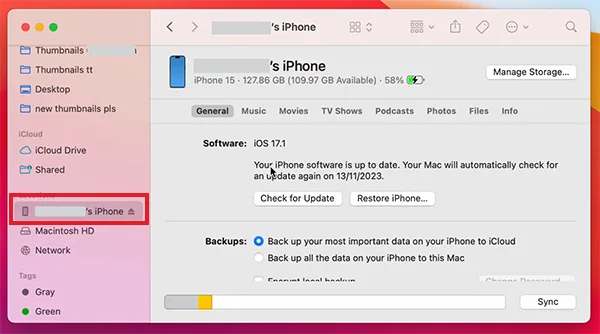
In the left sidebar, select your iPhone’s name under the Locations section.
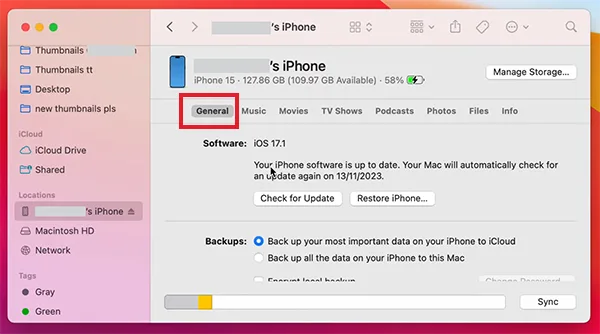
Go to the General tab.
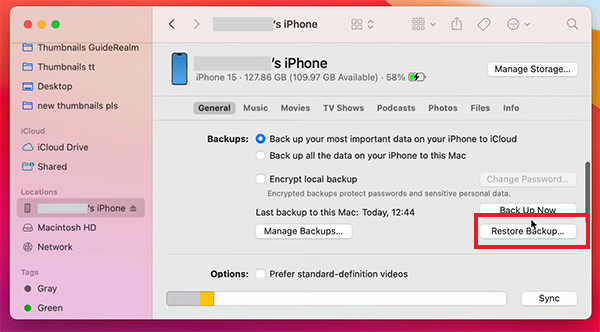
Click the Restore Backup… button.
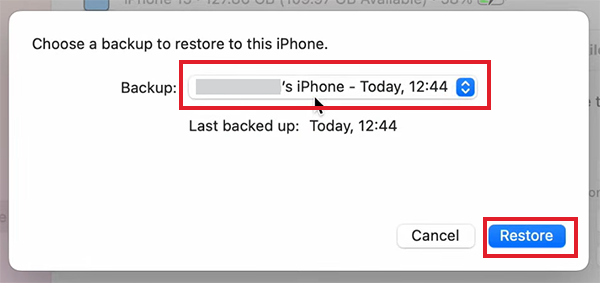
Look at the dates and sizes of the available backups in the pop-up menu. Select the one you want and click Restore.
Leave your iPhone plugged into the Mac while the progress bar fills up. The device will restart once completed.
Using iTunes
If you have older Macs, or even a Windows PC, you can safely rely on the data backup using iTunes. It saves a complete image of your phone’s data safely onto your computer’s local storage. When deciding between data backup vs data recovery from a computer, this is a great offline fallback whenever cloud recovery options fail or run out of space.
Use a reliable cable to connect your iPhone to your PC.
Unlock the iPhone and tap Trust.
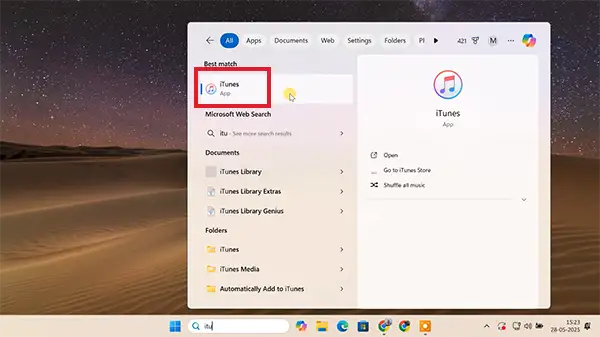
Open the Apple Devices app (Windows 10/11) or iTunes if you are on an older setup.
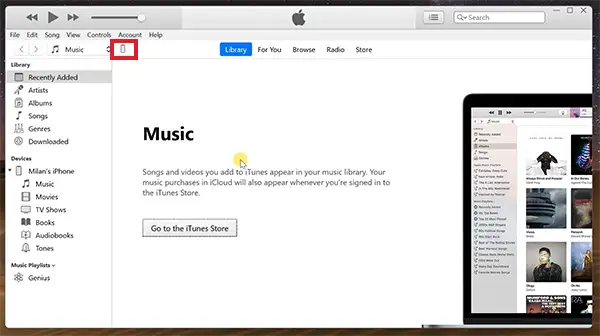
Click the small iPhone icon near the top of the iTunes window.
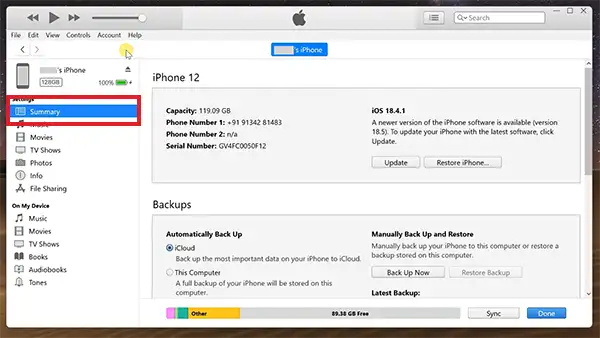
Go to the Summary or General tab.
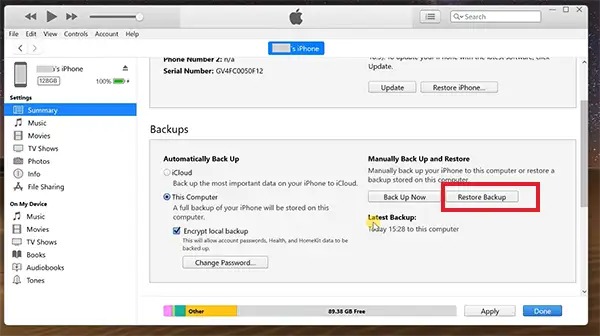
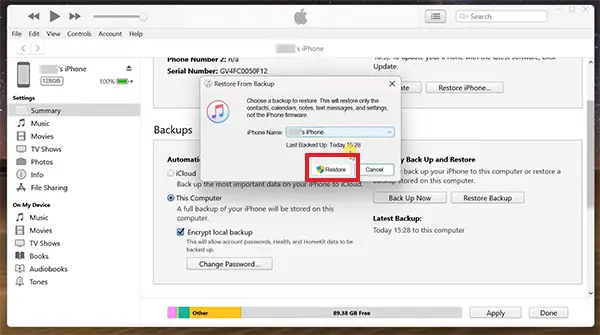
Click the Restore Backup button.
Select the backup and click the Restore button.
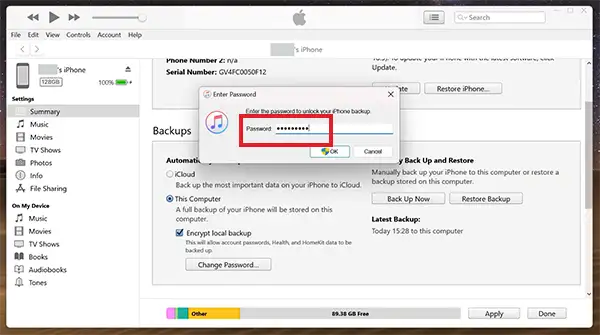
Enter Password (if prompted).
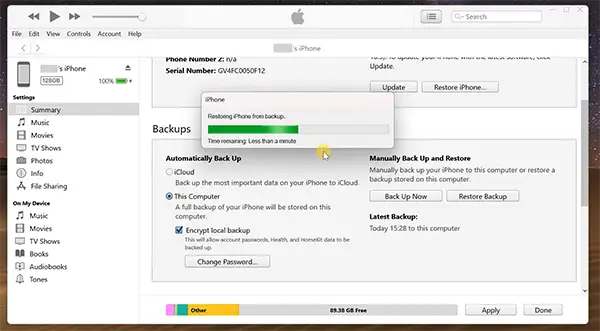
Keep your iPhone connected to the PC completely undisturbed. This process might take a while.
Method 3: Professional Restoration via an Apple Service Appointment
Professional restoration services are for when an iPhone suffers from severe software corruption or needs hard drive repair. Booking an official appointment connects you with Apple Genius technicians. They use specialised diagnostic tools to safely wipe and revive completely unresponsive devices, too.
Why and When to Use an Apple Service Appointment
The iPhone is stuck in a permanent boot loop, or the screen stays completely black.
Unable to access iCloud or a computer backup.
Mac or PC shows unknown error numbers during the restore process.
Suspect a failing battery or a broken port on the Mac.
If you just received your iPhone back from an Apple Store or an Apple Authorized Service Provider, it will likely be returned to you wiped or replaced with a factory reset.
You must choose one of the core methods mentioned above or iPhone data restore software
to get your data back.
Be careful: Setting up your phone as a new device and leaving it that way can cause new automatic iCloud backups. This may overwrite and replace your old backups.
Troubleshooting Common iPhone Restoration Issues
Though Apple systems are highly reliable, it is common to run into unexpected issues during the process. You might see frozen progress bars, insufficient storage pop-ups, and forgotten password prompts that lock you out of your backup data. This section shows how to handle such scenarios, giving you what to do in each situation.
Greyed Out iCloud Restore Option
This issue usually means your iPhone’s current operating system is older than the iOS version used to create the backup. This is one of the prerequisites before choosing a backup method.
You need to install the latest iOS (go to Settings > General > Software Update). Once updated, erase your phone again via Settings to return to the setup screen. Now, the iCloud option will be fully accessible.
“Not Enough Space to Restore Backup”
The restoration will fail if the local or cloud backup is slightly larger than your iPhone’s available physical storage capacity.
To fix this, you should select only the needed files while making a backup. Selectively sync only essential files or delete large apps and data from the iPhone before creating a backup image.
“Forgot Encrypted Backup Password”
Apple cannot reset the password it created for safety reasons. So, if you forgot the local password that encrypts your Mac or PC backups, you should try an older desktop password or just reset your system settings to create a new unencrypted backup file.
Slow Downloads
Network issues can result in slow downloads. Disconnect any other high-bandwidth devices from your Wi-Fi network, or try connecting to a more reliable network for download.
Fun Fact: The welcoming “Hello” text that is displayed during new iPhone setups honors the original 1984 Macintosh computer launch design.
A Quick Wrap on iPhone Recovery
Restoring an iPhone from a backup is possible in 3 ways: using iCloud backup, computer backup (Finder/iTunes), and seeking professional restoration services. Whether you are setting up a new phone or recovering data on an older phone, choosing the right method depends solely on your available tools and storage.
iCloud Restore: Restores data completely wirelessly over Wi-Fi. No need for a computer.
Computer Restore: Uses a high-speed USB cable to flash local backups using Mac Finder or Windows iTunes.
Apple Services: Professional services to revive completely broken or unresponsive devices.
Keep your backups regular and follow the step-by-step prompts carefully to restore iPhone backups safely.
Frequently Asked Questions
How to restore iPhone from backup?
To restore your iPhone from a backup, you must be on the initial “Hello” setup screen. If your phone is already set up, you need to erase it first. Go to Settings > General > Transfer or Reset iPhone > Erase All Content and Settings.
Choose to restore from an iCloud backup once the device resets. You can also restore your iPhone using a computer backup (Finder or iTunes backup).
How to restore backup from iCloud to iPhone?
Restoring a backup from iCloud to an iPhone:
Turn on your new or erased iPhone.
Follow on-screen instructions. Select language, region, etc.
Tap iCloud backup from the Transfer Your Apps & Data screen.
Enter your iCloud Apple ID and password.
Select the backup from the list displayed.
Keep your phone connected to Wi-Fi while the backup downloads.
Can I restore an iPhone back from a newer iOS version to an older iOS version?
No, you cannot restore a backup made on a newer iOS version onto an iPhone running on an older iOS version. Apple’s security system prevents backward compatibility to avoid software errors. You need to update your iPhone to that same version (or newer) during the setup process before the backup can be applied.
Does restoring my iPhone from a backup delete my current data?
Yes. Restoring a backup will completely overwrite and replace the current data on your iPhone. The restoration process itself wipes the phone first, which deletes all existing data such as files, apps, downloads, etc. Any new data created after the backup was made is permanently lost unless you manually save it to an external source before beginning.
Can you restore a backup on an iPhone without resetting?
You cannot restore a full system backup without completely resetting your iPhone first. The official Apple recovery process using iCloud or a computer needs the device to be on the initial setup screen. This means you have to wipe all current data. If you want to restore only specific items like photos or contacts, you should sync them individually through iCloud settings instead.
How do I retrieve something from my iCloud backup?
You cannot extract single items directly from a full iCloud backup. To restore something individually from iCloud, you should log in to the official iCloud website on a computer browser and download synced files like photos, notes, contacts, etc.
Is it better to set up as new iPhone or restore from backup?
Restoring from a backup is the best option if you want to keep all your data and personal preferences as they were. But setting up a new iPhone is better if your old phone was glitchy or completely out of space.
How long should it take to restore an iPhone from backup?
The time to restore an iPhone from a backup depends on the size of the backup. For Finder/iTunes, it might take from 15 to 60 minutes while for iCloud, it will take longer around 1 to 3 hours and more because computer backup is done through USB cable that makes transfer faster.